- Check who the default placement owner is
- Check when placement sales will be assigned
- Build a placement report or check your existing one
- The placement is not showing or is assigned to another user
- All placements are there but some figures are not quite right
- Why have my monthly sales figures disappeared?
Check who the default placement owner is
The first thing to do is to check who sales are assigned to if you have multiple people working on one job. For example, one user might own the job record, but another user might have logged the placement, so you need to figure out who is assigned the sales as default.
-
Go to Settings > Job Configuration.
-
Select either Permanent Workflow or Contract Workflow (check both if you use both).
-
Go to Placements > Placement Owner.
-
Review the user who is automatically assigned sales.
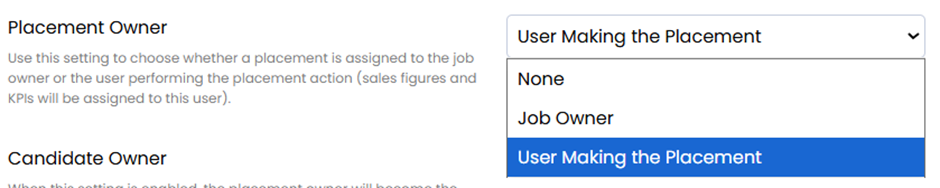
If you own the job and somebody else logged the placement, or vice versa, you can quickly figure out who the sales will have likely assigned to.
Please note that if you change the option that’s already set, this will only impact future placements.
Check when placement sales will be assigned
-
Go to Settings > Job Configuration > Permanent Workflow.
-
Select Placements > Confirm Sales.
-
Check whether sales are based on Placement Date or Start Date.
Please note that if you change the option that’s already set, this will only impact future placements.
Build a placement report or check your existing one
Whether you use the homepage Sales Plan or a bespoke report on the Report Dashboard, please follow these steps, or ensure that your existing report matches the requirements below.
-
Go to Analyse > Report Dashboard.
-
Use the dropdown in the top-left to select the correct dashboard.
-
Find a blank tile and select Add.
-
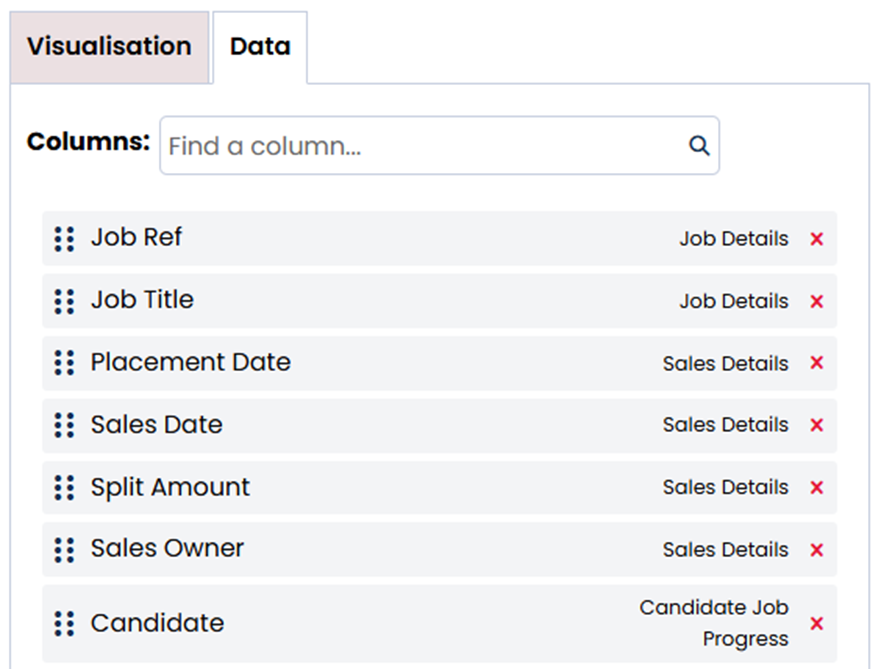
Complete the Visualisation tab:
- Title – Name the report as you see fit (i.e. ‘Placements’ or ‘Sales’)
- Card Type – Choose your preference (this is just the visual way it will look on the dashboard)
- Module – Job
- Primary Display – Placement Date or Placement Start Date (depending on your preference)
- Secondary Display – You may wish to leave this blank or choose any of the available option
- Measure By - Either option will be suitable
- Date Range – Choose whichever pre-set time period you’re looking to review, or set a custom date range
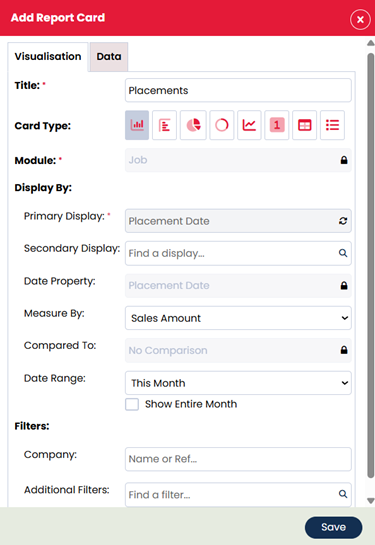
5. You can then click into the Data tab at the top. In here, we recommend that you include the following columns which you can add via the Columns field at the top:
7. Use the filters at the top of the page to choose which users to display.
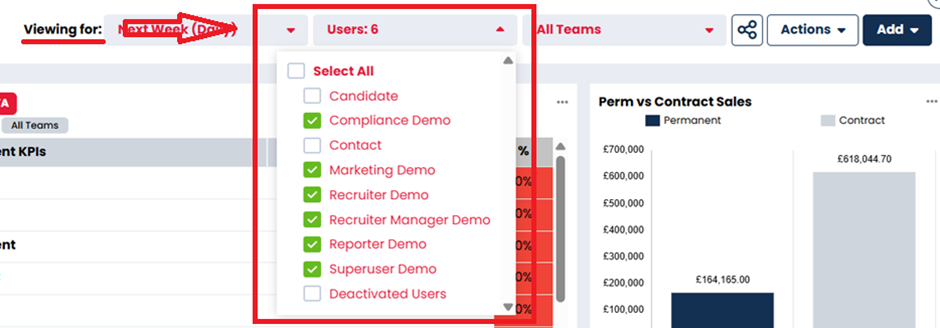
8. Open the report and select ⋮ (three dots) > View All Data to check what is displayed.
If a placement is missing, sales are likely assigned to another user.
If a placement is present but the figures are incorrect, you will need to check the job and placement record.
The placement is not showing or is assigned to another user
If a placement isn’t appearing where you expect it to:
-
Open the job record.
-
Go to the Placement tab.
-
Select the cog beside the placement and choose Edit.
-
Scroll to the bottom and select Splits.
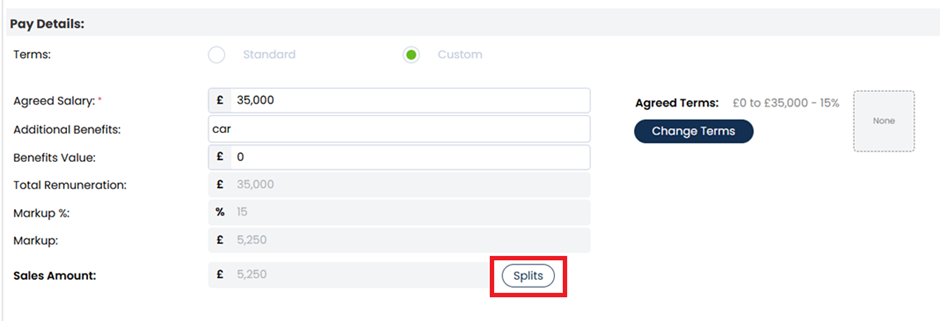
You will then get a pop-up which will tell you who the sales have been assigned to and when they take effect:
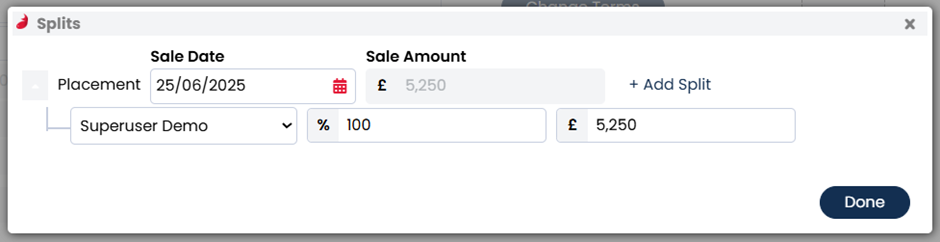
It might be that the sale is assigned to a different user, or that the sales date is outside of the timeframe you were looking at on the report.
If you need to amend the split:
-
If sharing sales with another user, select Add Split and update the details.
-
Select Done, then Save on the placement record.
-
When prompted, confirm the details (placement emails will appear and can be skipped or sent).
Your report should now update with the correct information.
All placements are there but some figures are not quite right
This usually indicates an issue with the mark-up or margin applied on the placement.
-
Open the job and go to the Placement tab.
-
Select the cog beside the placement and choose Edit.
-
Scroll to the bottom and select Change Terms.
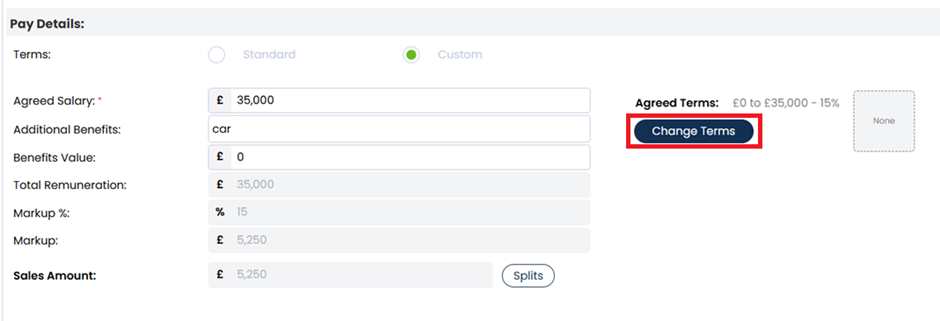
A side panel will open showing the terms applied to the placement. When the panel opens, you may see that the terms are set to Standard:
-
If using default terms: These come from Settings > Company Configuration > Terms.
-
If the company has its own terms: These come from the Company record > Terms tab.
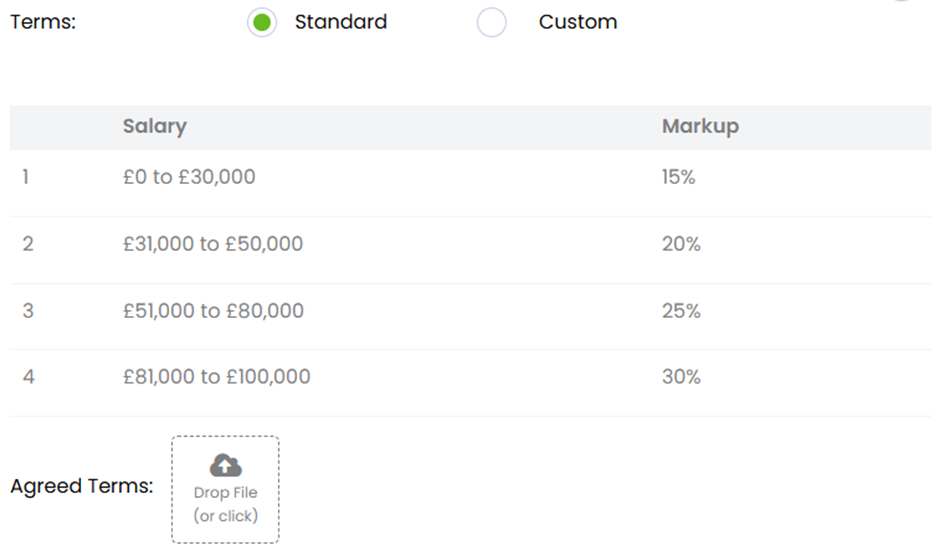
If this is what you want to use then ensure that the salary logged on the job is correct.
For example, if the salary is £35,000 then you would expect the fee to be showing as 20%, based on the above screenshot.
You might instead see that the terms are set to custom - or you might with to make them custom. Here you can dictate your own bandings, and the relevant fee percentage. When using custom banding, ensure that your salary is included.
For example, if the salary is £35,000, but the banding only goes up to £25,000 then your figures aren’t going to be correct.
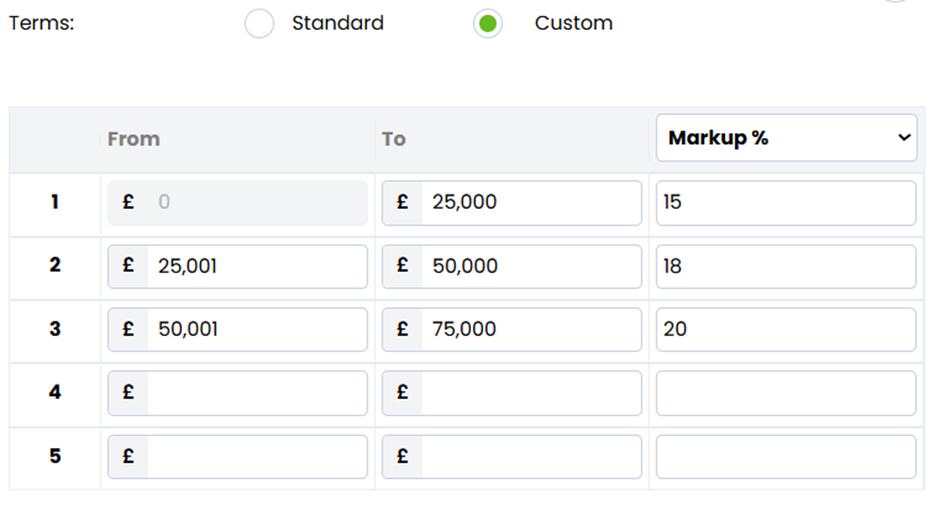
Once you’re finished, click Save on the side panel, then Save at the bottom of the page. You will be asked if you would like to reconfirm the details, and you should say yes to this. The usual placement emails will appear. You can skip or send these as you see fit.
When you return to your report, the updated information should now be showing.
Why Have My Monthly Sales Figures Disappeared?
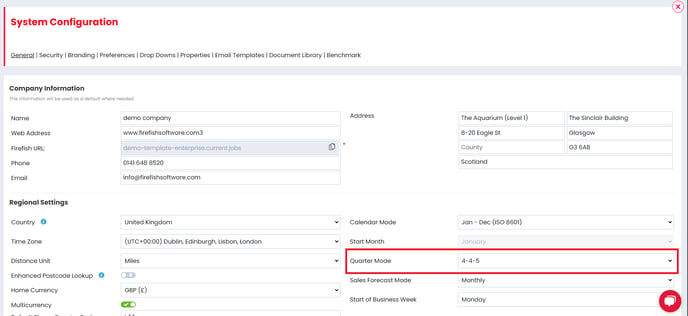
If your monthly sales figures seem to have disappeared, this may be caused by the quarter mode in the system.
As there are 13 weeks each quarter. there will be two months with 4 weeks and one week with 5 weeks. If the first two months of the quarter have 4 weeks, with the last month having 5 weeks, the quarter mode would need to be set as 4-4-5.
If the quarter mode is set incorrectly, it may mean your sales figures disappear from your sales plan a week early.
Superusers can update the quarter mode settings and other settings relating to the calendar in your system by clicking through Settings (cog) > System Configuration.