Once your shifts are set up, the next step in the Temp workflow is scheduling the right candidates into those shifts. This article shows you how to assign candidates, apply rest rules, confirm attendance, and manage availability—all within the Availability Pool.
- Assigning Candidates to a Shift
- Assigning Shifts to a Candidate
- Why can't I add a candidate to a shift?
- Confirming a Candidate on a Shift
- Rest Rules
- Candidate Statuses
Assigning candidates to a shift
You can assign one or multiple candidates to a shift from the calendar view by selecting candidates to drag and drop onto a shift.
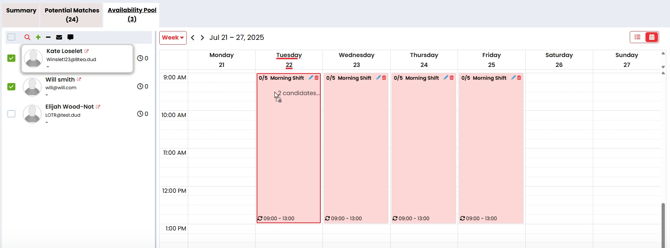
Assigning Shifts to a Candidate
On the list view, you will see that any shifts with open positions show on the right hand side of the page.
The shift will show on the right hand side of the page until all positions have been confirmed.
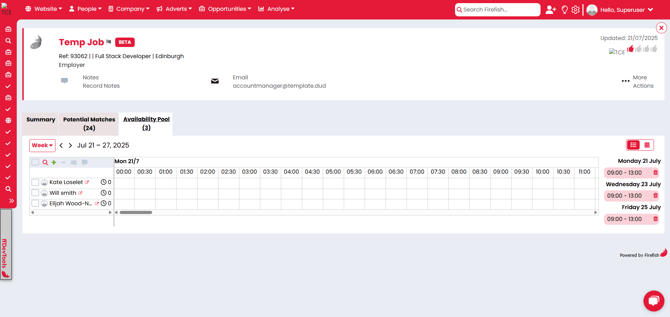
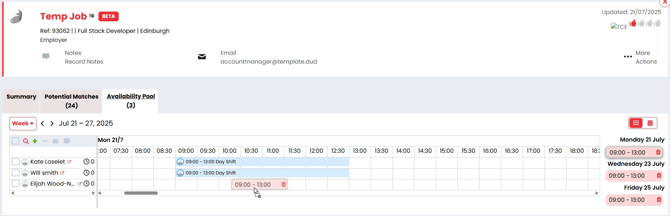
You can assign a shift to a candidate by dragging and dropping the shift:
Why can’t I add a candidate to a shift?
If you’re unable to add a candidate to a shift, check the following:
| Reason | Description | What you need to do |
|---|---|---|
| Candidate is on rest | The shift overlaps with a rest period already added to the candidate’s availability. | Review the candidate’s availability and select a shift outside their rest period. |
| Overlapping status | The shift overlaps with an existing status, such as Holiday, Sick or Not Available. | Review the candidate’s statuses and select a shift that does not overlap. If the status is incorrect, update or remove it before trying again. |
| Overlapping shift | The candidate is already assigned to another shift that takes place at the same time. | Review the candidate’s assigned shifts and choose a shift that does not overlap. |
| Candidate will be non-compliant | One or more of the candidate’s required compliance details will no longer be valid when the shift takes place. | Review and update the candidate’s compliance details before adding them to the shift. |
| More than six consecutive shifts | Adding the candidate would result in them working more than six consecutive shifts without the required rest period. | Review their schedule and assign the shift to another candidate or rearrange their shifts to provide the required rest period. |
| Automatic rest would cause an overlap | The automatic rest period added after the shift would overlap with another confirmed shift or an existing status. | Review the candidate’s schedule and select or rearrange shifts so the required rest period does not overlap with another commitment. |
| All positions have been filled | The shift already has the required number of confirmed candidates. | Increase the number of positions required on the shift, if appropriate, or assign the candidate to another shift with an available position. |
Confirming a Candidate on a Shift
When a candidate has been added to a shift, the status is automatically set to Pending. You'll know when a candidate is pending, as their profile picture will be outlined in blue.
You can update the candidate status by selecting the candidate profile picture and selecting one of the following statuses:
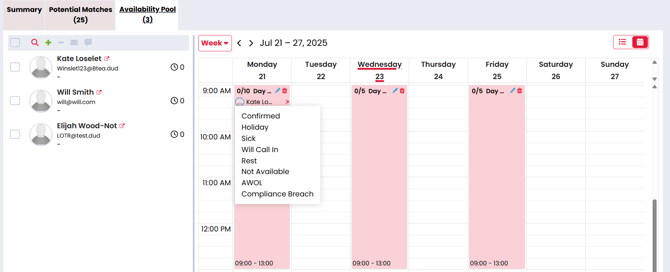
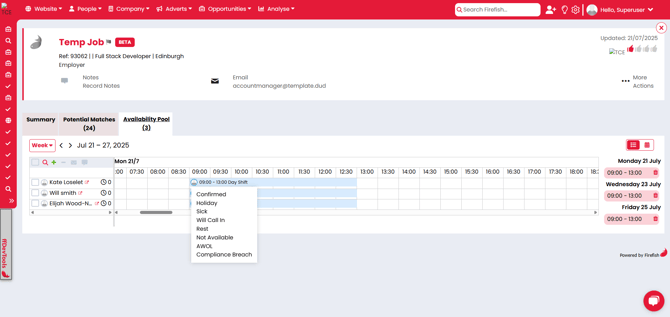
When a candidate is confirmed, you will see that the outline of their profile picture is updated to green: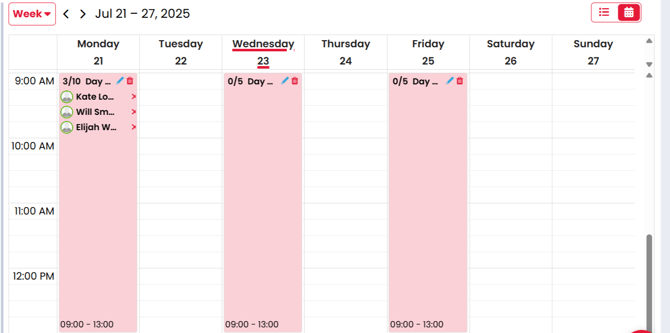
Once a candidate has been confirmed on a shift, the number of open positions will be reduced by one.
Rest Rules
When a candidate is confirmed on a shift, a mandatory rest status is added for 9 hours from the end of the shift.
If a candidate has worked 6 consecutive days in a row, the mandatory rest period added after the 6th shift will be 24 hours.

Candidate Statuses
You can assign a candidate one of the following statuses:
- Holiday
- Sick
- Will Call In
- Rest
- Not Available
- AWOL
- Compliance Breach
When a candidate has been added to a shift, you can update their status by selecting their profile picture on the shift.
If you select a status option (not pending or confirmed), this will remove the candidate from the shift and update their availability for the time of the shift.
To assign a status to a candidate from the list view on the availability you can select a date/time to show the 'Add a Status' modal:
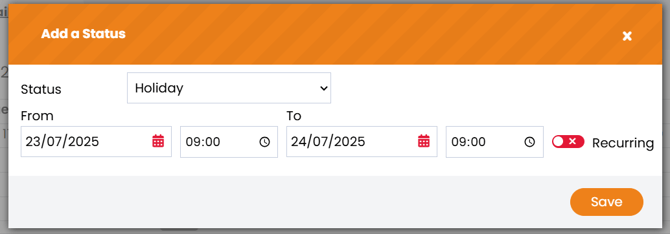
From this modal you can populate:
- The Status
- From Date/Time
- To Date/Time
When saved, the status will be added to the candidate availability list view: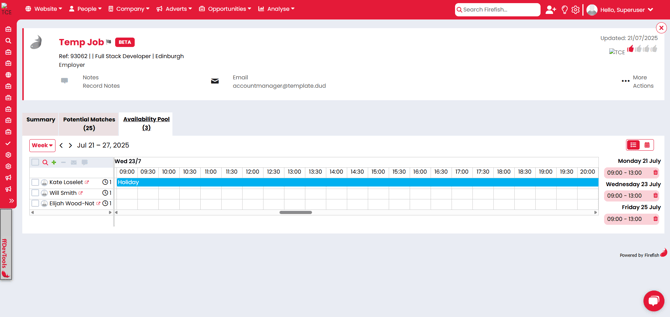
If a candidate has a recurring status, this can be added by toggling the 'Recurring' option: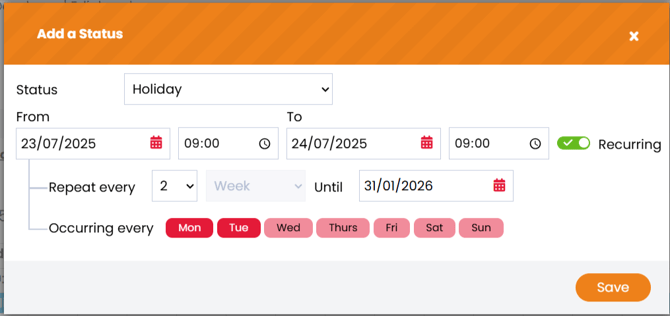
This allows you to populate:
- The frequency, in weeks, that the status should be repeated
- The end date of the recurring status
- The days that the status should occur
When saved, the occurrences of the status will be added to the candidate availability list view.
Shifts and Statuses are not allowed to overlap. This means you'll not be able to:
- Add a candidate to a shift that overlaps with an existing shift or status already assigned to a candidate.
- Add a status to a candidate that overlaps with an existing shift or status already assigned to a candidate.