Document eSign allows you to send candidate and employer contracts for secure electronic signature directly from Firefish. By configuring your workflow settings and placement email templates correctly, you can automate contract delivery, reduce manual admin, and streamline the placement process. This article explains how to enable Document eSign and configure the required merge fields for successful contract signing.
Activating Document eSign
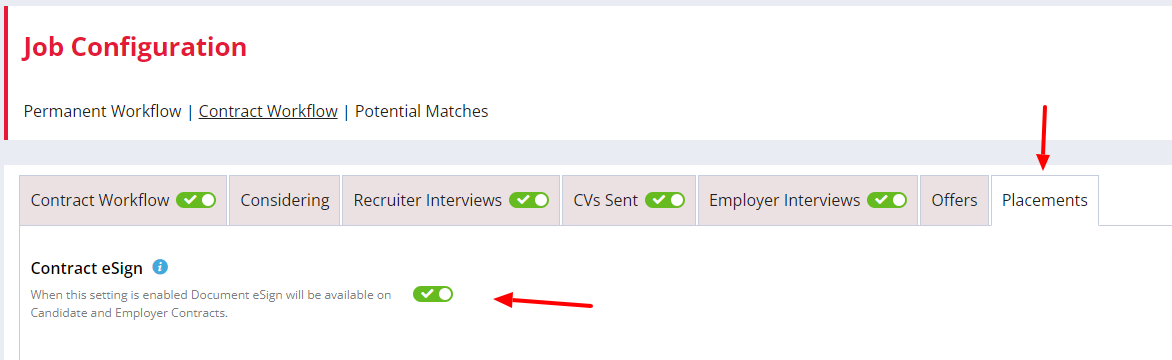
Document eSign can be added to your Candidate and Employer contracts on your Contract Job Workflow by enabling the Contract eSign setting:
-
Go to the settings cog.
-
Select Job Configuration.
-
Choose Contract Workflow.
-
Go to the Placements tab.
- Switch on Contact eSign.
⚠️ Now that the eSign feature is available for you to add to your contracts, you will need to set up your placement emails so that recipients will receive the link to sign their contracts - learn more in the below sections.
Candidate Placement Emails
To amend the Candidate placement email:
-
Go to the settings cog.
-
Select System Configuration.
-
Go to Email Templates.
-
Select the Module: Jobs.
-
Select the Category: Contract.
-
Choose the Placement - Candidate (PAYE) Email Template (and repeat on the LTD version).
-
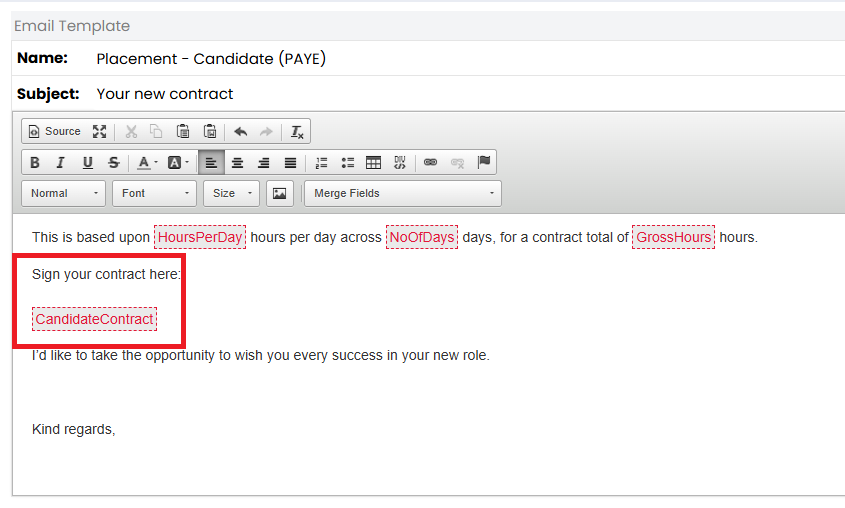
It is crucial that you include the CandidateContract mergefield, as this is what will link the candidates to the contact when the email is sent.
- Click Save.
Contact Placement Emails
To amend the Candidate placement email:
-
Go to the settings cog.
-
Select System Configuration.
-
Go to Email Templates.
-
Select the Module: Jobs.
-
Select the Category: Contract.
-
Choose the Placement - Contact Email Template.
-
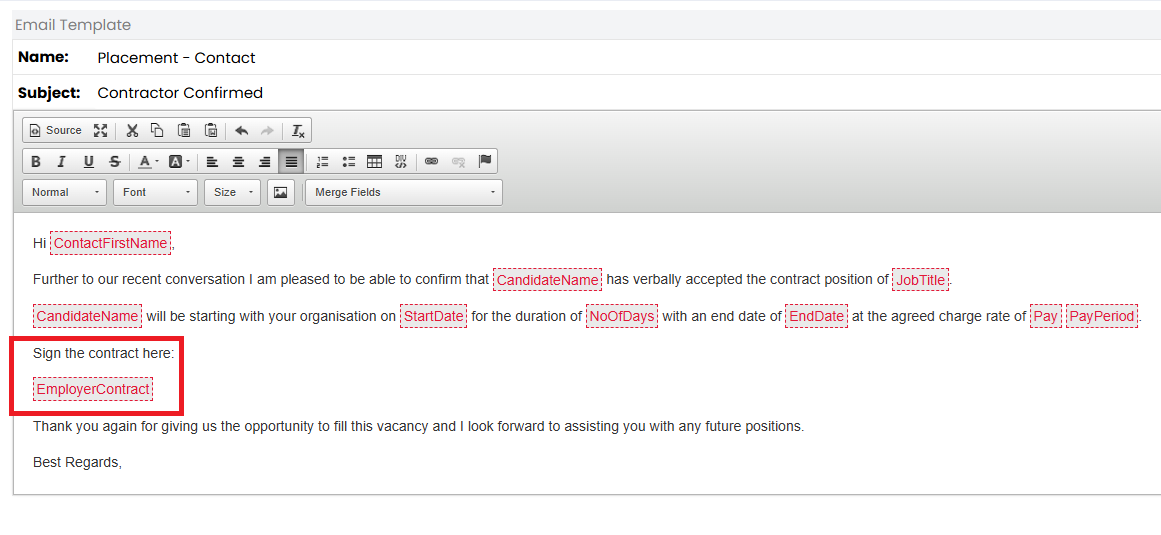
It is crucial that you include the EmployerContract mergefield, as this is what will link the contacts to the contact when the email is sent.
- Save.