Setting up team structures in Firefish helps organise your users and ensures accurate visibility across dashboards and reports. This guide explains how to create teams, assign users, and keep your structure up to date as your business grows.
Access Team Structure
To create or edit teams, you first need to open the Team Structure settings.
- Go to Settings
- Select User Management
- Click Team Structure
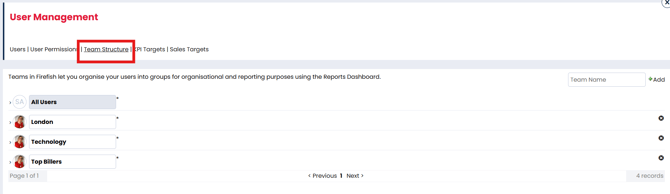
Create a New Team
You can create additional teams to reflect your business structure.
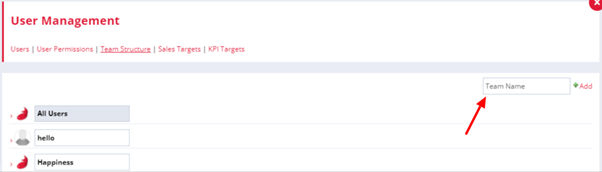
- In the Team Structure screen, locate the team name field
- Enter the name of your new team
- Click Add
Once a team has been created, you can assign users to it.
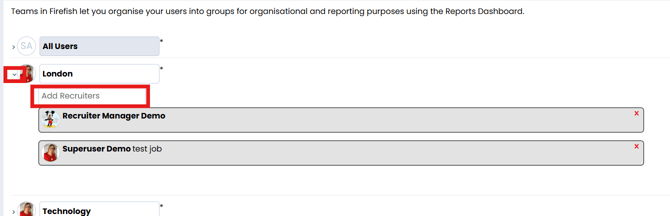
- Click on the team you want to update
- In the Add Recruiters field, begin typing the user’s name
- Select the correct user from the dropdown list
Now that your Teams are set up, you can go to the User Permissions settings page to decide which types of users have permission to complete their team members To Do list tasks.
Maintain Your Team Structure
Keeping your team structure up to date ensures accurate reporting and visibility.
- Review your teams regularly
- Add new users to the appropriate team as they join
- Update team membership when roles or responsibilities change
Important: If new users are not added to a team, they may not appear correctly in team-based reporting.
Note: All systems include a default team that contains all users. You can build additional teams alongside this to reflect your internal structure.