- What is the Details Tab?
- How Do I Create New Details?
- Organising, Amending and Editing Details
- Top Tips for Managing Compliance
What is the Details tab?
The Details tab on a candidate record allows you to record key compliance information, ensuring the candidate meets the legal and regulatory requirements to be eligible for work. For example you may log whether somebody has the Right to Work in the UK, or if they have passed necessary checks like background vetting, or criminal disclosures. These records help recruiters to meet legal obligations like Agency Workers Regulations (AWR).
You have full control over the Details tab and all of the fields which show on it are completely bespoke to your site.
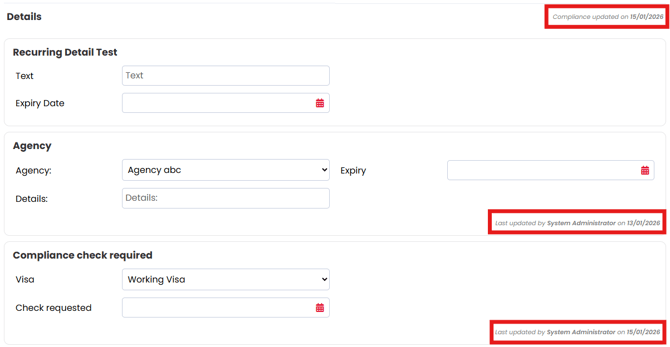
Each compliance detail section will display the last user to update it, as well as the date it was updated on. The date of the most recent update will display at the top of the page.
How Do I Create New Details?
Only Super Users can create new details. To do so, they should follow these steps:
- Go to settings.
- Open People Configuration.
- Navigate to Compliance Details.
- Select Add at the bottom of the list.
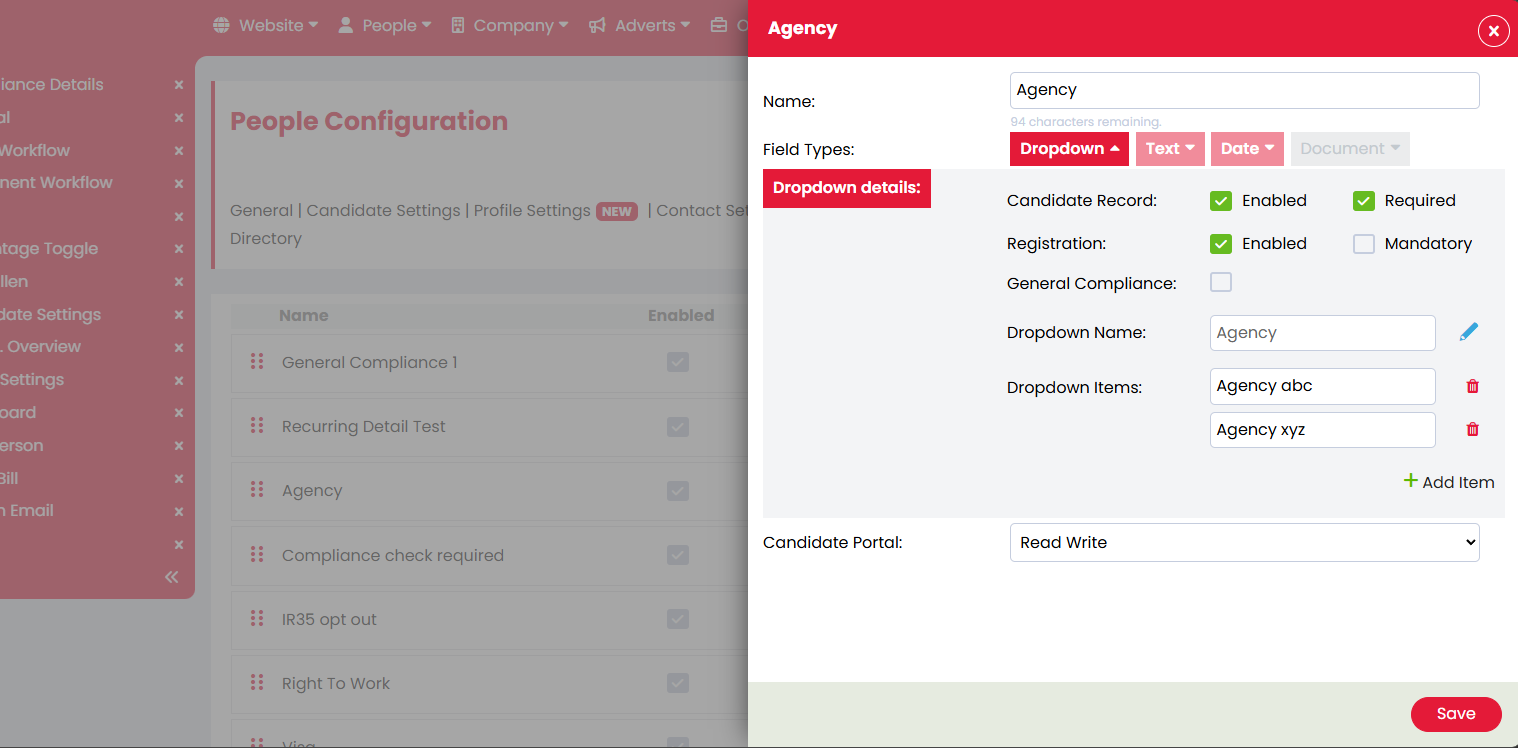
- Give the Detail a name.
- Click into which ever detail type you wish to use (you can have one or any combination under the same detail). You will need to repeat steps 7-10 for each detail type (or steps 7-11 for dropdowns).
- Enable the Candidate Record option. If you want this to be required for profile completeness, tick this also.
- Optional: If you want to be able to add the detail to your registration form, tick Registration. If you want to be able to make the question mandatory, tick this too.
Note: This will not add the question to the registration form, it just makes it available to add. - Optional: If you want clients to be non-compliant if this detail is not answered, tick General Compliance. If a candidate is non-compliant then you won't be able to place them in a job.
Note: You cannot dictate if a specific response is required to make them compliant or non-compliant, just if it is answered. - Give the type a name - this is usually an instruction or guidance on what the answer should be (i.e. a date might be Expiry Date, or for a document you might have Upload).
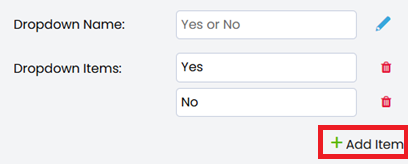
- For Dropdowns, once you've added the name you can create the dropdown items by clicking Add Item. You can also remove items by clicking the red bin icon, or rename them by clicking into the field and typing.
- Choose the Candidate Portal settings. You can dictate whether a detail is editable (read write) by candidates, if it is read only, or if it is completely hidden.
Note: Candidate Portal settings are the same for all types, as it is for the overall detail, not the individual type within the detail. - When you're finished, hit Save.
Organising, Amending and Editing Details
If you wish to amend the existing list of details in any way then you need to navigate to the Compliance Detail settings.
- Go to settings.
- Open People Configuration.
- Navigate to Compliance Details.
Now that you're in the right place, you can take the following steps:
 Change the order of the details - If you need to rearrange the order of the details then click the six dots to the left of the detail you wish to move, then drag it and drop it into the correct position.
  Edit a detail - Click the blue edit pencil to the right of the detail.
  Remove the detail - Click the red X icon to the right of the detail. When you click the X it will remove it from candidate records, but it will still show in the list and you can still see how many records had this detail completed.
  Reinstate a removed detail - Click the circular arrow the the right of the detail. This will add the question back onto the Details tab on candidate records, and any which were previously completed will have the same response logged as before.
  Delete a detail - Once a detail has been removed, if you wish to permanently delete it and all responses logged against it, select the red bin icon in the removed detail.