Use the Timesheets list to view, filter, update, export and communicate about contract timesheets in Firefish.
The Timesheets list helps you manage contract timesheets at scale. You can open a timesheet directly from the list, update it in the side panel, filter by owner, candidate, company, status and period, export your current view, and send bulk communications to candidates.
Contents
- Open the Timesheets List
- Understand the Timesheets List
- Open and Update a Timesheet
- Navigate to Related Records
- Filter the Timesheets List
- Use the Timesheets Due Dashboard Item
- Select Rows and Use Bulk Actions
- Export the Timesheets List
- FAQ
Open the Timesheets List
To open the Timesheets list:
- Go to Opportunities.
- Select Timesheets.
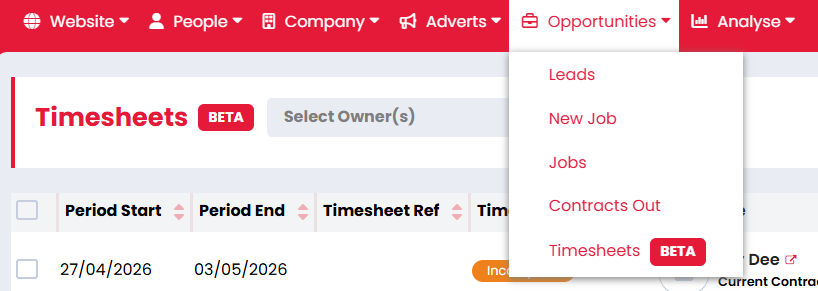
The Timesheets menu option is available when Time Capture is enabled for your Firefish site.
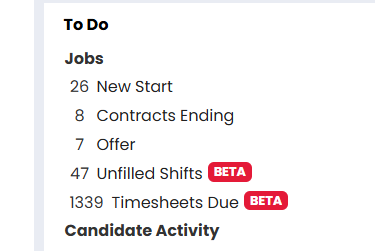
You can also open the list from the Timesheets Due item on your dashboard. When opened from the dashboard, Firefish applies filters automatically to help you focus on timesheets that need action.
Understand the Timesheets List
The Timesheets list shows timesheet periods for qualifying contract placements.
A row can appear even if a timesheet has not been created yet, provided the placement has a valid timesheet period. This helps you see timesheets that are due before they are completed.
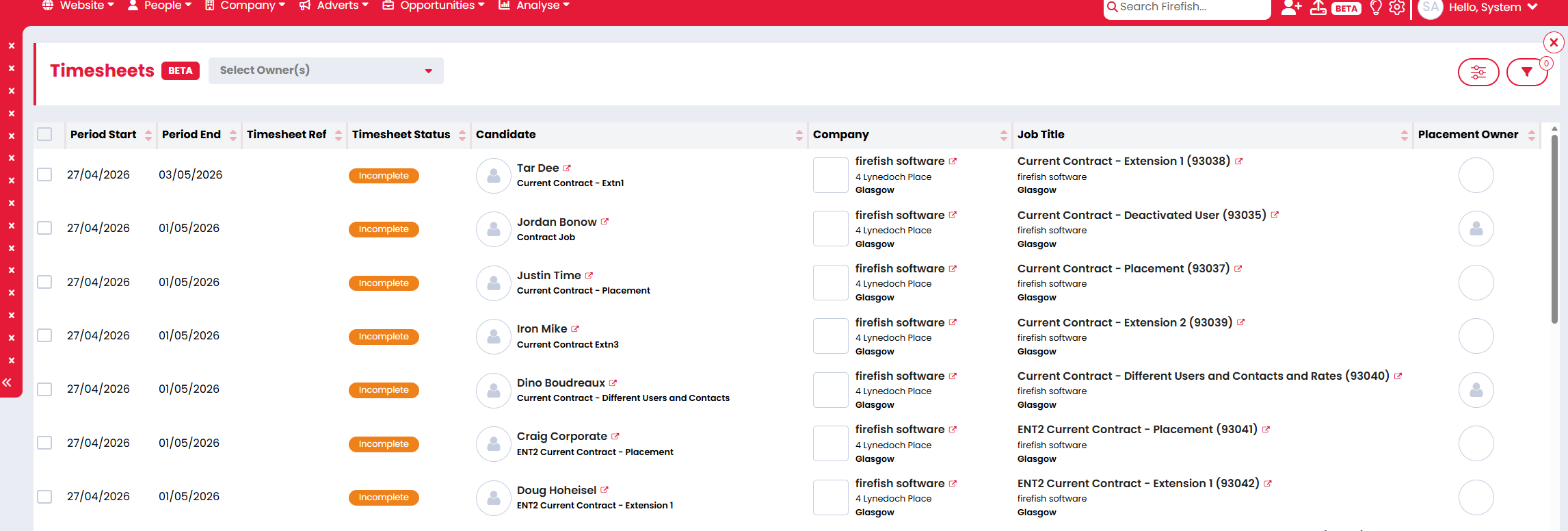
The default sort order is Period End, newest first.
The default columns include:
- Period End
- Timesheet Ref
- Timesheet Status
- Candidate
- Company
- Job Title
- Placement Owner
Depending on your list setup, you may also be able to add columns such as Period Start, Contract Start Date, Contract End Date, Contact, Website, Total Days, Total Hours, Total Pay, Total Charge, Total Margin and Documents.
Timesheet statuses include:
- Incomplete: the timesheet still needs to be completed.
- Overdue: the timesheet period has passed and still needs action.
- Completed: the timesheet has been completed.
Open and Update a Timesheet
To open a timesheet, click the Timesheet Status pill on the row.
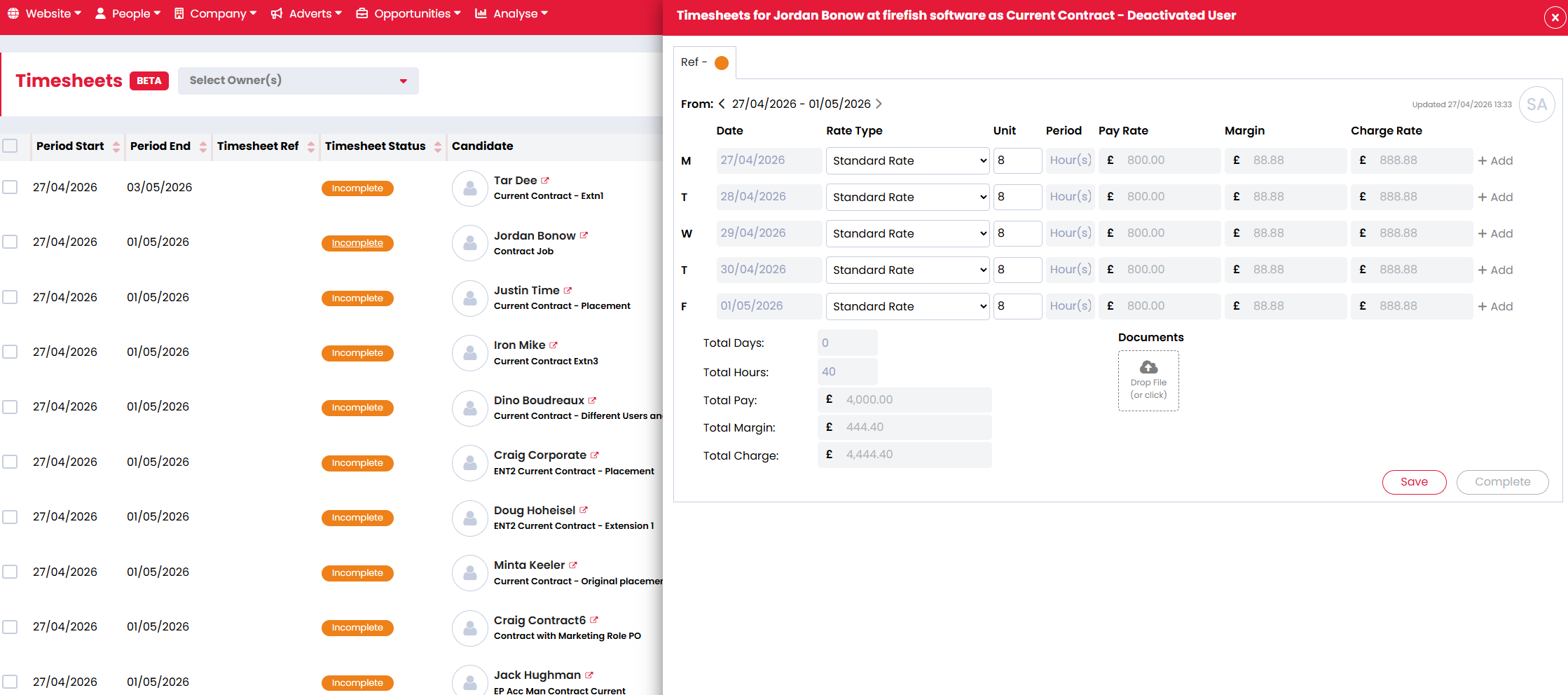
The timesheet opens in a side panel for the correct placement and period. From the side panel, you can use the existing timesheet options, including:
- Move between timesheet periods.
- Edit rate types and units.
- Add additional rates.
- Upload documents.
- Save, Complete or Save All.
Clicking elsewhere on the row will not open the timesheet side panel.
When you close the side panel, Firefish keeps your current list position, filters and selected rows. If you update the timesheet status, the list updates the row. If the updated timesheet no longer matches your active filters, it is removed from the current view.
Navigate to Related Records
The Timesheets list also lets you move quickly to related records.
You can use linked details such as:
- Company
- Contact
- Candidate
- Job Title
These links open the relevant record as they do elsewhere in Firefish.
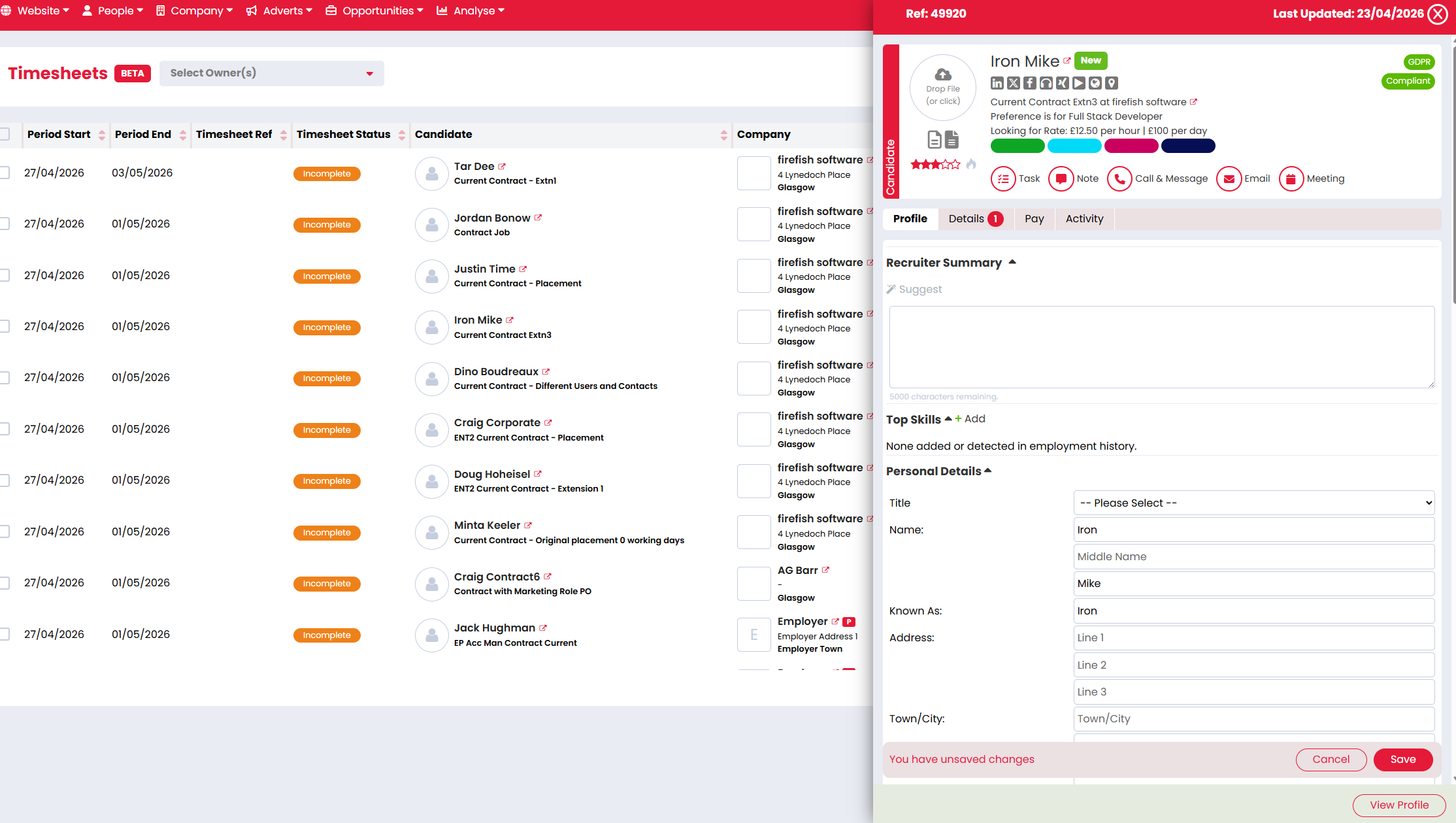
Where available, the candidate quick-view icon can also be used to open the candidate side panel from the list.
Filter the Timesheets List
Use the Placement Owner filter in the page header to view timesheets owned by a specific user.
Use Advanced Filters to narrow the list further. Available filters can include:
- Candidate
- Contact
- Company
- Job
- Timesheet Status
- Website
- Period Range
- Contract End Date
Candidate, Contact, Company, Job, Website and Timesheet Status are multi-select filters. Selected values appear as tags and can be removed individually.
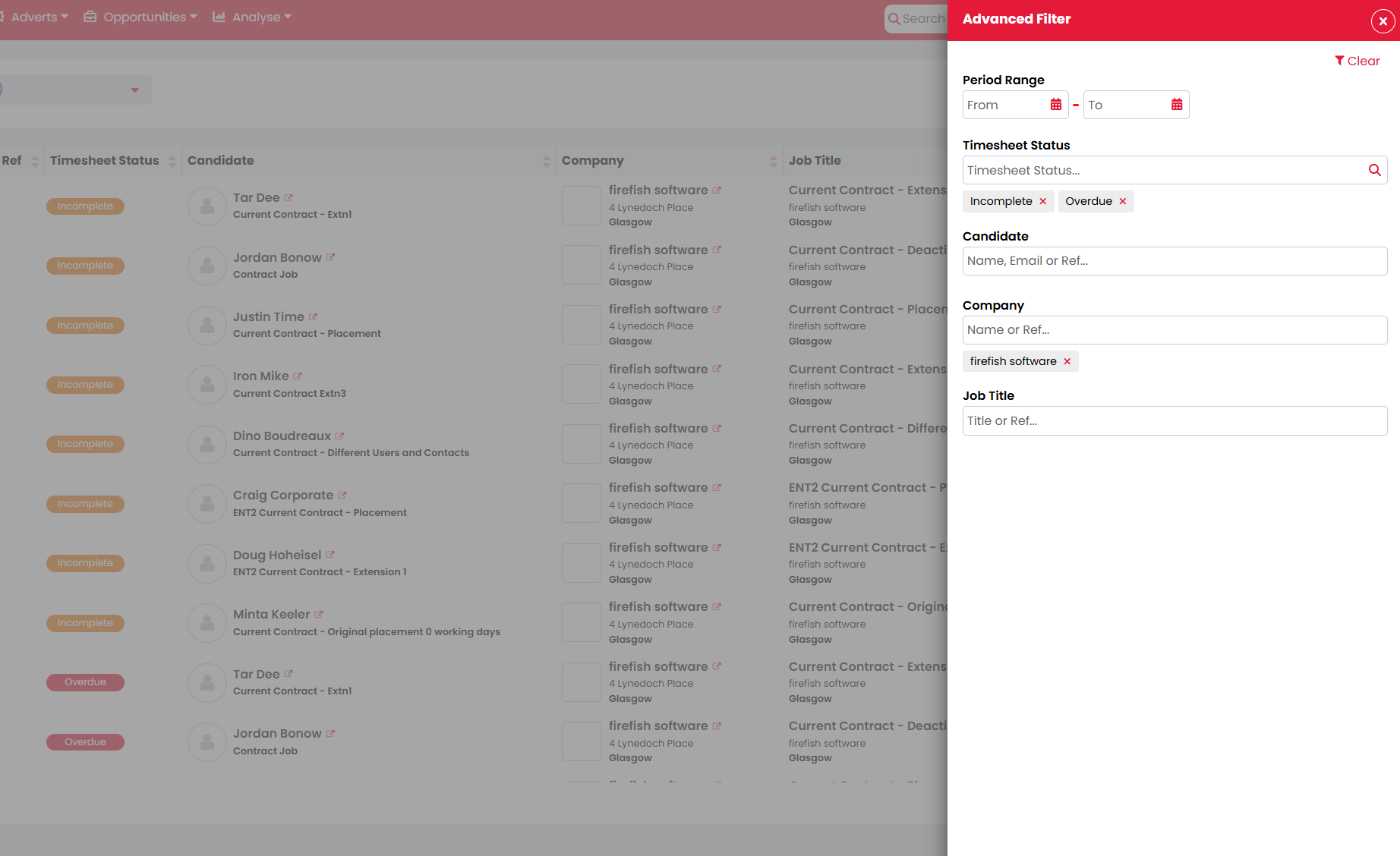
Period Range and Contract End Date use date range fields. You can enter both From and To dates, or use only one side of the range.
When using filters:
- Multiple values in the same filter use OR logic.
- Different filters combine using AND logic.
- Save applies the selected filters.
- Clear removes the filters and returns the list to its default view.
Use the Timesheets Due Dashboard Item
The Timesheets Due dashboard item opens the Timesheets list with filters already applied.
Firefish filters the list to show timesheets for the current owner that are Incomplete or Overdue. It also focuses on timesheet periods that have ended, so future periods are not included before they can be completed.
The filters are visible in the list and can be changed after the page opens.
Select Rows and Use Bulk Actions
Select one or more rows using the row checkboxes.
When rows are selected, Firefish shows the selected count and available bulk actions.
Bulk actions can include:
- Message
Bulk Email sends one email per unique candidate, even if the same candidate appears in more than one selected row. The email activity is logged against the candidate record.
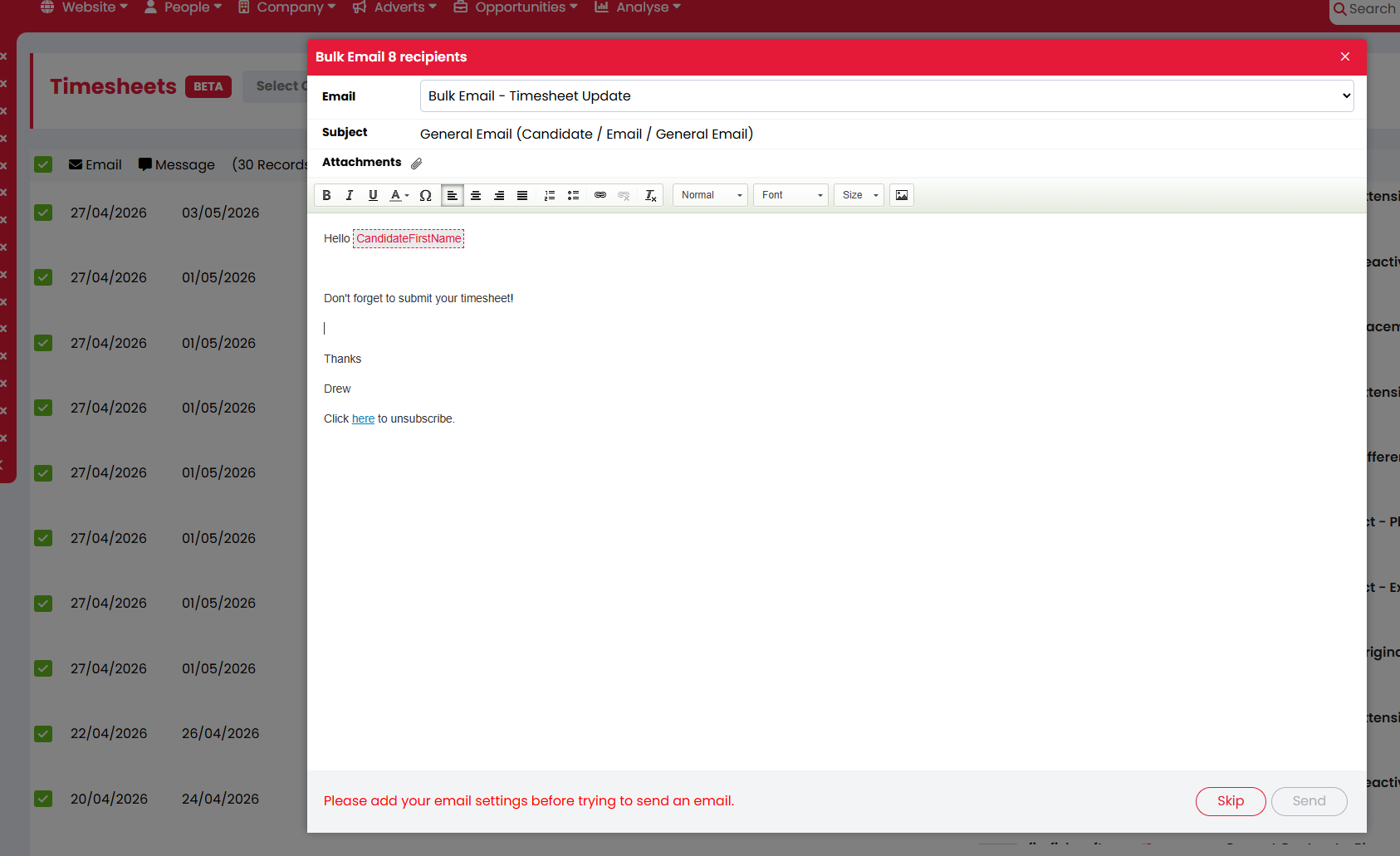
Bulk Message also sends one message per unique candidate and follows the usual Firefish bulk messaging behaviour.
Export the Timesheets List
If exporting is enabled for your site, you can export the current Timesheets list view as a CSV.
The export uses your current:
- Filters
- Rows
- Columns
Non-text columns are exported as readable text, such as candidate names or timesheet status values.
FAQ
Why can't I see Timesheets under Opportunities?
The Timesheets option is only available when Time Capture is enabled for your site. Your user permissions may also affect whether you can access the page.
Why can I see a timesheet row before a timesheet has been created?
The list includes expected timesheet periods for qualifying contract placements. This helps you manage timesheets that are due, even before a timesheet record has been created.
How do I open a timesheet from the list?
Click the Timesheet Status pill. Clicking other areas of the row will not open the timesheet.
Why did a row disappear after I completed a timesheet?
If you have filters applied, the updated timesheet may no longer match them. For example, completing an Incomplete timesheet removes it from a list filtered to Incomplete or Overdue.
Will I lose my filters after opening the side panel?
No. Firefish keeps your filters, selected rows and scroll position when you close the timesheet side panel.
Can I filter by more than one status or candidate?
Yes. Multi-select filters allow you to choose more than one value. Values within the same filter use OR logic.
What statuses can I filter by?
You can filter by Completed, Incomplete, Overdue and Submitted.
Why are future timesheets not shown from Timesheets Due?
Timesheets Due focuses on timesheet periods that have ended and need action. Future periods are not included because they cannot be completed yet.
Will Bulk Email send duplicate emails if the same candidate appears more than once?
No. Bulk Email sends one email per unique candidate.