The Manual Update form lets your team update selected candidate profile fields from one side panel, without needing to move between different tabs on the candidate record. Superusers choose which fields appear on the form, and users can then access it from the candidate’s main profile.
Contents
- What the Manual Update Form is for
- Who can configure the form
- Set up the Manual Update Form
- Add fields to the form
- Organise fields into sections
- Use the form on a candidate profile
- Save or discard changes
- FAQ
What the Manual Update Form is for
The Manual Update form gives users a shorter, controlled list of candidate fields to update.
This is useful when your team regularly needs to keep the same candidate details up to date, such as contact details, availability, preferences, employment details, compliance fields, or custom fields.
The form only shows the fields your Superuser has added, so users do not need to search through the full candidate profile to find the fields they need.
Who can configure the form
Superusers can set up and edit the Manual Update form.
Standard users can use the form to update candidate records, but they cannot change which fields appear on it. If a standard user sees the edit this form option, it will be greyed out.
Set up the Manual Update Form
To configure the form:
- Go to Settings.
- Open People Configuration.
- Go to Candidate Registration.
- Select the Manual Update tab.
- Add the fields you want users to update from the candidate profile.
- Save your changes.
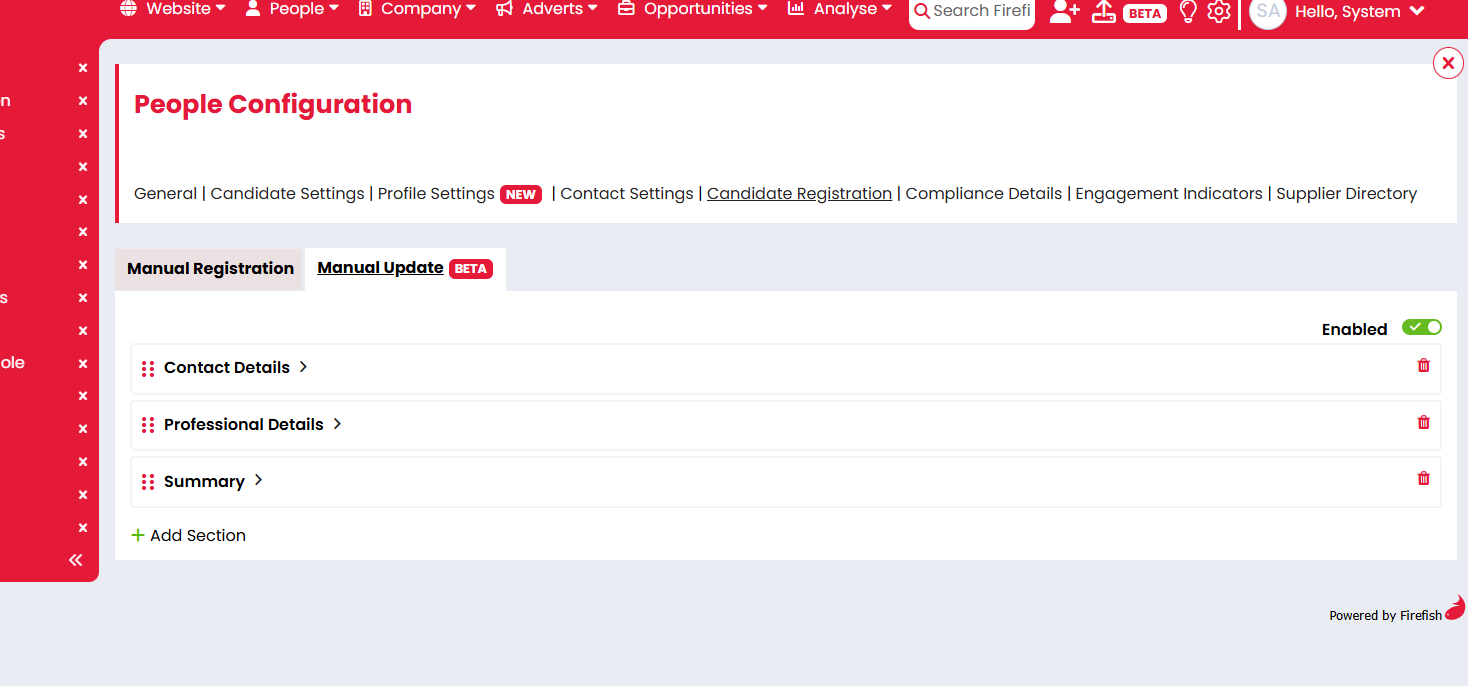
Once fields have been added, the Update option will appear in the Tasks dropdown on the main candidate profile.
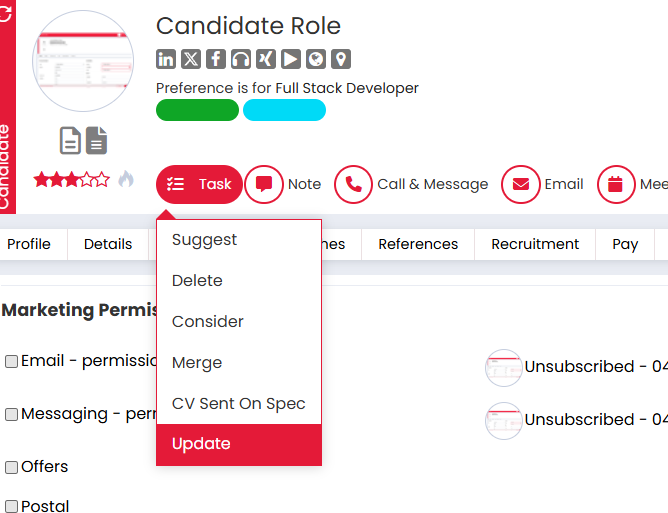
If no fields have been added to the Manual Update form, the Update option will not be shown.
Add fields to the form
Select Add Field to choose which candidate fields should appear on the Manual Update form.
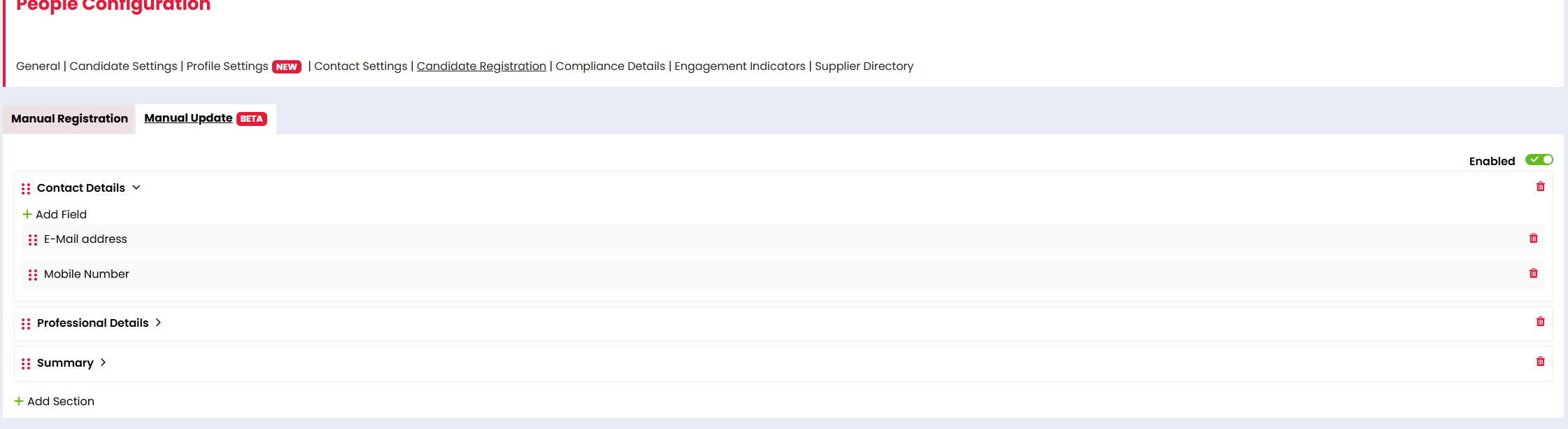
The available fields are based on the candidate fields already supported in your Firefish setup. The fields you add here are separate from your Manual Registration form, so changing the Manual Update form will not change your registration form.
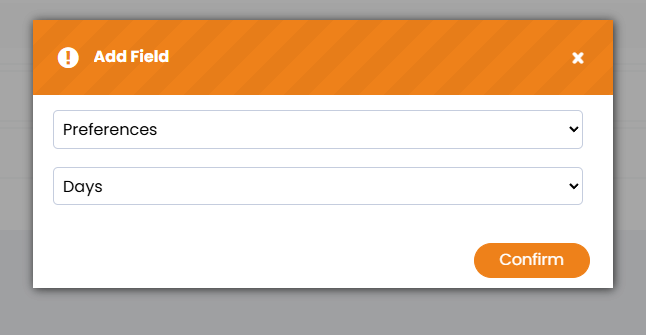
When adding fields:
- You can choose from the available candidate field options.
- You can add fields from different areas of the candidate profile.
- You cannot make a field mandatory from the Manual Update configuration.
- Existing field validation rules still apply when users update the candidate.
Organise fields into sections
Fields on the Manual Update form are grouped into sections to make the form easier to scan and use.
Depending on your configuration, Superusers can organise the form by adding, editing, removing, and ordering sections and fields.
On the candidate profile, users can expand and collapse sections in the Update Candidate side panel. Only sections that contain fields will be shown.
Use the form on a candidate profile
To update a candidate using the Manual Update form:
- Open the candidate’s main profile.
- Select Tasks.
- Select Update.
- The Update Candidate side panel will open.
- Update the required fields.
- Select Confirm to save your changes.
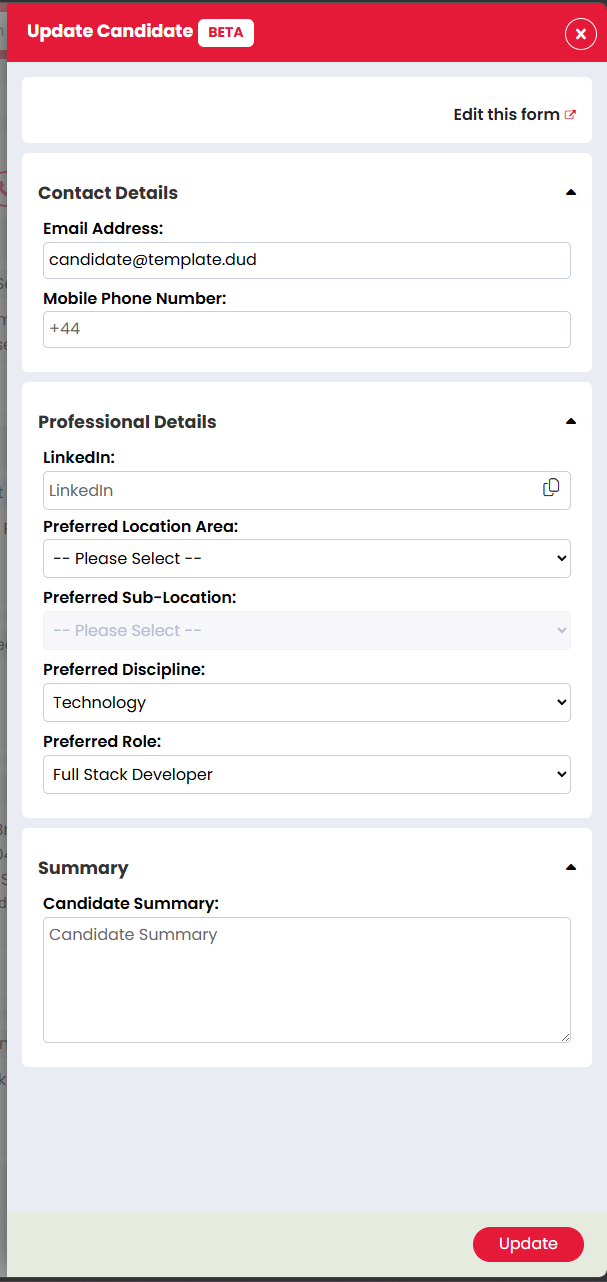
Fields that already contain information on the candidate profile will be pre-populated in the side panel.
The Update option is only shown on the main candidate profile. It is not shown when viewing a candidate from a side panel.
Save or discard changes
Select Confirm to save the changes made in the side panel. The candidate profile will refresh and show the updated information.
Select Back to leave the side panel without saving your changes.
FAQ
Why can’t I see the Update option on a candidate profile?
The Update option will only show when the Manual Update form has been configured with at least one field. It is also only available from the main candidate profile, not from the candidate side panel.
Can standard users edit the Manual Update form?
No. Only Superusers can edit the form setup. Standard users can use the form, but the edit this form option will be greyed out.
Does changing the Manual Update form affect Manual Registration?
No. Manual Update has its own configuration. Changes made to the Manual Update form do not change your Manual Registration form.
Can I make a field mandatory on the Manual Update form?
No. The Manual Update configuration does not include an option to make fields mandatory. However, if a field already has validation or mandatory rules elsewhere in Firefish, those rules will still apply.
Will existing candidate information appear in the form?
Yes. If a field already has information saved on the candidate profile, that information will pull through into the Update Candidate side panel.
What happens if I select Back?
Selecting Back discards any unsaved changes and returns you to the candidate profile.
What happens if I select Confirm?
Selecting Confirm saves the changes and refreshes the candidate profile so the updated information is shown.
Can I use Manual Update for archived or removed candidates?
The Manual Update option is intended for active candidate records. If the option is not available, check the candidate status and your user permissions.
Why is a section missing from the Update Candidate side panel?
Sections only appear when they contain at least one field. If a section has no fields configured, it will not be shown to users.