If you are a Super User, you can control what each user role is allowed to see and do within Firefish using User Permissions.
Permissions help you:
- Protect sensitive data such as CVs and contact details
- Control who can delete, merge, export or edit records
- Restrict visibility across teams
- Reduce the risk of accidental data loss
Permissions are applied by user role, not by individual user. Any changes you make will affect all users assigned to that role.
To access User Permissions:
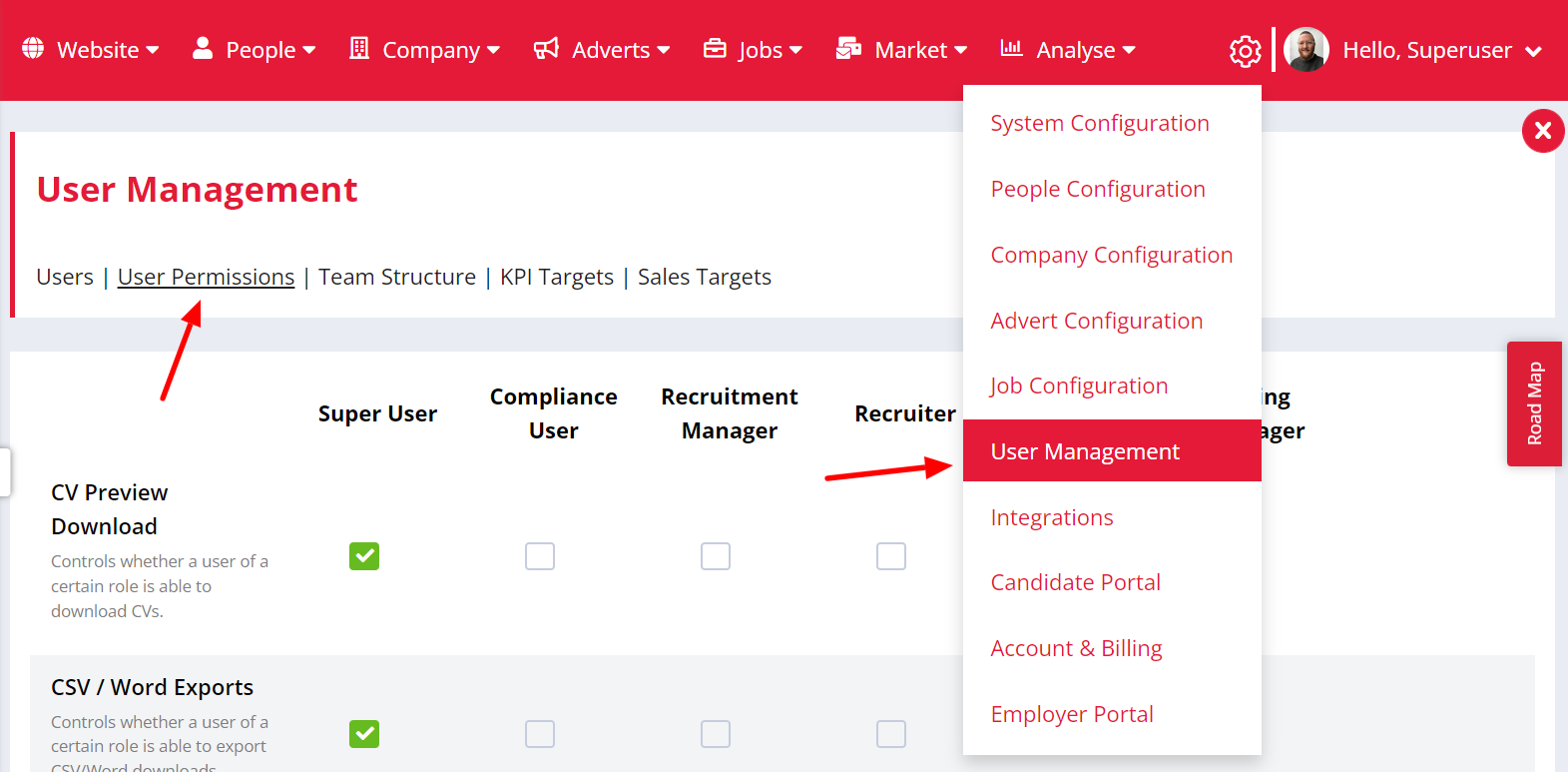
Go to Settings > User Management > User Permissions
Video Overview
- How permissions work
- CV Preview Download
- CSV / Word Exports
- Edit Formatted CVs
- To Do List – Compliance
- View Other Users’ Dashboards
- To Do List Completion
- Edit/Delete Own Actions
- Edit/Delete User Actions
- Candidate Deletion – Single
- Candidate Deletion – Bulk
- Candidate Merge
- Contact Merge
- Company Merge
- View Other Users’ Reports
- Archive a Company
- Archive a Contact
- Contact Details in Search
- Contact Owner
- View Companies
- Company Owner(s)
How permissions work
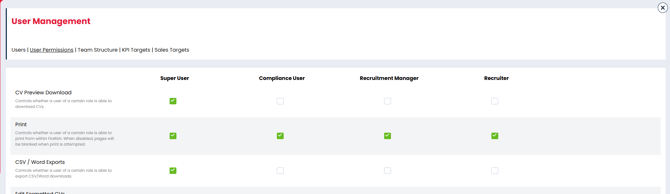
Each permission appears as a tick box within a grid.
- User roles are listed across the top
- Permissions are listed down the left
- Tick to enable
- Untick to disable
Changes take effect immediately.
Some permissions are linked, meaning one cannot be enabled without another. These relationships are explained below.

CV Preview Download
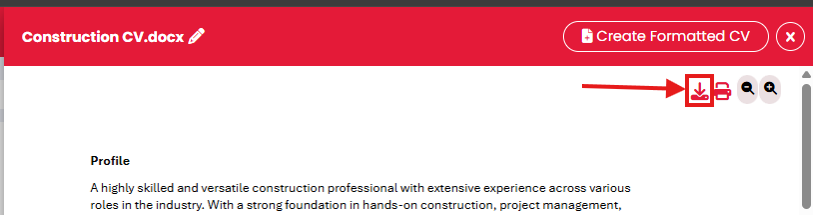
Controls whether a role can download CVs from candidate records.
If disabled, users can preview CVs within Firefish but cannot download them.
Controls whether a role can print from within Firefish.
If disabled, pages will appear blank when printing is attempted.
CSV / Word Exports
Controls whether a role can export data using CSV or Word reports.
This includes exports from searches and report dashboards.
Edit Formatted CVs
Controls whether a role can edit formatted CVs.
If disabled, users can still generate formatted CVs but cannot amend the content.
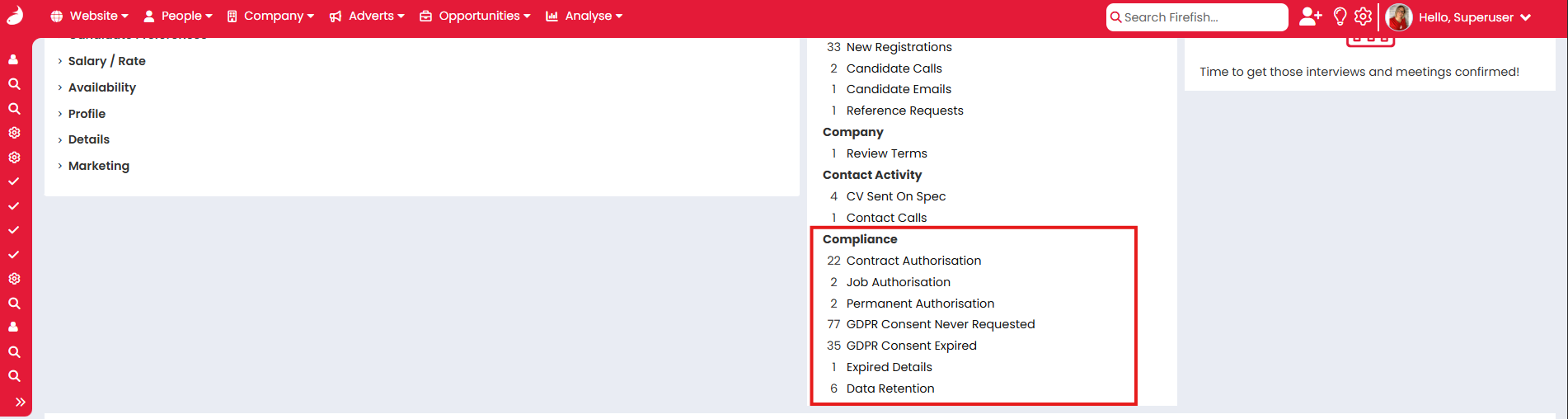
To Do List – Compliance
Controls whether a role can view the Compliance section of the To Do list.
View Other Users’ Dashboards
Controls whether a role can view other recruiters:
- To Do Lists
- Quick Links
If disabled, the User dropdown selector will not appear on the Dashboard.
To Do List Completion
Controls whether a role can complete other users’ To Do items.
This permission is linked to View Other Users’ Dashboards.
Users must also be in the same Team.
A Team is a configured group of users that allows shared visibility and collaboration.
Edit/Delete Own Actions
Controls whether a role can edit or delete actions they have created on records.
Edit/Delete User Actions
Controls whether a role can edit or delete actions created by other users.
This permission is linked to Edit/Delete Own Actions.
Candidate Deletion – Single
Controls whether a role can delete individual candidates from:
- Candidate records
- Candidate Search
- Compliance To Do List
Candidate Deletion – Bulk
Controls whether a role can bulk delete candidates from:
- Candidate Search
- Compliance To Do List
This permission is linked to Candidate Deletion – Single.
Bulk deletion cannot be enabled unless single deletion is also enabled.
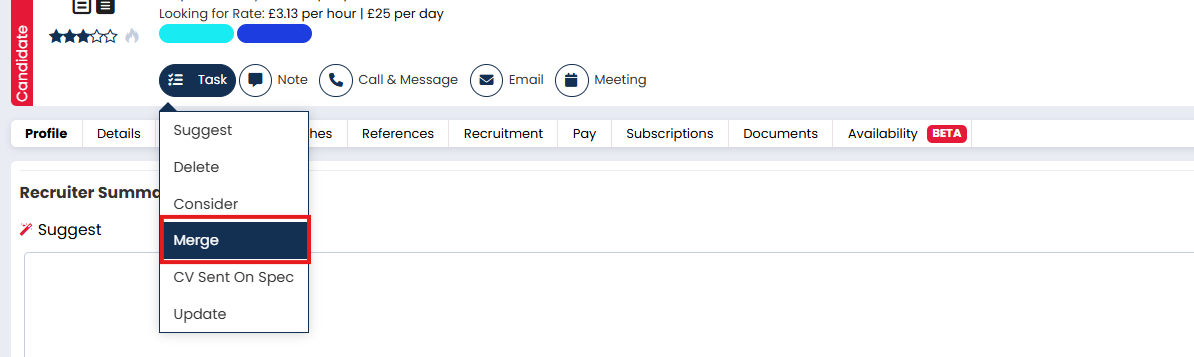
Candidate Merge
Controls whether a role can merge duplicate candidate records into a single record.
Merging combines information from two candidate records and removes duplication.
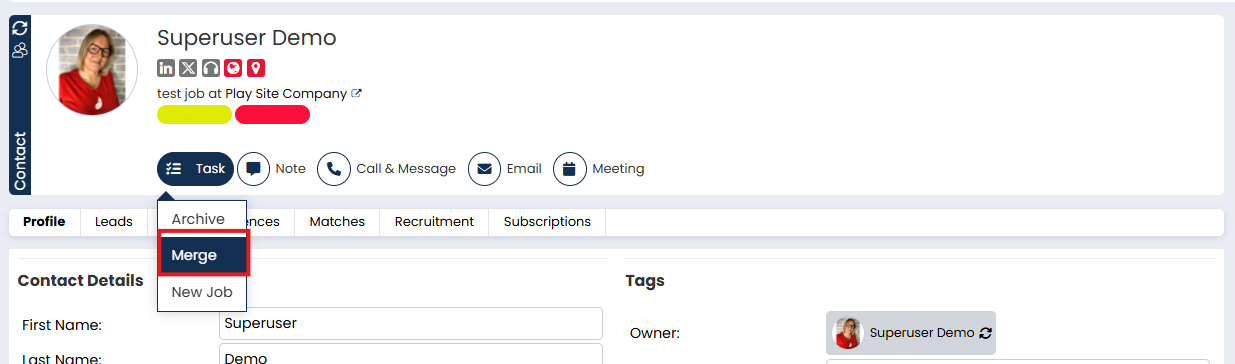
Contact Merge
Controls whether a role can merge duplicate contact records into a single contact record.
Merging ensures communication history and ownership remain accurate.
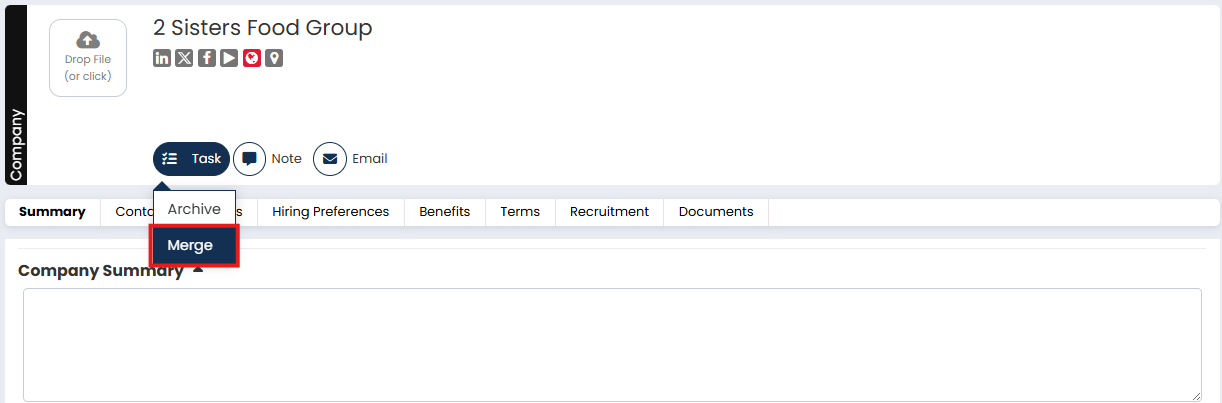
Company Merge
Controls whether a role can merge duplicate company records into a single company record.
This helps maintain clean data and accurate reporting.
View Other Users’ Reports
Controls whether a role can view other team members on the Reports Dashboard.
Archive a Company
Controls whether a role can archive Company records.
Archiving removes the Company from active searches but does not permanently delete it.
Archive a Contact
Controls whether a role can archive Contact records.
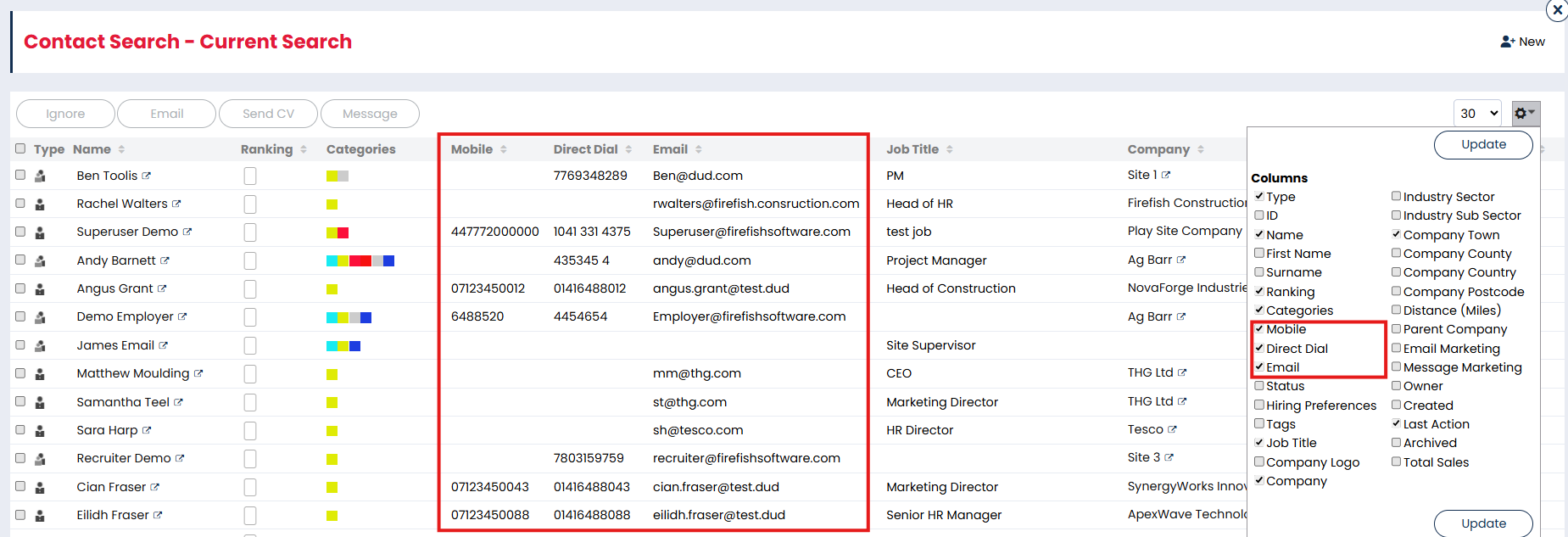
Contact Details in Search
Controls whether a role can view Email and Phone Number columns in Contact Search results.
Contact Owner
Controls whether a role can edit the Contact Owner on a Contact record.
The Contact Owner is the user responsible for managing that contact relationship.
View Companies
Controls whether a role can view Company records where they are not the Company Owner.
The Company Owner is the user assigned responsibility for that Company record.
Company Owner(s)
Controls whether a role can edit:
- Company Owner
- Permanent Recruiter
- Contract Recruiter
on a Company record.