Set up your system email settings to ensure automated emails (such as job alerts, application confirmations, and engagement communications) are sent reliably from Firefish. Only Super Users can manage these settings.
Use the options below to connect Firefish to your Microsoft 365, Gmail, or a custom SMTP account.
Microsoft 365
Before You Begin
Before enabling Mailbox Automation:
-
You must have a Microsoft 365 business mailbox
-
A Firefish Super User and your Microsoft 365 administrator should coordinate so that the required Firefish integration app (“Firefish-365Integration”) is approved in your Microsoft tenant.
Pre-authorising the Firefish 365 Integration App
It is essential that the app is excluded from any conditional access policies such as Location, Hardware, IP Address or required 2FA/MFA restrictions. If your Microsoft 365 account has any set up, your M365 Administrator must preauthorise the app and exclude it from them.
Before users begin connecting in Firefish, a Microsoft 365 administrator should use the following URL to pre-authorise the app and add it to your enterprise applications list in Microsoft Entra:
https://login.microsoftonline.com/{YOUR-M365-DOMAIN-URL}/adminconsent?client_id=3b4007a5-df24-4478-a03d-26c77819ad45
Replace {YOUR-M365-DOMAIN-URL} with the domain associated with your Microsoft 365 tenant. This is typically the domain you use for your emails, however if you are in doubt, please ask your M365 Administrator.
This will take you directly to the Microsoft Approval workflow to grant the necessary permissions we need to enable the integration.
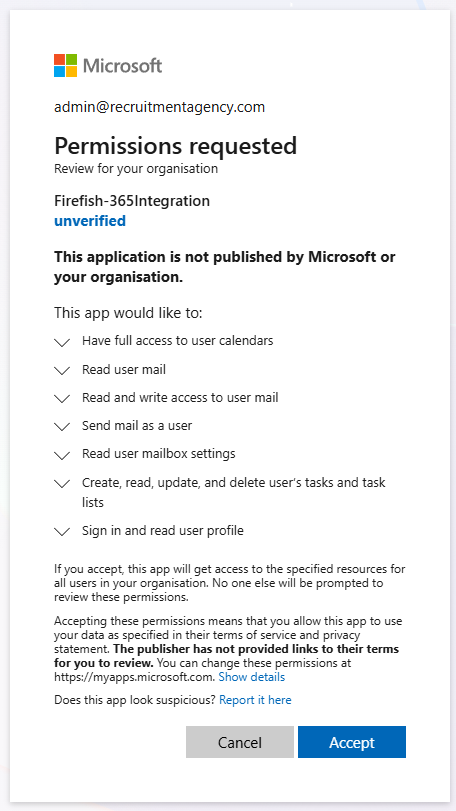
Once you click accept, you will be redirected to a holding page that you can safely close.
Once this is done, you can view the app registration by navigating to https://entra.microsoft.com -> Enterprise Apps -> All Applications, where you can configure any conditional access policies so that they exclude the Firefish-365Integration App.
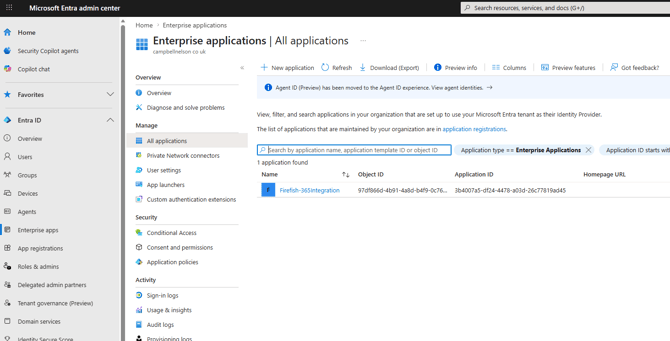
Note: Changes to conditional access policies in M365 can take some time to take effect. We recommend that you aim to complete these changes with your Administrator at least 24 hours before attempting to sign in with Firefish.
-
Ensure users are prepared to re-authenticate if migrating from a legacy sync method.
Microsoft 365 sign-ins: Email authentication requests may appear to originate from the Netherlands, as the Microsoft Azure servers handling the request are physically located there.
Your Microsoft 365 security settings must therefore allow sign-ins from this location. Alternatively, your IT team can whitelist the following IP addresses:
-
23.97.152.101
-
20.56.1.141
-
20.86.35.188
-
20.86.131.77
-
20.86.74.125
Enabling in Firefish
Use this method to send emails via your Microsoft 365 account.
- Go to Settings > System Configuration > Email Settings.
- Select Microsoft 365 as the provider.

- Click Log in and follow the authentication steps on the Microsoft 365 site.
- Once authenticated, you can set up your signature, then send a Test & Save email.
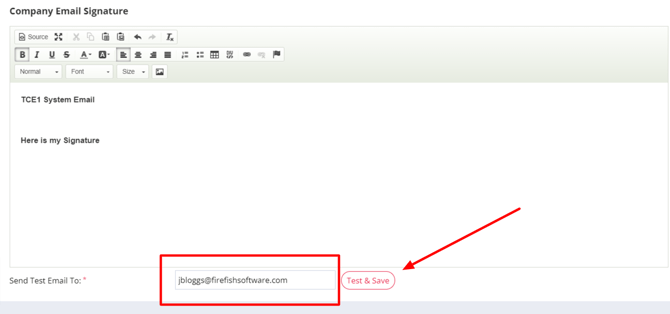
🚨 Important: This must be a valid Microsoft 365 account. Ensure the account has permission to send mail and MFA (if enabled) is passed during sign-in.
Gmail
Use this method to send emails via your Gmail or Google Workspace account.
- Navigate to Settings > System Configuration > Email Settings.
- Choose Gmail as your provider.

- Click Sign in with Google and complete the sign-in process, ensuring you give all the requested permissions when prompted.
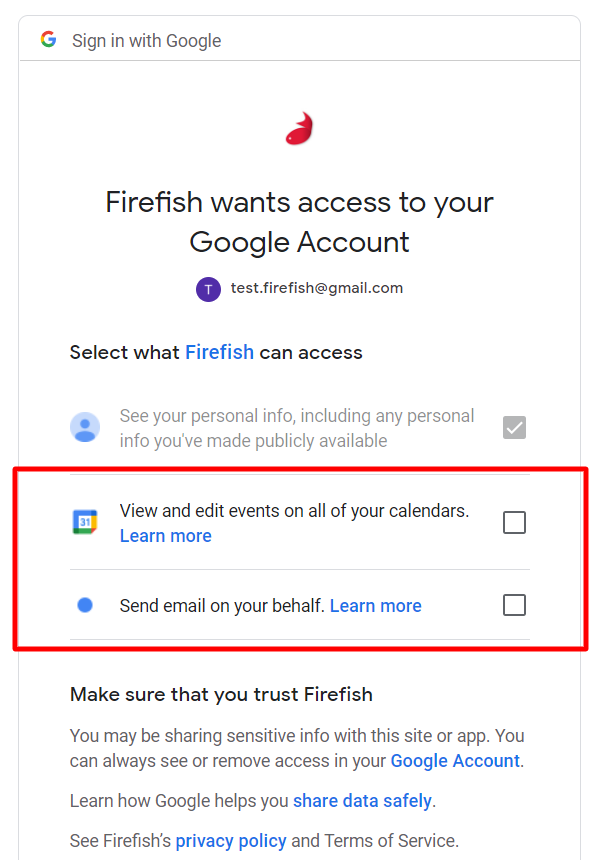
- Once authenticated, you can set up your signature, then send a Test & Save email.
🚨 Important: Ensure that the Google account used has mail-sending permissions and has enabled access for third-party apps if required.
Custom SMTP
Use this if you’re using a different email provider or have your own mail server.
- Go to Settings > System Configuration > Email Settings.
- Select Custom SMTP from the list.
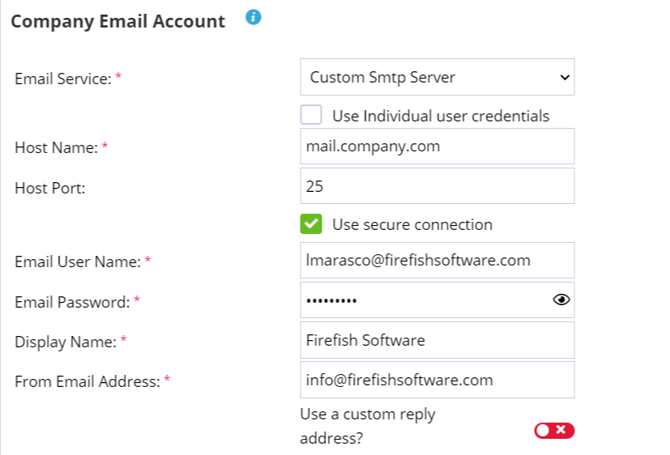
- Enter your full SMTP details:
- Email address: The sending address (e.g. mail@youragency.com)
- SMTP server: Provided by your email host (e.g. smtp.yourprovider.com)
- Port: Usually 587 for secure connection or 25 for non-secure
- Username and Password: As provided by your host
- Use secure connection: Tick this if your provider requires TLS/SSL
- You can set up your signature, then send a Test & Save email.
💡Tip: If unsure about port or security options, check with your email host or IT provider.
Test and Save Settings
After setting up any provider:
- Click Send Test Email to check the configuration.
- A confirmation message will appear if successful.
- Click Save to apply the settings.

If the test fails, check credentials and configuration, or refer to our Email Troubleshooting Guide.