Once candidates have been assigned to temporary shifts, recruiters can confirm their bookings directly from the Availability Pool.
You can confirm candidates individually or in bulk, notify them of their confirmed shifts and monitor how many positions remain available.
This article explains how to confirm bookings, configure confirmation notifications and understand the impact on shift capacity and candidate availability.
Contents
- Understanding Shift Confirmations
- Configuring Shift Confirmed Notifications
- Confirming an Individual Candidate
- Confirming Multiple Candidates
- Understanding Shift Positions
- Managing Confirmed Shift Changes
- Troubleshooting Shift Confirmations
- Frequently Asked Questions
Understanding Shift Confirmations
Confirming a candidate finalises their booking against a particular Temp Shift.
If your agency uses the Shift Offered workflow, candidates can accept or decline their shift offers before the recruiter confirms their bookings.
However, Accepted and Confirmed are different statuses.
| Status | Meaning |
|---|---|
| Pending | Candidate has been assigned but has not yet been offered or confirmed on the shift. |
| Offered | A shift offer has been sent to the candidate. |
| Accepted | Candidate has accepted the shift, but the recruiter has not confirmed the booking. |
| Confirmed | Recruiter has confirmed the candidate onto the shift. |
Only Confirmed candidates count towards the number of filled positions.
Important: If Shift Offered is disabled, recruiters can still confirm candidates directly from Pending. Candidates do not need to complete an offer and acceptance process first.
For more information on the offering process, see Offering Shifts to Candidates.
Configuring Shift Confirmed Notifications
Shift confirmation notifications are configured within your Temp Workflow settings.
Navigation: Settings > Job Configuration > Temp Workflow > Bookings
To enable notifications:
- Navigate to Settings > Job Configuration > Temp Workflow > Bookings.
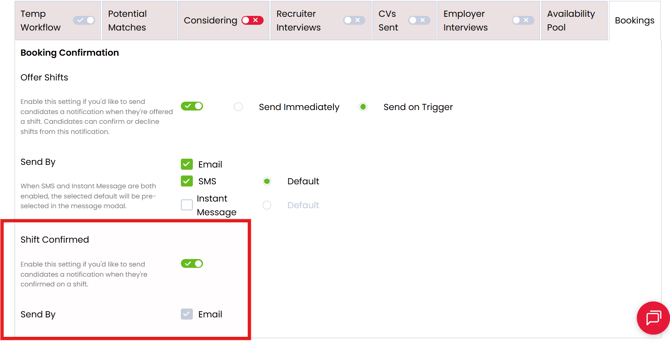
- Enable Shift Confirmed.
- Review the notification settings.
- Save your changes.
How notifications work
Shift Confirmed notifications are sent by email.
The Send By option is not editable for confirmation notifications.
- If email settings are configured, the Email option appears selected.
- If email settings are not configured, the Email option appears unselected and confirmation emails will not be sent.
Note: Shift Confirmed can be enabled independently of Shift Offered. This allows your agency to send booking confirmations without first issuing shift offer notifications.
Configuring the email template
The Shift Confirmed workflow uses the corresponding email action in the Activities Library.
The default Shift Confirmed email includes:
- The number of shifts the candidate has been confirmed on.
- Details of the confirmed shifts.
Access It by clicking through Settings > System Configuration > Activities Library then selecting the Email > Jobs Module.
You can customise this template to suit your agency's communication requirements.
Confirming an Individual Candidate
You can confirm a candidate directly from their shift booking.
To confirm an individual candidate:
- Open the relevant Temp Job.
- Navigate to the Availability Pool in Calendar View.
- Locate the candidate on the shift.
- Select the candidate's status indicator.
- Change their booking status to Confirmed.
Once confirmed, the candidate's profile picture is outlined in green, indicating a confirmed booking.
What happens to the confirmation email?
When a candidate is confirmed using their status indicator, Firefish sends the default Shift Confirmed email template configured within the Activities Library, provided Shift Confirmed notifications are enabled and email is configured.
Unlike the bulk confirmation process, this route uses the default template rather than taking the recruiter through the same email review window.
Important: Check that the default Shift Confirmed email template contains the information your agency wants candidates to receive.
Confirming Multiple Candidates
The Availability Pool allows you to confirm multiple candidate bookings in one process.
Navigation: Temp Job > Availability Pool
To confirm candidates:
- Open the relevant Temp Job.
- Navigate to the Availability Pool.
- Identify the candidates and shifts you want to confirm.
- Select Confirm.
- A confirmation window opens, displaying the candidates and shifts about to be confirmed.
- Review the list and deselect any candidates you do not want to confirm.
- Select Continue.
- Review the confirmation email.
- Select Send to issue the notifications.
After sending, Firefish displays a success message confirming the notifications have been issued.
Confirming multiple shifts for the same candidate
If a candidate is being confirmed onto several shifts, Firefish combines them into one confirmation email rather than sending a separate email for every shift.
For example, if a candidate is confirmed onto five shifts next week, they receive one notification covering all five bookings.
Tip: Review the selected candidates carefully before continuing, particularly where more candidates have accepted than there are available positions.
Understanding Shift Positions
Each Temp Shift has a Positions value representing the number of candidates required.
Only candidates with a Confirmed booking count towards filling those positions.
| Candidate status | Counts towards filled positions? |
|---|---|
| Pending | No |
| Offered | No |
| Accepted | No |
| Confirmed | Yes |
Example: Confirming candidates
A shift requires three candidates.
Five candidates are offered the shift, and four accept.
The recruiter confirms three candidates.
| Booking status | Number of candidates |
|---|---|
| Accepted, awaiting confirmation | 1 |
| Confirmed | 3 |
| Available positions | 0 |
Once three candidates have been confirmed, the shift's required positions are filled.
Firefish updates the available position count as bookings are confirmed.
Increasing shift capacity
If the client requests additional candidates, you can edit the shift and increase the number of required positions.
For instructions, see Planning Shifts in Your Temp Workflow.
Managing Confirmed Shift Changes
Once candidates have been confirmed, the client may request changes to the shift.
For example, the working hours may change, the client may reduce the number of positions, or the shift may be cancelled.
When a shift is edited or cancelled, Firefish updates the relevant booking information in the recruitment workflow and Candidate Portal, where enabled.
Applicable rate calculations are also updated to reflect the revised shift details.
However, editing or cancelling a shift does not automatically send candidates a notification about the change.
You should contact affected candidates directly.
Before updating a confirmed shift, check:
- Whether the revised hours affect the candidate's availability.
- Whether the updated shift conflicts with another booking or mandatory rest period.
- Whether the pay or charge rates have changed.
- Whether the change affects the number of candidates required.
- Whether candidates need to be advised of amended or cancelled arrangements.
Example: Changing confirmed shift hours
A candidate has been confirmed to work from 09:00 to 17:00.
The client subsequently changes the finish time to 18:00.
Update the shift in Firefish, review any resulting scheduling conflicts and contact the candidate to confirm the revised arrangements.
For more information on changing shift details, see Planning Shifts in Your Temp Workflow.
Troubleshooting Shift Confirmations
If you cannot confirm a candidate, review the following:
| Issue | What to check |
|---|---|
| All positions are filled | The shift already has the required number of confirmed candidates. Increase Positions if additional cover is needed. |
| Candidate has an availability conflict | Check for overlapping shifts, unavailable periods or mandatory rest. |
| Candidate is non-compliant | Review the compliance requirements applicable to the shift. |
| Mandatory availability eSign is outstanding | Ensure the candidate has signed the required Availability Confirmation. |
| Confirmation email is not sent | Check that Shift Confirmed is enabled and email is configured. |
| Unexpected email content | Review the default Shift Confirmed template in the Activities Library. |
Mandatory Availability Confirmations
If your agency requires electronic signatures for Temp Availability Confirmations, candidates must complete the required signature before they can be booked, offered or confirmed on shifts.
For more information, see Temp Availability Confirmations.
Frequently Asked Questions
Does a candidate automatically become Confirmed when they accept a shift?
No. The candidate moves to Accepted, and the recruiter must confirm the booking.
Can I confirm multiple candidates at once?
Yes. Select Confirm within the Availability Pool to review and confirm multiple bookings in one process.
Will candidates receive separate emails for each confirmed shift?
No. When multiple shifts are confirmed for the same candidate through the bulk process, one notification is sent covering those shifts.
Can I confirm candidates without using Shift Offered?
Yes. Shift Confirmed works independently of Shift Offered, allowing recruiters to confirm candidates who are Pending.
Can I confirm candidates without sending a confirmation email?
If Shift Confirmed notifications are not enabled, candidates can still be confirmed without that notification workflow. If notifications are enabled but email is not configured, confirmation emails will not be sent.
Why hasn't the available position count reduced after a candidate accepts?
Only Confirmed candidates count towards filled positions. Accepted candidates have not yet been confirmed.
Will candidates be notified if I edit or cancel a confirmed shift?
No. Shift changes update the booking information, but do not automatically send a change notification. Contact affected candidates directly.