When you’re building a pool of candidates for a temp job, you can send them the information they need before they start receiving shifts. Availability Confirmation brings the document and email into your Temp Workflow, so you can prepare and send them to one candidate or several at once.
Depending on your agency’s setup, you can send:
- An email on its own.
- An email with an assignment confirmation document attached.
- An email with a link for the candidate to review and electronically sign their document.
The document covers the candidate’s terms for that temp job. Individual shifts are still offered and confirmed through your usual shift-booking process.
You can configure whether electronic signatures are required, request confirmations from the Availability Pool, and amend or resend confirmations when changes are needed.
This article explains the settings and day-to-day process, including how mandatory eSign affects candidate bookings.
Contents
- Understanding Availability Confirmations
- Configuring Availability Confirmations
- Requesting an Availability Confirmation
- Reviewing Confirmation Statuses
- Amending and Resending Confirmations
- Understanding Mandatory eSign Restrictions
- Troubleshooting Availability Confirmations
- Frequently Asked Questions
Understanding Availability Confirmations
Availability Confirmations allow candidates to review and electronically sign the availability information sent to them.
This provides recruiters with a record of the candidate's confirmation before progressing with temporary bookings.
Availability Confirmations are separate from the Shift Offered and Shift Confirmed workflows.
| Feature | Purpose |
|---|---|
| Availability Confirmation | Requests the candidate's electronic agreement to their availability information. |
| Shift Offered | Sends details of specific shifts for the candidate to accept or decline. |
| Shift Confirmed | Confirms that the recruiter has secured the candidate's booking on a shift. |
When mandatory eSign is enabled, a candidate must complete the required Availability Confirmation before they can progress to a shift booking.
Configuring Availability Confirmations
Availability Confirmation settings are managed within the Temp Workflow configuration.
Navigation: Settings > Job Configuration > Temp Workflow
To configure the feature:
- Open Settings > Job Configuration > Temp Workflow.
- Access the Availability Pool tab
- Enable the Availability confirmation and Esign option.
- Choose whether the signature is mandatory before candidates can be booked.
- Save your changes.
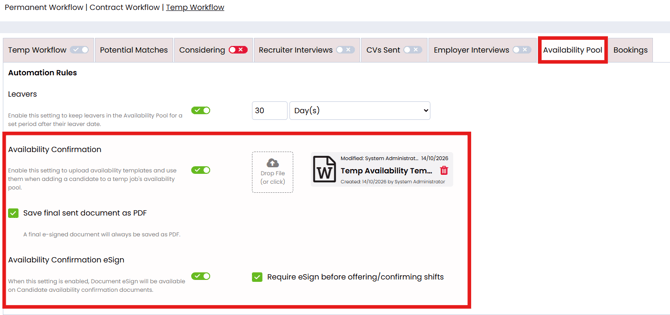
Understanding the mandatory setting
| Configuration | Behaviour |
|---|---|
| Mandatory eSign enabled | Candidates must sign the required Availability Confirmation before being booked, offered or confirmed on a shift. |
| Mandatory eSign disabled | Availability signatures are not an enforced prerequisite for progressing a candidate through shift bookings. |
Important: Enabling mandatory eSign introduces a booking restriction. Review any outstanding candidate confirmations before enabling this requirement for your recruitment team.
Requesting an Availability Confirmation
Availability Confirmations can be managed directly from a Temp Job's Availability Pool.
To access the Availability Pool:
- Open the relevant Temp Job.
- Select the Availability Pool stage.
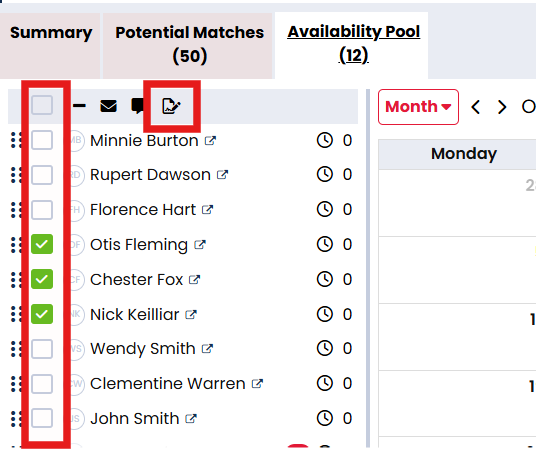
- Select the candidates using the tick box on the left
- Hit the Availability Confirmation Action
5. A window will open confirming the candidates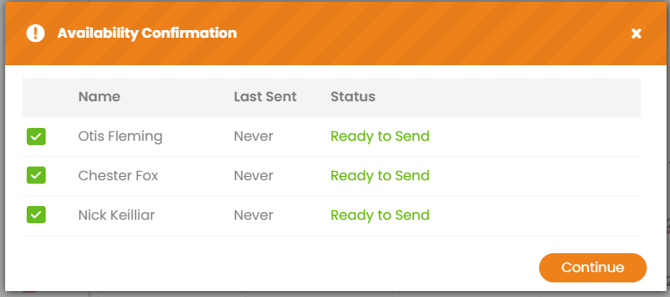
6. You can select the template you wish to use, select Candidate Esign if you wish for it to be signed, then send. 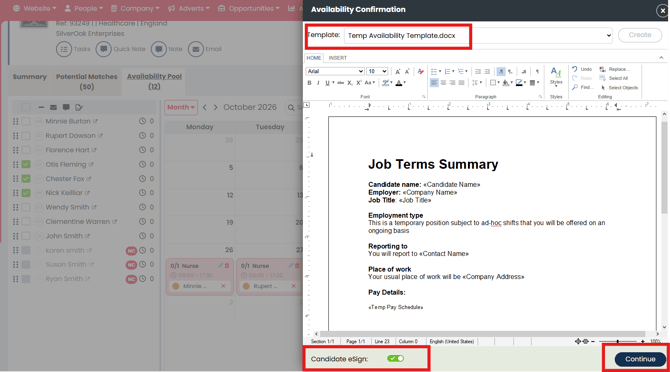
Once sent, the candidate receives the confirmation request and can complete the electronic signature.
The request should reflect the availability information the candidate is being asked to confirm.
Tip: Check the candidate's availability before requesting a signature, particularly if the candidate has recently changed their working arrangements.
For guidance on recording holidays, sickness and recurring unavailability, see Managing Candidate Availability in Firefish.
Reviewing Confirmation Statuses
After requesting an Availability Confirmation, you can review its progress from the Availability Pool.
The key distinction is whether the candidate has completed the required signature.
| Confirmation state | What it means | Next action |
|---|---|---|
| Awaiting signature | The confirmation has been requested but the candidate has not yet signed. | Follow up with the candidate if required. |
| Signed | The candidate has completed the electronic signature. | Continue with the booking process, subject to other eligibility checks. |
| Requires amendment | The availability information needs to be corrected or updated. | Amend and resend the confirmation. |
The descriptions above explain the confirmation process. The exact status labels should match those shown in the live Availability Pool.
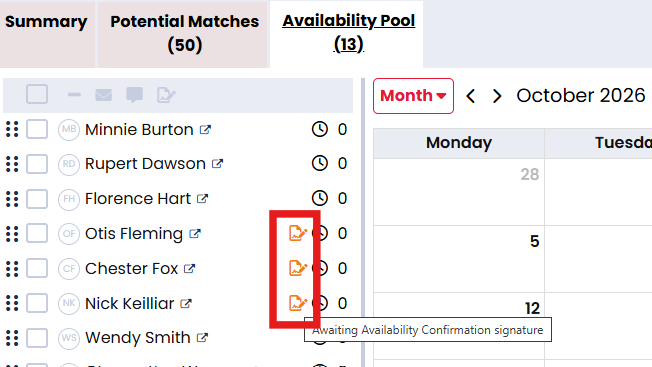
Important: An Availability Confirmation signature does not itself confirm a candidate onto a shift. The candidate must still progress through the normal assignment and booking process.
Amending and Resending Confirmations
If an Availability Confirmation needs to be sent again, you can generate and resend it directly from the Availability Pool, without removing and re-adding the candidate.
This may be required if the candidate needs a new signature request or the information included in their original confirmation has changed.
To resend an Availability Confirmation:
- Open the relevant Temp Job and navigate to the Availability Pool.
- Select the candidate or candidates who need a new confirmation.
- Click Send Availability Confirmation from the candidate toolbar.
- Continue through the confirmation process and select the appropriate document template.
- Click Create to generate the new confirmation document.
- Review the document and click Continue.
- Select Send to issue the new confirmation to the candidate.
Where eSign is required, the resend process issues a new electronic signature request.
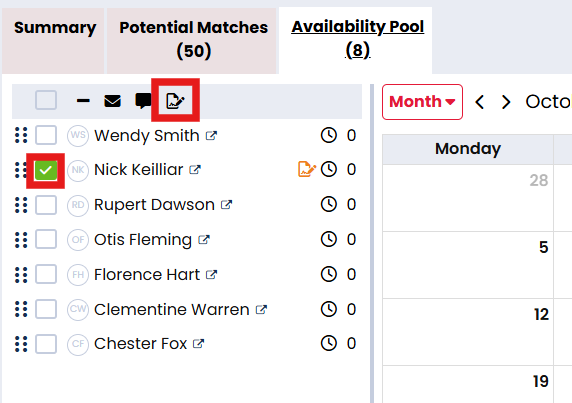
Important: Resending generates a new confirmation document rather than editing the previously sent document directly. Review the latest information before sending. The new document will invalidate the previously sent one, and they can now accept the new doc.
Example: Candidate availability has changed
A candidate initially confirms that they are available throughout the working week but subsequently advises that they can no longer work on Wednesdays.
Update the relevant availability information, amend the confirmation and resend the revised request for signature.
Where mandatory eSign applies, ensure the required signed confirmation is in place before attempting to progress the candidate through bookings.
Tip: When changing a candidate's availability, also review any existing shifts to identify potential conflicts.
Understanding Mandatory eSign Restrictions
When mandatory eSign is enabled, Firefish enforces the Availability Confirmation requirement during the booking process.
A candidate cannot be booked, offered or confirmed on a shift until the required Availability Confirmation has been signed.
This restriction applies even if the candidate is otherwise available and meets the relevant shift requirements.
For example:
| Scenario | Can the booking progress? |
|---|---|
| Availability Confirmation sent but not signed | No |
| Candidate has not completed the required eSign | No |
| Required Availability Confirmation signed | Yes, subject to normal booking and compliance checks |
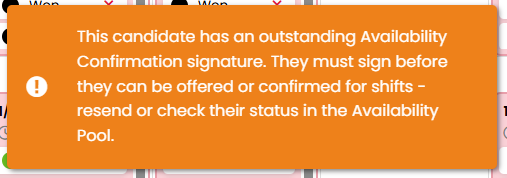
If a candidate is blocked from being booked:
- Open the candidate's details in the Availability Pool.
- Check whether the required Availability Confirmation has been signed.
- If outstanding, ask the candidate to complete the request.
- If the information is incorrect, amend and resend the confirmation.
- Once the required signature has been completed, retry the booking.
For guidance on adding candidates to shifts and understanding other scheduling restrictions, see Assigning Candidates to Temp Shifts.
Troubleshooting Availability Confirmations
If an Availability Confirmation cannot be completed or a candidate remains blocked from a shift, check the following:
| Issue | What to check |
|---|---|
| Candidate cannot be booked | Check whether mandatory eSign is enabled and whether the required confirmation has been signed. |
| Confirmation is still outstanding | Check the confirmation status and follow up with the candidate. |
| Candidate reports incorrect availability | Amend the information and resend the confirmation. |
| Candidate needs another signature request | Use the resend functionality in the Availability Pool. |
| Candidate has signed but cannot be assigned | Check for other restrictions such as compliance, overlapping shifts, unavailable periods or mandatory rest. |
For other availability-related booking restrictions, see Managing Candidate Availability in Firefish.
Frequently Asked Questions
What is the difference between an Availability Confirmation and a Shift Offer?
An Availability Confirmation requests the candidate's agreement to their availability information. A Shift Offer asks the candidate to accept or decline specific shifts.
Can I require candidates to sign before assigning them to shifts?
Yes. When mandatory eSign is enabled, candidates cannot be booked, offered or confirmed until the required Availability Confirmation has been signed.
Can I resend an Availability Confirmation?
Yes. Availability Confirmations can be amended and resent from the Availability Pool.
What happens if the candidate's availability changes?
Update the relevant information and amend or resend the Availability Confirmation where necessary.
Does signing an Availability Confirmation automatically confirm a shift?
No. Availability Confirmation and shift booking confirmation are separate processes.
Why is a candidate still unable to be booked after signing?
Review the candidate's other eligibility requirements, including compliance, overlapping shifts, rest periods and unavailable statuses.