Firefish allows you to manage candidate availability directly from their candidate record or while scheduling shifts within a Temp Job.
Availability is candidate-wide, meaning any changes made from a Temp Job's Availability Pool also update the candidate's overall availability. This helps prevent overlapping bookings and ensures recruiters have an accurate view of when a candidate can work.
This article explains how to record availability statuses, manage recurring unavailability and understand rest periods and scheduling restrictions.
Contents
- Understanding Candidate Availability
- Viewing Availability on the Candidate Record
- Adding Availability Statuses
- Managing Recurring Availability
- Managing Availability from a Temp Job
- Understanding Rest Periods
- Understanding Scheduling Restrictions
- Searching for Available Candidates
- Frequently Asked Questions
Understanding Candidate Availability
Candidate availability can be managed from two locations in Firefish:
| Location | When to use it |
|---|---|
| Candidate Record > Availability | Manage a candidate's overall availability, including holidays, sickness and regular unavailable periods. |
| Temp Job > Availability Pool | Check and update candidate availability while planning or assigning shifts for a particular job. |
Both locations update the same underlying candidate availability information.
Important: If you record a Holiday, Sick or Not Available status from a Temp Job, it updates the candidate's overall availability and is reflected across their other Temp Jobs. You do not need to record the same absence against every job.
Viewing Availability on the Candidate Record
The candidate record provides an overall view of a candidate's availability and scheduled commitments.
To view availability:
- Open the relevant Candidate Record.
- Select the Availability tab.
- Review the candidate's schedule, including existing availability statuses and temporary shifts.
This is the recommended place to manage general availability, particularly when a candidate works across several Temp Jobs.
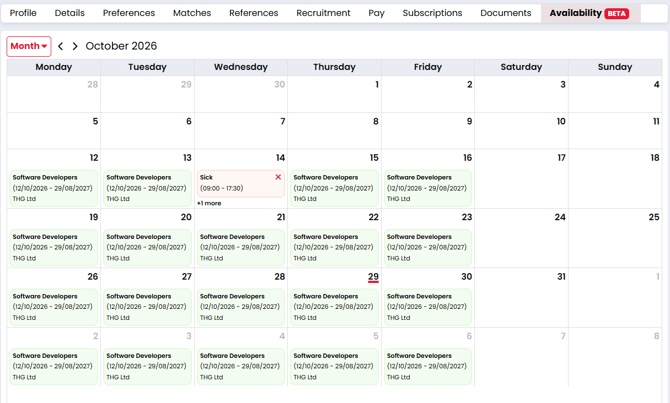
For example, if a candidate advises they are on holiday next week, you can record this directly against their candidate record rather than opening each Temp Job.
Adding Availability Statuses
Availability statuses allow you to record periods when a candidate cannot work or has another commitment.
Firefish supports the following statuses:
| Status | Purpose |
|---|---|
| Holiday | Candidate is on annual leave or holiday. |
| Sick | Candidate is unavailable due to sickness. |
| Will Call In | Candidate is expected to call regarding their availability. |
| Rest | Candidate is unavailable during a rest period. |
| Not Available | Candidate is unavailable for another reason. |
| AWOL | Record an absence without leave. |
| Compliance Breach | Record unavailability relating to a compliance issue. |
To add an availability status from the candidate record:
- Open the candidate's Availability tab.
- Select the relevant date or time on their availability schedule.
- In the Add a Status window, choose the required status.
- Enter the From Date/Time and To Date/Time.
- Save the status.
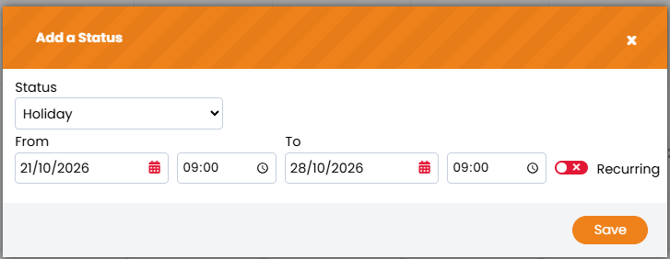
The status is added to the candidate's availability and is visible when reviewing their schedule from a Temp Job.
Example: Recording a holiday
A candidate advises that they are unavailable from Monday to Wednesday.
Select Holiday and enter the relevant start and end dates and times.
Firefish records the absence against the candidate, so recruiters managing their other Temp Jobs can see that they are unavailable.
Important: Availability statuses cannot overlap existing shifts or other availability statuses. Review any conflicting commitments before saving an unavailable period.
Managing Recurring Availability
If a candidate has a regular pattern of unavailability, you can create a recurring status instead of entering each occurrence individually.
For example, a candidate may be unavailable every Tuesday or every other weekend.
To add recurring availability:
- Open the candidate's Availability tab.
- Select the required date or time to open Add a Status.
- Choose the status and enter the start and end times.
- Enable Recurring.
- Configure the recurrence settings:
- Frequency: How often the status repeats, measured in weeks.
- Days: Which days of the week the status applies to.
- End Date: When the recurring pattern should stop.
- Save the recurring status.
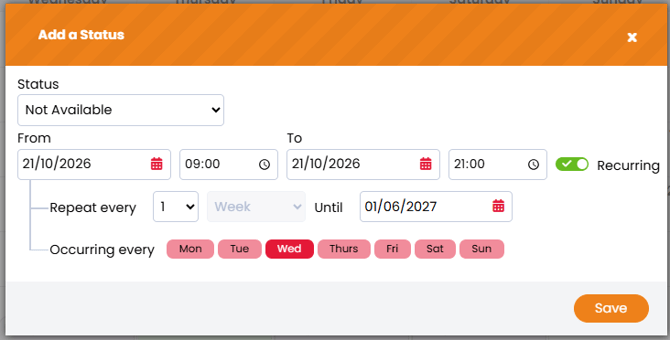
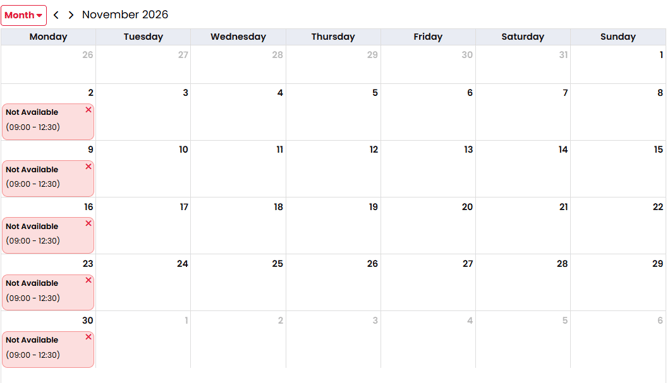
Example: Weekly unavailability
A candidate is unavailable every Monday morning.
Create a recurring Not Available status, select Monday and enter the relevant times.
Firefish adds the recurring unavailable periods to their schedule, and these are reflected when managing the candidate across Temp Jobs.
Managing Availability from a Temp Job
You can also review and update availability while working within a Temp Job.
This is useful when planning shifts and a candidate advises you of a change to their availability.
To access availability from a Temp Job:
- Open the relevant Temp Job.
- Select the Availability Pool stage.
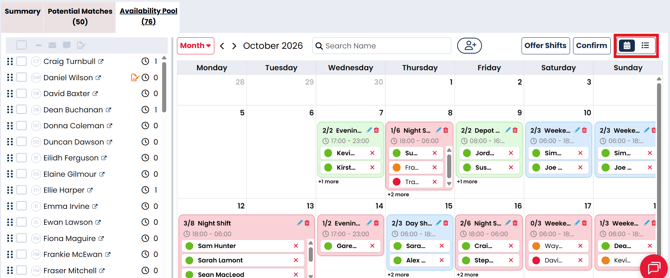
- Switch between Calendar View and List View to review candidates and their availability.
Adding a status from a Temp Job
- Open the Availability Pool.
- Switch to List View.
- Select the relevant date or time against the candidate.
- In Add a Status, choose the required status.
- Enter the From and To dates and times.
- Save your changes.
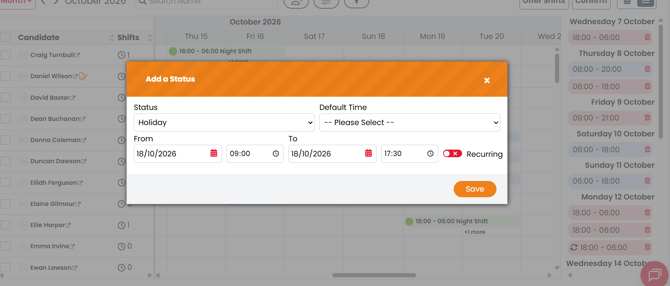
Important: Any status added here also updates the candidate's overall availability. It is not limited to the Temp Job you are working on.
For example, if a candidate reports sickness while you are planning shifts for one client, recording Sick in that job's Availability Pool makes the absence visible across their other Temp Jobs.
Calendar and List Views
The Availability Pool provides two ways to review candidate availability.
- Calendar View: Provides a visual overview of candidate availability and scheduled shifts.
- List View: Allows you to review availability across selected dates and times and add statuses.
Within Calendar View, you can also reorder candidates by dragging them into your preferred order. Changes are saved automatically and are reflected in both views.
Understanding Rest Periods
Firefish can automatically apply rest periods following confirmed shifts to help prevent scheduling conflicts.
Rest requirements are configurable and can include:
| Restriction | Behaviour |
|---|---|
| Minimum rest between shifts | Adds a rest period after a confirmed shift based on the configured duration. |
| Consecutive working days | Applies a longer rest period once the configured consecutive-working-day limit is reached. |
| Overnight shifts | Calculates rest from the actual shift finish time, including shifts crossing midnight. |
For example, if a candidate finishes an overnight shift at 06:00 and a nine-hour rest period applies, their rest period ends at 15:00 that day.
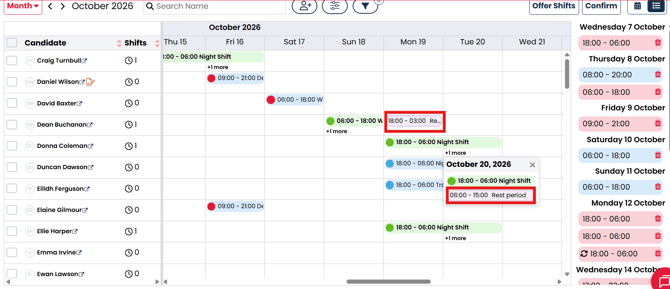
Rest periods are reflected in the candidate's overall availability, helping recruiters avoid assigning shifts that conflict with their configured rest requirements.
Note: The exact rest duration and consecutive-working-day restrictions depend on your agency's configuration.
Understanding Scheduling Restrictions
When assigning candidates to shifts, Firefish checks their availability and existing commitments.
If the proposed shift conflicts with an existing booking, unavailable period or scheduling requirement, the candidate may be prevented from being assigned.
Common reasons include:
| Restriction | What to check |
|---|---|
| Holiday, Sick or Not Available | The candidate has an availability status overlapping the proposed shift. |
| Existing Shift | The candidate is already assigned to a shift at the same time. |
| Rest Period | The shift overlaps a mandatory rest period. |
| Consecutive Working Days | The assignment would exceed the configured consecutive-day restriction. |
| Compliance Requirements | The candidate does not meet the required compliance conditions for the shift. |
| Rest Conflict | A rest period generated by the proposed shift would overlap another commitment. |
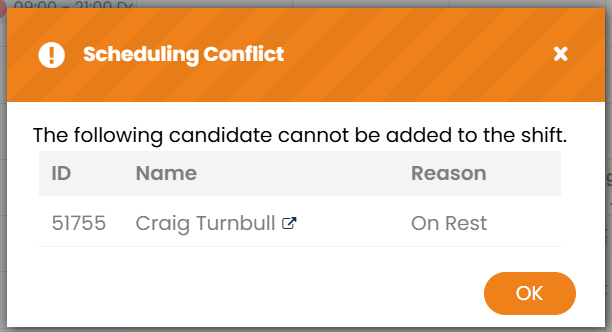
If a candidate is unavailable, check their overall schedule on the candidate record or within the Temp Job's Availability Pool.
Where a status has been recorded incorrectly, it should be amended or removed before attempting to assign the shift.
For more information about allocating candidates and resolving assignment restrictions, see Assigning Candidates to Temp Shifts.
Searching for Available Candidates
You can search for candidates who are available on specific dates and times. This helps you find candidates for upcoming shifts without checking each candidate's schedule individually.
Search results use the candidate-wide availability recorded on the candidate record and in the Availability Pool, together with your default availability assumption and the candidate's compliance.
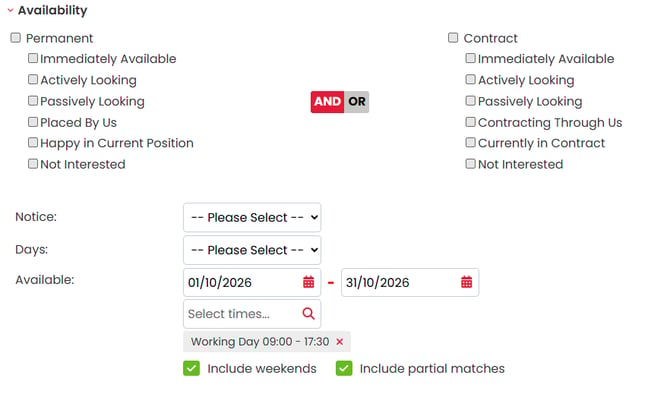
To search for available candidates:
- Open Advanced Search for candidates.
- In the Availability search, enter the dates you want to search.
- To search for a set time on each day, select Specific Time and enter the start and end times.
- Choose whether to Include Weekends.
- Choose whether to Include Partial Matches.
- Select Search.
|
Option |
What it does |
|
Dates |
The period you want candidates to be available for. |
|
Specific Time |
Limits the search to set times on each day, such as 09:00 to 17:30. |
|
Include Weekends |
Includes Saturdays and Sundays in the dates searched. |
|
Include Partial Matches |
Includes candidates who are available for some, but not all, of the period searched. |
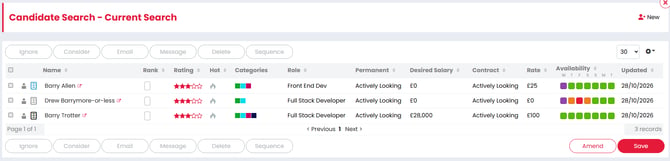
Firefish returns candidates who are available at those times, and the Availability column shows whether each candidate is available for all or part of the period.
The Availability Column
The Availability column is now a standard column in all candidate search results. It shows each candidate's availability for the dates and times searched.
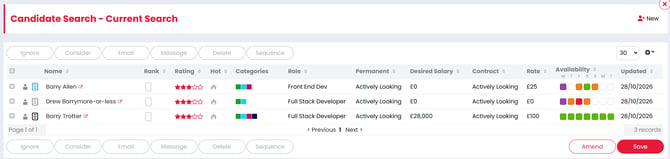
The results of the availability column show:
- Green: Available
- Orange: Partially Available
- Purple: On Rest - Partially Available
- White: Unknown
- Red: Not Available
Why a candidate shows as Not Available
Availability search results reflect anything that would prevent the candidate from being added to a shift. Common reasons include:
|
Reason |
What to check |
|
No Availability Status |
The candidate has no status for the period and your default availability assumption is set to Unavailable. Record an available status for the candidate, or review your default availability. |
|
Unavailable Status |
The candidate has a status that blocks shifts during the period searched, such as Not Available. |
|
Compliance |
The candidate is non-compliant. Once their compliance details are updated, they show as available. |
Your default availability assumption changes how candidates with no availability statuses appear. When it is set to Available, these candidates show as available. When it is set to Unavailable, they show as not available. When it is Unknown, they show as unknown.
For more information about default availability and availability statuses, see the candidate availability settings.
Frequently Asked Questions
Should I record candidate holidays and sickness on the candidate record or within a Temp Job?
Either option works. For general availability, we recommend using the candidate record. When managing shifts for a particular job, you can record the status directly from the Availability Pool.
Both locations update the candidate's overall availability.
If I record a Holiday against one Temp Job, will it appear against the candidate's other jobs?
Yes. Availability statuses are candidate-wide, so an absence recorded from one Temp Job is reflected across their other Temp Jobs.
Can I record availability for part of a day?
Yes. Use the From Date/Time and To Date/Time fields to specify the unavailable period.
Can I create recurring unavailable periods?
Yes. Enable Recurring when adding a status, then configure the frequency, days and end date.
Can I add an availability status that overlaps an existing shift?
No. Availability statuses cannot overlap existing shifts or other statuses. Review the existing commitment before adding the unavailable period.
Does Firefish automatically add rest periods?
Yes. Rest periods are applied following confirmed shifts based on your agency's configured rest requirements.
Why can't I assign a candidate to a shift?
Check for overlapping shifts, unavailable periods, rest restrictions or compliance requirements. Review the candidate's Availability tab to identify the conflict.