Once shifts have been created in your Temp Job, you can assign candidates directly from the Availability Pool.
Firefish allows you to assign one or multiple candidates using Calendar View, or allocate available shifts to individual candidates using List View. Before assigning a candidate, Firefish checks their availability and relevant scheduling restrictions.
This article explains how to assign candidates, manage recurring shift allocations, understand booking statuses and resolve issues that prevent a candidate from being added.
Contents
- Accessing the Availability Pool
- Assigning Candidates Using Calendar View
- Assigning Shifts Using List View
- Assigning Candidates to Recurring Shifts
- Understanding Candidate Booking Statuses
- Managing Shift Positions
- Why Can't I Assign a Candidate to a Shift?
- Frequently Asked Questions
Accessing the Availability Pool
Candidate assignments are managed from the Availability Pool within a Temp Job.
To access it:
- Open the relevant Temp Job.
- Select the Availability Pool stage.
- Choose Calendar View or List View, depending on how you want to allocate shifts.
Both views use the same shift and candidate availability information.
| View | Best used for |
|---|---|
| Calendar View | Selecting one or multiple candidates and assigning them to a particular shift. |
| List View | Reviewing a candidate's availability and allocating open shifts to them. |
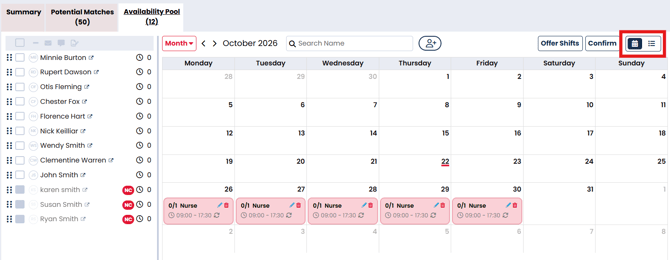
Note: Shifts must already exist before candidates can be assigned. See Creating and Editing Temp Shifts for instructions on creating standalone and recurring shifts.
Assigning Candidates Using Calendar View
Calendar View allows you to assign one or multiple candidates directly to a shift using drag and drop.
To assign candidates:
- Open the Availability Pool in Calendar View.
- Locate the shift you want to fill.
- Select the candidate or candidates you want to assign.
- Drag and drop the selected candidates onto the shift.
- Complete any assignment options presented.
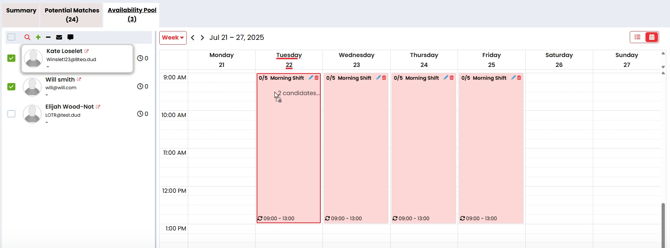
Once assigned, the candidates appear against the selected shift.
Example: Assigning multiple candidates
A client requires three Healthcare Assistants for a shift.
Rather than adding each candidate individually, select the three candidates in Calendar View and drag them onto the shift together.
This creates the candidate assignments, subject to the applicable availability and scheduling checks.
Reordering candidates
You can also organise your candidate list by dragging candidates into your preferred order within Calendar View.
The updated order saves automatically, is visible to other users and is reflected in List View.
Reordering changes the candidate display order; it does not assign them to a shift.
Assigning Shifts Using List View
List View allows you to work from the candidate's availability and assign suitable open shifts.
Shifts with unfilled positions appear on the right-hand side of the page.
These shifts remain available until the required number of positions has been confirmed.
To assign a shift:
- Open the Availability Pool.
- Switch to List View.
- Locate the candidate you want to assign.
- Find the required shift in the list of open shifts on the right.
- Drag and drop the shift onto the candidate's availability schedule.
- Complete any assignment options presented.
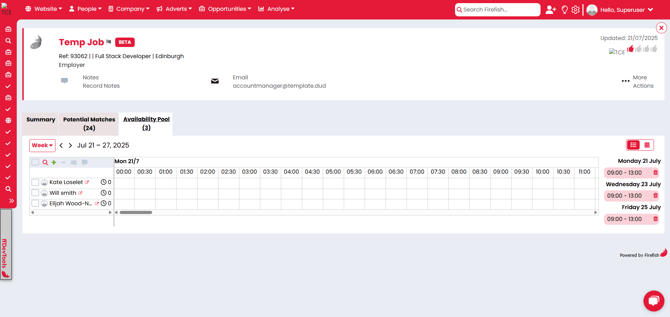
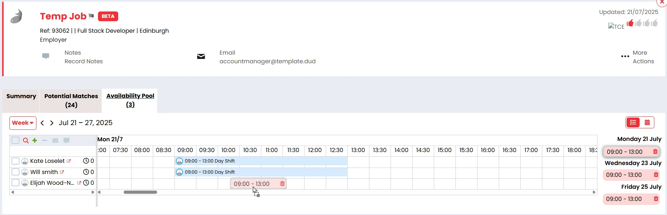
Tip: List View is useful when reviewing an individual candidate's existing commitments before allocating further work.
For more information about recording holidays, sickness and recurring unavailability, see Managing Candidate Availability in Firefish.
Assigning Candidates to Recurring Shifts
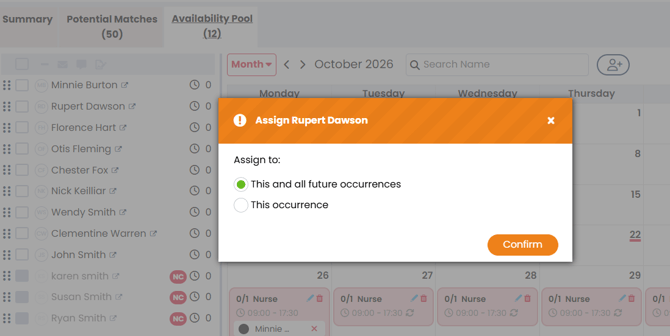
When allocating a candidate to a recurring shift, you can choose whether the assignment applies to one occurrence or the remaining recurring shifts.
This is useful when a candidate is available to cover an ongoing shift pattern rather than an individual date.
To assign a candidate:
- Open the Availability Pool.
- Locate the recurring shift.
- Drag and drop the candidate onto the shift.
- Review the recurring assignment options.
- Choose the required option and complete the assignment.
| Option | Behaviour |
|---|---|
| This occurrence | Assigns the candidate to the selected shift only. |
| This and all future occurrences | Assigns the candidate to the selected shift and future shifts in that recurring series. |
This and all future occurrences is the default selection when assigning a candidate to a recurring shift.
Example: Ongoing weekly cover
A candidate agrees to work every Monday and Wednesday for the remaining duration of a recurring shift pattern.
Assign the candidate to the first relevant occurrence and select This and all future occurrences.
Firefish processes the assignments for the selected shift and subsequent occurrences, subject to the candidate's availability and scheduling restrictions.
Important: Check the selected option before completing the assignment. If the candidate is covering only one date, choose This occurrence rather than the default future-occurrences option.
Understanding Candidate Booking Statuses
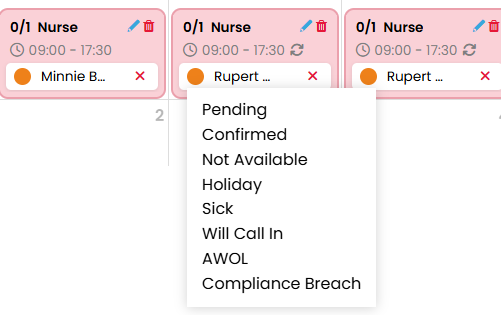
When a candidate is assigned to a shift, their booking status indicates where they are in the booking process.
The statuses available depend on whether your agency uses the Shift Offered workflow.
| Status | Meaning |
|---|---|
| Pending | The candidate has been assigned to the shift but has not yet progressed to an offer or confirmation. |
| Offered | A shift offer has been sent to the candidate. |
| Accepted | The candidate has accepted the shift offer. |
| Rejected | The candidate has declined the shift offer. |
| Confirmed | The candidate's booking has been confirmed by the recruiter. |
What happens when a candidate is first assigned?
This depends on the Offer Shifts configuration:
- Offer Shifts disabled: The candidate is assigned without an automatic shift offer notification.
- Send Immediately: The offer is sent when the candidate is assigned and the booking progresses to Offered.
- Send on Trigger: The candidate remains Pending until a recruiter manually sends the offer.
Booking statuses are displayed using status indicators on the shift calendar, allowing you to identify the progress of each candidate's booking.
Important: Assigning a candidate is not the same as confirming their booking.
For information about sending offers and processing responses, see Offering Shifts and Managing Responses.
For the confirmation process, see Confirming Candidates on Temp Shifts.
Managing Shift Positions
Each shift has a Positions value indicating how many candidates are required.
For example, a shift with Positions set to 4 requires four confirmed candidates.
Only candidates with a Confirmed booking reduce the number of available positions.
| Booking status | Reduces available positions? |
|---|---|
| Pending | No |
| Offered | No |
| Accepted | No |
| Confirmed | Yes |
Example: Managing an open shift
A shift requires three candidates.
Two candidates have been confirmed, while another two have accepted their offers but have not yet been confirmed.
The shift still has one available position, because only the two confirmed candidates count towards the required number.
When the final position is confirmed, the shift is considered filled.
Important: More candidates may accept offers than there are available positions. The recruiter must determine which candidates to confirm, up to the shift's required number of positions.
If the client increases the requirement, edit the shift and increase the Positions value.
For instructions, see Creating and Editing Temp Shifts.
Why Can't I Assign a Candidate to a Shift?
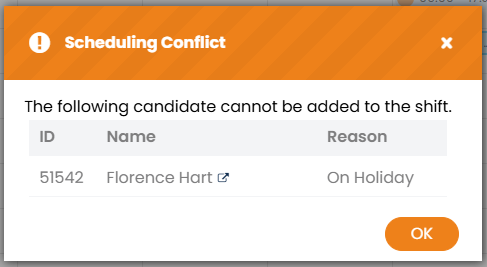
Firefish checks availability, compliance and scheduling restrictions when candidates are assigned.
If a candidate cannot be added, review the following:
| Reason | What to check |
|---|---|
| Candidate is on Rest | The shift overlaps a mandatory rest period. Check the candidate's availability and rest end time. |
| Overlapping Availability Status | The candidate has Holiday, Sick, Not Available or another status covering the shift. |
| Overlapping Shift | The candidate is already assigned to another shift at the same time. |
| Candidate Will Be Non-Compliant | Required compliance details will not be valid on the date of the proposed shift. |
| Consecutive Working Day Restriction | The assignment would exceed the configured consecutive-working-day limit. |
| Automatic Rest Conflict | The rest period generated after the proposed shift would overlap another commitment. |
| All Positions Filled | The shift already has its required number of confirmed candidates. |
How to resolve an assignment restriction
- Open the candidate's Availability tab or review their schedule in the Temp Job's Availability Pool.
- Check for overlapping shifts, unavailable periods or rest restrictions.
- Review compliance details where the restriction relates to compliance.
- Correct any inaccurate information, where appropriate.
- Reattempt the assignment once the restriction has been resolved.
Mandatory availability confirmations
If mandatory eSign availability confirmations are enabled, candidates must complete the required signature before they can be booked, offered or confirmed on shifts.
For details, see Temp Availability Confirmations: Settings and How-To.
Note: Rest durations and consecutive-working-day limits are configurable. Always follow the restrictions applied within your Firefish system.
Frequently Asked Questions
Can I assign multiple candidates to the same shift?
Yes. In Calendar View, select multiple candidates and drag them onto the required shift.
Can I allocate shifts to candidates from List View?
Yes. Open shifts appear on the right-hand side of List View. Drag the required shift onto the candidate's schedule.
Can I assign a candidate to every shift in a recurring series?
Yes. Select This and all future occurrences when assigning the candidate to the recurring shift. This is the default option.
Does assigning a candidate automatically confirm their booking?
No. Assignment and confirmation are separate stages. Whether an offer is sent automatically depends on your Shift Offered settings.
Why does a shift still show available positions when candidates have accepted?
Only Confirmed candidates reduce the available position count. Accepted candidates have not yet been confirmed.
Why can't I add a candidate who appears available?
Check for mandatory rest periods, other shift commitments, compliance restrictions and any required availability confirmation that has not been signed.
Can I change the number of candidates required on a shift?
Yes. Edit the shift's Positions value. See Creating and Editing Temp Shifts for instructions