Firefish allows recruiters to offer temporary shifts to candidates and give them the option to accept or decline their bookings.
Depending on your configuration, shift offers can be sent automatically when candidates are assigned or manually triggered from the Availability Pool. Candidates can then review and respond to their offers, with their booking statuses updating in Firefish.
This article explains how to configure shift offers, send notifications, manage responses and understand what happens after a candidate accepts or declines.
Contents
- Configuring Shift Offers
- Understanding Send Immediately and Send on Trigger
- Offering Shifts to Candidates
- Managing Shift Offer Notifications
- How Candidates Accept or Decline Shifts
- Understanding Shift Offer Statuses
- Managing Expired Offer Links
- Frequently Asked Questions
Configuring Shift Offers
Shift offering is managed within your Temp Workflow settings.
Navigation: Settings > Job Configuration > Temp Workflow > Bookings
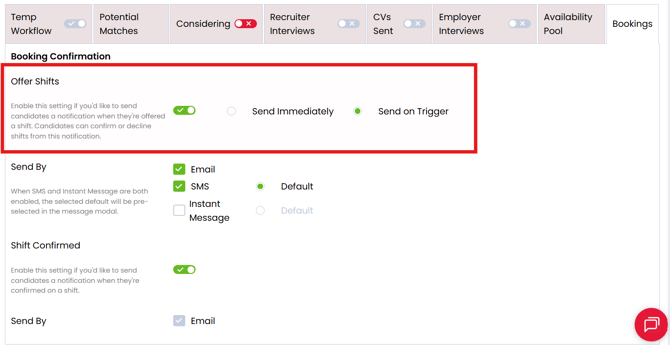
The Shift Offered settings control whether candidates receive an offer notification and when that notification is sent.
To configure shift offering:
- Navigate to Settings > Job Configuration > Temp Workflow > Bookings.
- Enable Shift Offered.
- Choose Send Immediately or Send on Trigger.
- Configure the available Send By communication methods.
- Save your settings.
Note: Superuser permissions are required to enable the shift offering workflow.
If Shift Offered is disabled, recruiters can still assign and confirm candidates using the standard booking process, but no Shift Offered notification is generated.
For further information about Temp Workflow settings, see Configuring Your Temp Workflow Settings in Firefish.
Understanding Send Immediately and Send on Trigger
Firefish provides two options for determining when shift offers are sent.
| Setting | Behaviour |
|---|---|
| Send Immediately | Automatically sends the offer notification when the candidate is assigned to a shift. |
| Send on Trigger | Assigns the candidate to the shift without sending an offer. The recruiter manually triggers the notification when ready. |
Send Immediately
Use this option when candidates should receive their shift offers as soon as they are assigned.
When the candidate is assigned:
- Firefish initiates the Shift Offered notification.
- The candidate's booking progresses to Offered once the offer is sent.
- The candidate can review and respond to the offer.
Send on Trigger
Use this option when you want to assign candidates first and send their offers later.
When the candidate is assigned:
- Their booking remains Pending.
- The recruiter reviews the candidates and shifts to be offered.
- The recruiter selects Offer Shifts from the Availability Pool.
- Once the notification is sent, the booking progresses to Offered.
Tip: Send on Trigger is useful when you want to organise your proposed bookings before notifying candidates.
Offering Shifts to Candidates
Shifts are offered to candidates from the Availability Pool within a Temp Job.
Candidates must first be assigned to the relevant shifts. For instructions on this, see Assigning Candidates to Temp Shifts.
Offering shifts automatically
When Send Immediately is enabled, Firefish initiates the offer when a candidate is assigned.
There is no separate manual offer action required.
Offering shifts manually
When Send on Trigger is enabled:
- Open the relevant Temp Job.
- Navigate to the Availability Pool.
- Assign candidates to the required shifts.
- Select Offer Shifts.
- Review the candidates and shifts included in the offer window.
- Deselect any candidates you do not want to notify yet.
- Select Continue.
- Review the notification and select Send.
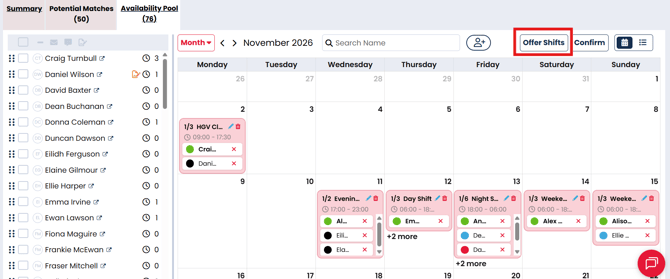
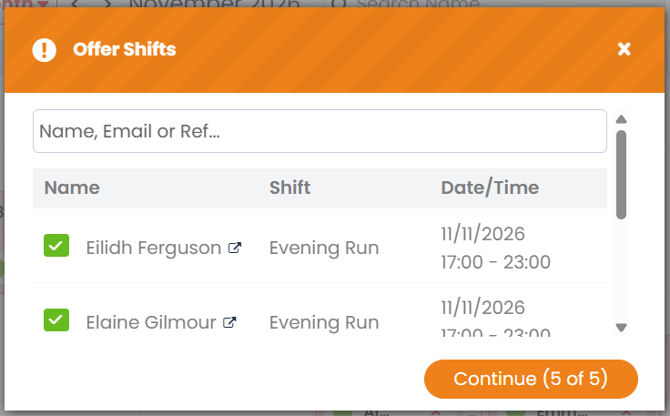
Candidates who are deselected remain Pending.
Candidates whose offers are successfully sent progress to Offered.
Offering multiple shifts
Where a candidate has been assigned to multiple shifts, the manual offer process can combine those shifts into a single offer notification rather than sending a separate notification for each shift.
This allows candidates to review several shifts together.
Managing Shift Offer Notifications
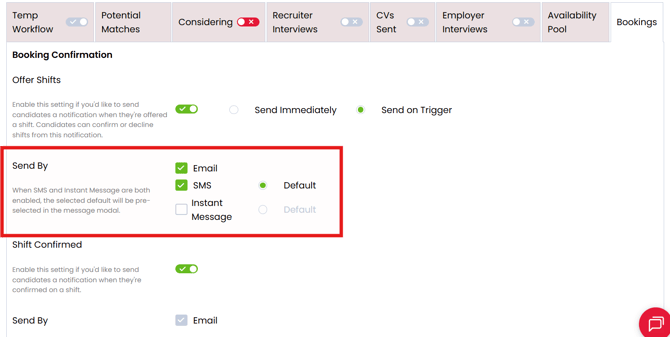
Within the Send By settings, you can choose which communication methods are available for sending shift offers.
The available options are:
| Method | Description |
|---|---|
| Sends the shift offer by email. | |
| SMS | Sends the shift offer by text message. |
| Instant Message | Sends the shift offer using Instant Messaging. |
You can enable multiple communication methods.
Where SMS and Instant Message are both enabled, you can select which method should be the default in the message window.
Shift Offered email template
The Shift Offered email uses the corresponding activity in the Activities Library.
You can review and customise the template to suit your agency's communication style.
The default email includes the candidate's shift offer information and a secure link to review the proposed bookings.
Access it by clicking through Settings > System Configuration > Activities Library then selecting Emails > Job.
Important: Ensure your notification templates clearly explain how candidates should respond to their offers.
How Candidates Accept or Decline Shifts
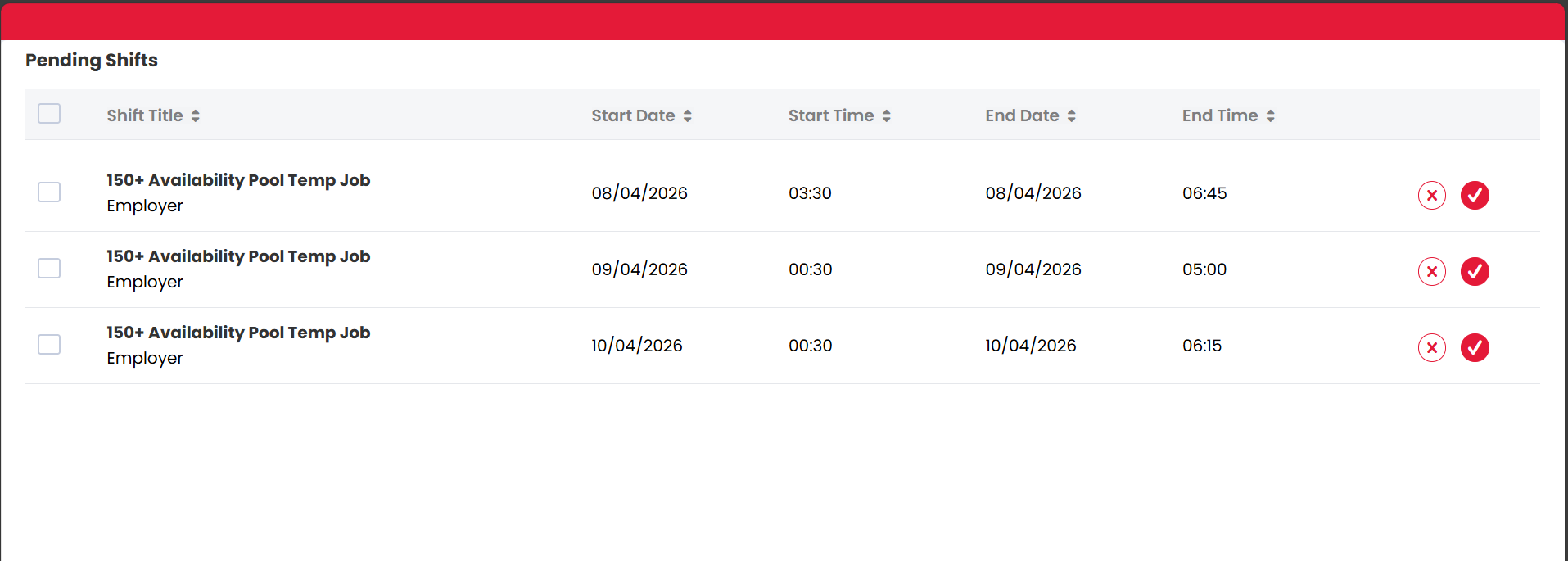
When candidates receive a shift offer, they can use the secure link to review and respond to their proposed shifts.
The link opens a dedicated page where candidates can see the shifts they have been offered.
Candidates do not need to log in while the secure link remains valid.
From this page, they can:
- Accept individual shifts.
- Decline individual shifts.
- Accept multiple shifts in bulk.
- Decline multiple shifts in bulk.
Example: Responding to multiple shifts
A candidate receives an offer covering five shifts next week.
They are available for Monday, Tuesday and Thursday but cannot work Wednesday or Friday.
The candidate can accept the three suitable shifts and decline the remaining two from the same page.
Their responses are reflected in the corresponding booking statuses within Firefish.
Important: Accepting a shift does not automatically confirm the booking. The recruiter must still confirm the candidate onto the shift.
For instructions, see Confirming Candidates on Temp Shifts.
Understanding Shift Offer Statuses
The candidate's booking status shows their progress through the shift offering process.
When Shift Offered is enabled, the following statuses are used:
| Status | Meaning |
|---|---|
| Pending | Candidate has been assigned but the offer has not yet been sent. |
| Offered | The Shift Offered notification has been sent. |
| Accepted | Candidate has accepted the shift. |
| Declined | Candidate has declined the shift. |
| Confirmed | Recruiter has confirmed the candidate's booking. |
What happens when a candidate responds?
When a candidate accepts or declines a shift through the secure page, their booking status updates in Firefish.
The recruiter can then review the responses and decide which candidates to confirm.
Note: Firefish does not currently send recruiters an automatic notification when a candidate accepts a shift. Recruiters should review the booking statuses within the Temp Workflow.
Managing available positions
Only Confirmed candidates reduce the number of available positions on a shift.
For example, if a shift requires three candidates and four have accepted their offers, the recruiter can confirm up to the required three positions.
Until those candidates are confirmed, the accepted offers do not reduce the available position count.
Managing Expired Offer Links
Shift offer links remain valid for 24 hours.
If a candidate opens the link after it has expired, the options available depend on whether the Candidate Portal is enabled.
| Candidate Portal | What happens |
|---|---|
| Enabled | The candidate can access the Candidate Portal to review their outstanding shifts. |
| Disabled | The candidate is shown an expired-link page with the option to request a new offer email. |
Tip: Encourage candidates to respond promptly to shift offers, particularly where shifts are due to begin shortly.
If a candidate reports an expired link, check whether they can access the Candidate Portal or request a replacement email.
Frequently Asked Questions
What's the difference between Send Immediately and Send on Trigger?
Send Immediately sends the offer when the candidate is assigned. Send on Trigger keeps the candidate Pending until a recruiter manually sends the offer from the Availability Pool.
Can I send offers to multiple candidates at once?
Yes. With Send on Trigger, you can review multiple candidates and shifts before sending. You can also deselect candidates you do not want to notify yet.
Can candidates accept some shifts and decline others?
Yes. Candidates can respond to shifts individually or use the bulk acceptance and decline options.
How long does a shift offer link remain valid?
The secure link is valid for 24 hours. After expiry, candidates can access the Candidate Portal where enabled or request a new email where it is not enabled.
Does accepting a shift automatically confirm the candidate?
No. The candidate moves to Accepted, and the recruiter must still confirm the booking.
Will recruiters receive a notification when a candidate accepts?
No. Candidate responses update the shift booking statuses, but recruiters are not automatically notified when a candidate accepts.
Can I send shift offers by SMS or Instant Message?
Yes. Email, SMS and Instant Message can be enabled within the Send By settings. The available methods depend on your configuration.