
Temp rate cards allow you to configure rates for your temp jobs and apply them to companies.
This article explains how to build a standard rate card, configure its rules, add standard and exception rates, use modifiers, schedule changes and understand how rate changes cascade.
Contents
- Building a standard rate card
- Rules and Configurations
- Adding Standard Rates
- Adding Exception Rates
- Adding Modifiers
- Applying rate cards to a company
- How rate changes cascade
There are a few moving parts, and it helps to see the whole picture before you start:
- Rate cards — a set of rates for a particular type of temp work, organised by job code. You build your standard rate cards once, in Company Configuration.
- Rules and Configuration — the shift-level defaults and pay build-up every rate on a job code inherits, set once per job code.
- Rates — the individual pay lines within a rate card, each with a pay type (PAYE or Self Employed). Rates are date-bound and normally can't overlap.
- Exception rates — a rate that's allowed to overlap a standard rate and takes priority over it wherever they overlap. This is how one-off exceptions like bank holidays are handled without restructuring your other rates.
- Modifiers — rules that make a rate change in certain conditions (after a number of hours or weeks, at certain times of day, and so on). This is how you handle overtime and AWR uplifts.
- Pay Configuration — how a rate is actually calculated (pay rate plus components like WTD and holiday, and the margin or markup that produces your charge rate). Set system-wide, with a job-code-level default you can build on.
Building a standard rate card
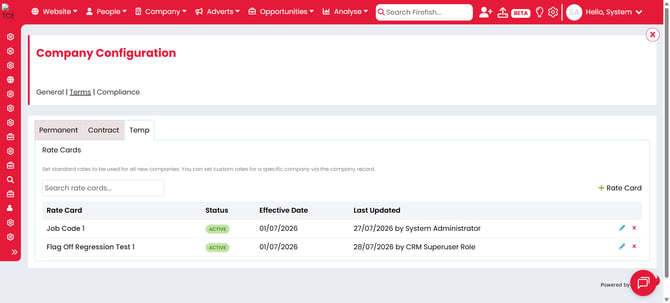
To build a standard rate card, navigate to Settings > Pay Configuration > Rate Cards.
Here, you can create and manage your standard temp rate cards.
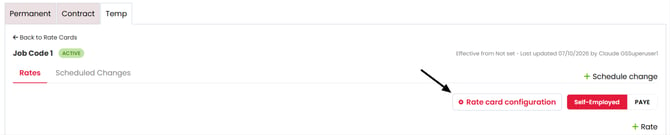
Rules and Configuration
The Rules and Configuration section controls how the rate card behaves.
Use the available settings to configure the rules that apply to the rate card.
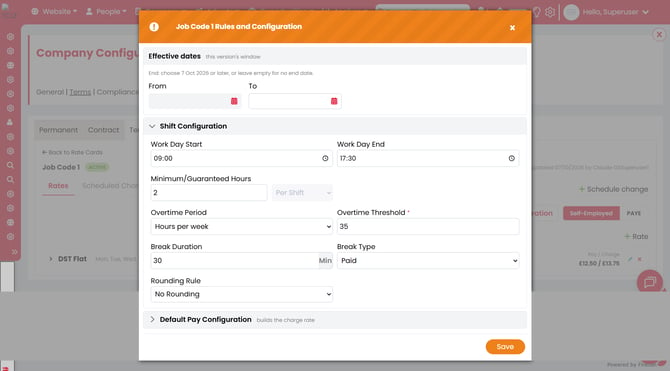
The following settings are available within the Shift Configuration section:
- Effective dates - The period this rate card is effective for
- Default Start and Default End — the default shift times used when a shift is created against this job code.
- Minimum/Guaranteed Hours — a guaranteed hours value, set per shift.
- Overtime — with the option to choose an Overtime period:
- Hours per week
- Hours per shift
- Break Rules — set a Break Duration (in minutes) and a Break Type.
- Time Rounding — choose a Rounding Rule and Rounding Interval for recorded time.
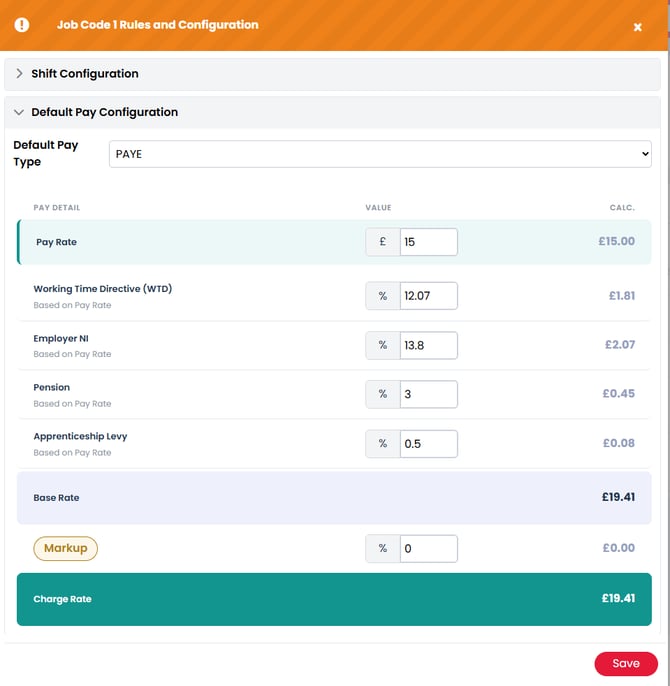
Below Shift Configuration sits Default Pay Configuration — the same pay build-up mechanics as your system-wide Pay Configuration. The Pay Configuration added within your job configuration settings is pulled through to the rules and configuration by default.
Because every rate you add under this job code starts from these defaults, this is the fastest way to get a new job code's pay calculation correct before you start adding individual rates and modifiers.
Adding Standard Rates
Standard rates are the default rates used by the rate card.
Add the relevant rates and configure the values required for each one.
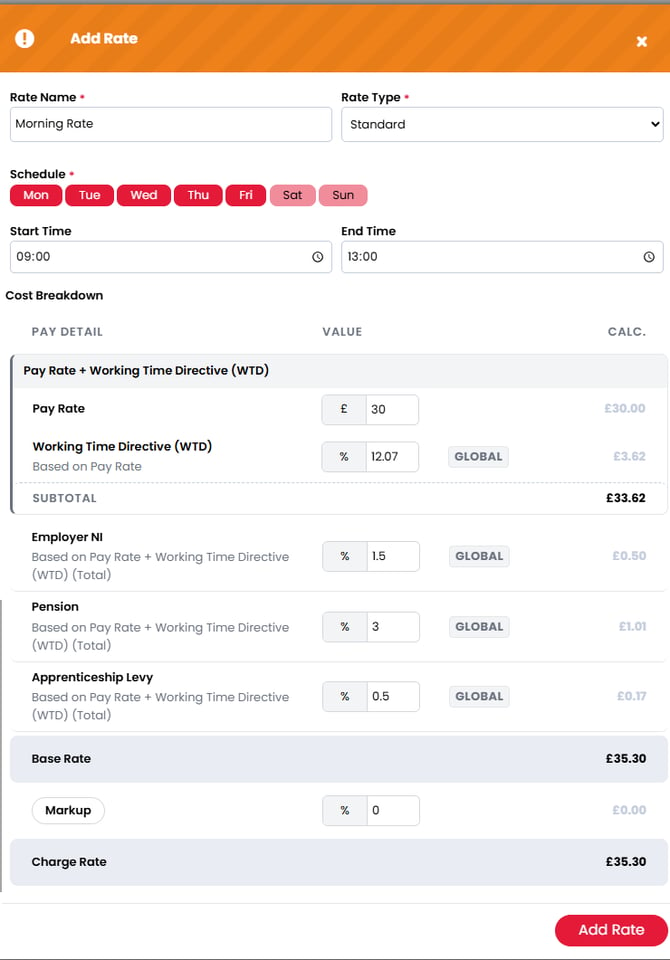
Standard rates provide the base rates that can then be affected by exception rates or modifiers where applicable.
Adding Exception Rates
Exception rates let you add a rate for a specific date or date range — a bank holiday, for example — without restructuring your other rates. An exception rate is allowed to overlap a standard rate, and wherever the two overlap, the exception rate takes priority.
For example, if you have a standard rate covering Monday to Friday and Christmas Day (25 December) falls on a Thursday, you don't need to touch that rate at all. Add an exception rate for 25 December, and it trumps the standard Monday–Friday rate for that one day only — the standard rate continues either side of it, uninterrupted.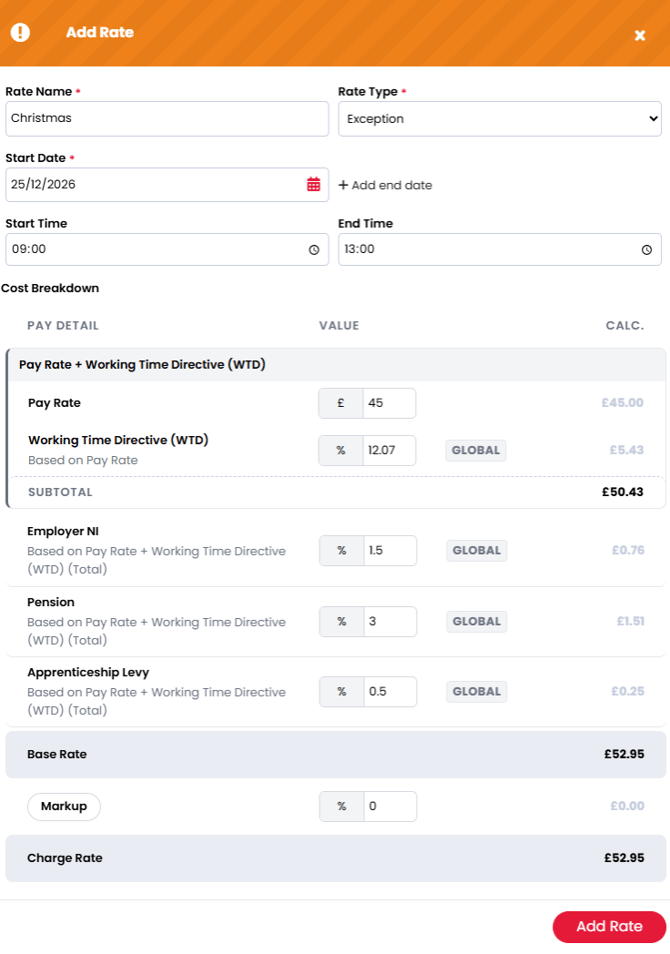
Adding modifiers
Modifiers allow a rate to be adjusted when specific conditions are met. A modifier changes a rate when a trigger is met, using a chosen calculation type.
The trigger options are:
- After X Weeks — e.g. an AWR uplift after 12 weeks.
- Time Range — e.g. a night rate between set hours.
- Days Worked — e.g. a different rate on a particular day.
- Overtime — e.g. a different rate after a shift of 8 hours or more than 40 hours a week, depending on the Overtime period set in Rules and Configuration. Only available when Overtime is switched on for the job code.
The calculation type options are:
- Min Rate — enforce a minimum.
- Multiplier — e.g. 1.5× the base rate.
- Uplift — add a set amount.
- Fixed Fee — a flat figure.
Combining these lets you model day, night, overtime, bank holiday and named exception rates within a single job code.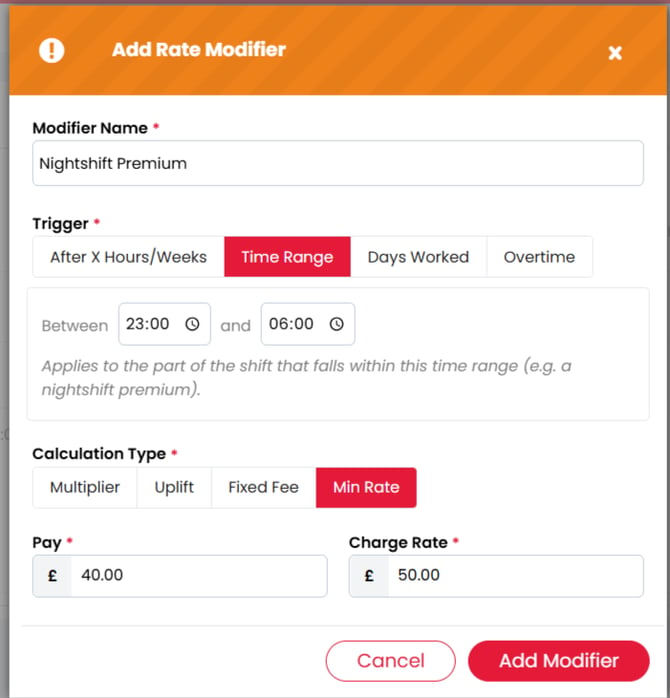
When a rate card is built out, more than one rate or modifier can end up qualifying for the same shift. To ensure the correct rate is applied, the order of priority, highest to lowest, is:
- Rates (including exception rates)
- Modifiers within the rate card
In other words, if a rate and a modifier could both apply to the same shift, the rate is used and the modifier is ignored.
There's no restriction on adding modifiers that could apply to the same shift at the same time, so where more than one modifier could still qualify, you set the priority yourself by reordering the modifier list. The list runs from least to most priority as you go down it — so a modifier further down the list takes priority over the ones above it.
Scheduling changes
If you know a change to your Rate Card is coming, you can schedule it in advance rather than making it on the day:
Select Schedule Change.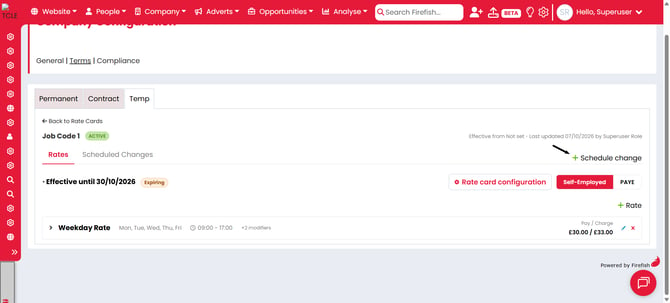
Choose the date the scheduled change will apply from.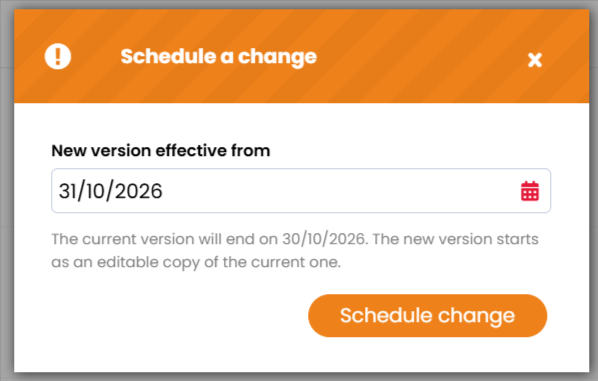
A new copy of the Pay Configuration appears, populated by default with your current Pay Configuration. Edit it as needed.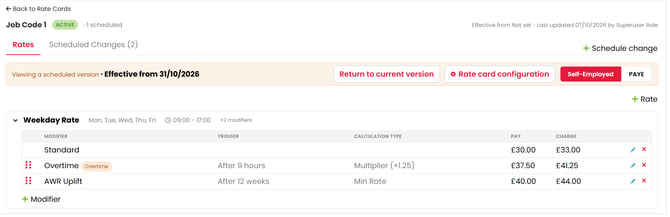
Applying rate cards to a company
Standard rate cards become useful when they're attached to a company. On the company record, under Terms > Temp, use Add Rate Cards to pull your standard cards through into that company. From there you can:
- Keep a rate card as Standard (a read-only copy of your settings).
- Make it Custom to adjust the rules, rates and modifiers for that company.
On a child company, you can also choose whether it uses your standard rate cards or the rates from its parent company.
How rate changes cascade
Rate cards inherit from your settings, and edits flow down to anything that's still an unmodified copy. When you change your standard settings, rate cards (and rates) that haven't been individually edited pick up the change automatically; anything you've customised keeps its own values. You'll see a warning whenever a save will affect other rate cards, so you always know the reach of a change before you confirm.