Note: The new Timesheets feature is currently in early access Beta and available to a select number of users. If you're interested in taking part in the next round, get in touch with your customer success manager.
Agency settings and internal permissions are managed by a Super User. Colleagues with Create & Edit Timesheets can maintain approvers on individual Timesheets within the relevant status rules.
In this guide
- Calendar and entry settings.
- Creation choices.
- Approval routes and client access.
- Reminders and notifications.
- Internal editing and approval permissions.
- Client timesheet approvers.
- Frequently asked questions.
Set the calendar and entry method
Open Settings → Job Configuration → Timesheets. Your agency needs the Timesheets module, and you need access to manage its settings.
The defaults below apply to initial setup. Your agency's saved settings may differ.
| Setting | Choices and purpose | Initial default |
|---|---|---|
| Timesheet frequency | Weekly Timesheets with daily entries. | Weekly |
| Work Week start | Choose the first day of your agency's working week. | Monday |
| Payroll run | The same Work Week or one to four weeks in arrears. | One week in arrears |
| Payroll Cut Off | Set the payroll cut-off day and time. | Wednesday, 09:00 |
| Timesheets Overdue | Set when outstanding Timesheets become Overdue. | Monday, 12:00 |
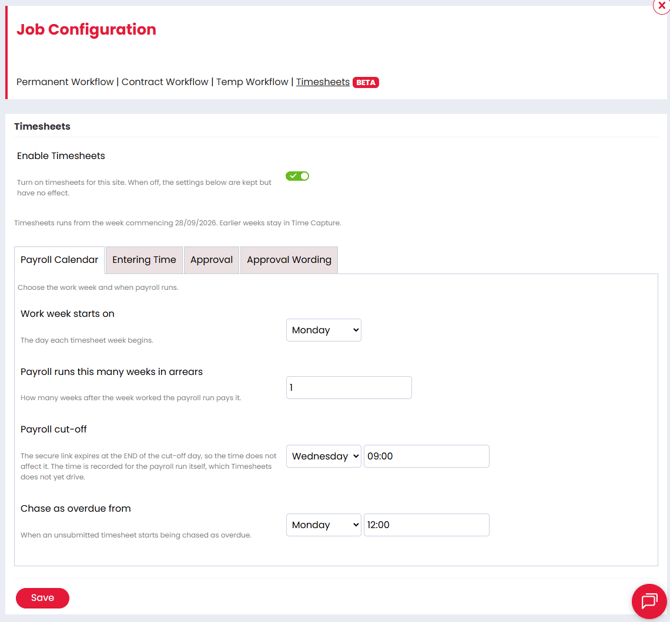
For a Saturday-to-Friday week, set Work Week start to Saturday.
Overdue and Payroll Cut Off have different purposes. Overdue identifies work needing attention; it does not stop approval while the client's link is valid. Approval links expire at the end of the Payroll Cut Off day. A fresh link issued after cut-off expires at the end of the next Payroll Cut Off day.
Choose how Timesheets are created
For hourly entries, choose Start & End Times (the default) or Units. Start & End Times uses the entered worked times; Units uses the entered hourly quantity. The choice applies to Contract and Temp. Daily rates always use Units for the number of days worked.
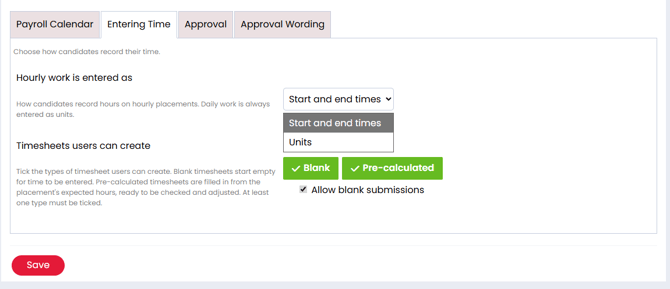
Enable Blank, Pre-calculated, or both. At least one type must remain enabled.
- Blank: prepare the daily entries with values left for completion.
- Pre-calculated: prepare entries from the relevant placement or shift information.
Detect & Create offers the enabled types for each operation. If both are available, the user chooses which to use for that operation.
Allow blank submissions is separate. Enable it if your agency wants to send blank Timesheets for client completion, and give those approvers suitable editing access.
Required values must still be supplied before approval or rejection. A valid zero counts as supplied.
Creation choices and reminders do not send the first approval request automatically. Users prepare Timesheets with Detect & Create and then submit them.
Set up approval and client access
Approval routes
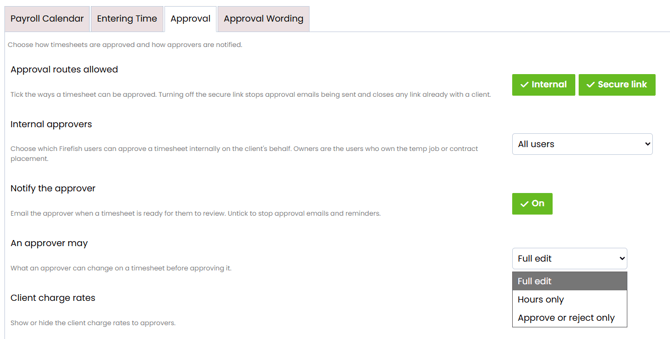
- Internal: authorised agency users approve or reject in Firefish.
- Secure Link: named client approvers use an email link without a Firefish login.
Both start enabled and can be used together. Choose the authorised internal users separately.
Turning off Secure Link invalidates approval links already issued.
What clients can change
| Client edit setting | Available actions |
|---|---|
| Full Edit | Make the available entry changes and add supported Split or Additional Rate entries. This is the default. |
| Hours Only | Change times or quantities on existing entries. |
| Approve/Reject Only | Review and decide without changing entries. |
Adding Split or Additional Rate entries requires Full Edit and the relevant controls to be available.
Charge visibility and approval wording
Set client charge visibility to Show or Hide, initially Hide. Show includes charge rates, line charge totals and the Timesheet charge total together. Hide removes those figures. Client approvers never see pay or margin, and showing charges does not grant editing access.
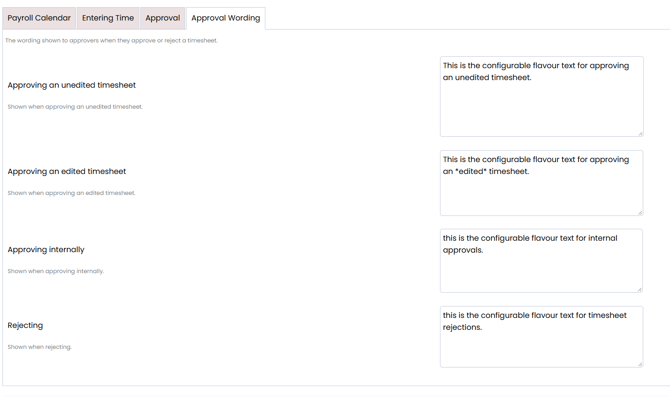
Keep the Firefish default confirmation wording or customise it in Timesheet settings. The wording presented when approval is confirmed is retained with the approval evidence.
Rejection reasons
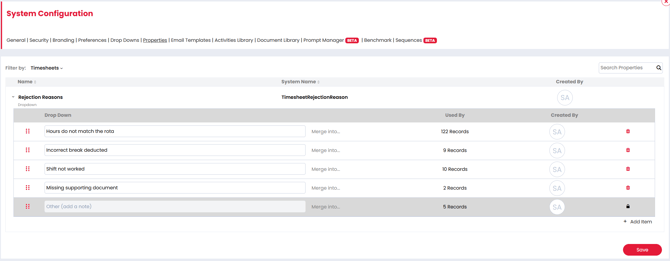
Open Settings → System Configuration → Properties and use the Timesheets filter. The configurable initial reasons are:
- Hours do not match the rota.
- Incorrect break deducted.
- Shift not worked.
- Missing supporting document.
- Other (add a note).
A reason is required for internal and client rejections. Other also requires an explanatory note. Save changes on each settings page you update.
Set reminders and notifications
The Super User sets approval reminders across the agency, rather than each approver choosing a personal schedule.
| Option | What it does |
|---|---|
| Immediate | A reminder when submitted work becomes Overdue. |
| Daily digest | A daily summary of outstanding approval work. This is the default. |
| Weekly digest | A summary on your chosen day. |
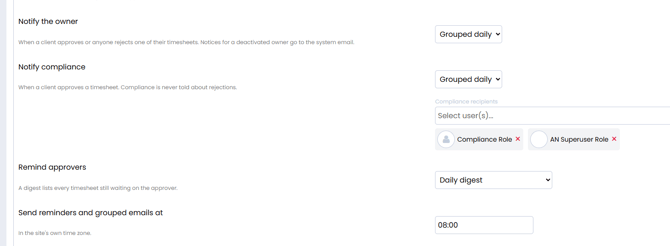
Digest sending starts at 08:00 in the site's time zone, with Monday as the default weekly day. Each digest includes all authorised Submitted and Overdue Timesheets still awaiting a decision. Never-submitted work is excluded.
For owner and Compliance notifications, choose None, per Timesheet or grouped daily. Owner notifications start grouped daily; Compliance recipients are initially blank.
The responsible recruiter is the Placement Owner for Contract and Job Owner for Temp. Rejection notices go to that owner, falling back to the configured system email if the owner is deactivated. Selecting Compliance recipients does not add them to rejection notices.
Give colleagues the right access
Editing and internal approval are controlled separately, within the records colleagues can already access.
Create and edit
- Open Settings → User Management → User Permissions.
- Find Create & Edit Timesheets.
- Enable or disable it for the internal roles that need to prepare and maintain Timesheets.
- Save your changes.
The permission starts enabled for Super User, Compliance User, Recruitment Manager and Recruiter.
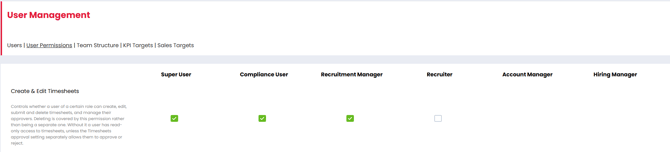
Edit includes Delete. Without this permission, a colleague cannot create, edit or delete Timesheets. They can still approve or reject if separately authorised below.
Choose who can approve and reject
In Settings → Job Configuration → Timesheets, check Internal approval is enabled, choose the user option and select named colleagues where needed.
| Option | Who can act |
|---|---|
| All users | Internal users with access to the relevant Timesheets. This is the default. |
| Owners only | The Placement Owner for Contract or Job Owner for Temp. |
| Specified users | The colleagues you select. |
| Owners plus Specified users | The responsible owners and selected colleagues. A selected colleague does not also need to own the record. |
For example, Owners plus Specified users can cover desk owners and a named payroll colleague.
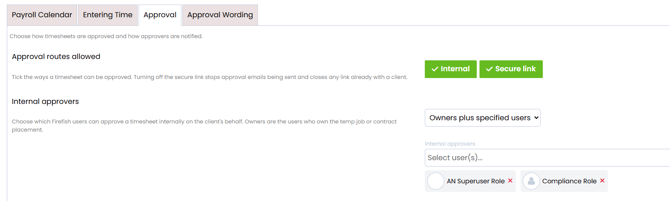
This selection grants both Approve and Reject. A second approval permission in User Permissions is not required. The Timesheet's required values and status must still allow the action. Approval records the user and time for each affected Timesheet, including bulk decisions.
Manage client approvers
Check the usual approvers
New Timesheets take their approvers from the Contract Placement or the Timesheet Approver Contacts on the Temp Job.
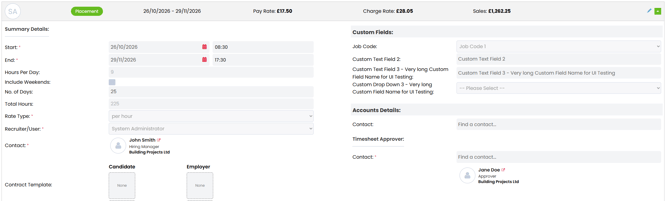
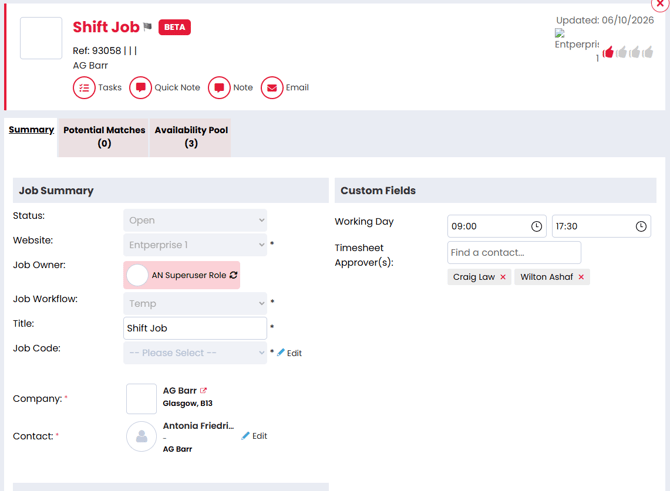
Change those lists when the client's usual approval contact changes. The update applies to unapproved Timesheets, including existing Submitted, Overdue and Rejected records, as well as future Timesheets.
Internal User Permissions applies to agency users. For a client using an approval email, check the named approvers and the client edit setting above.
Change one Timesheet
For a change applying to one Timesheet, such as approval cover for a particular week:
- Open the relevant Timesheet's detail panel.
- Review the named approvers.
- Add an approver from the Timesheet Company's Contacts or remove someone who should no longer review it.
- Save using the available controls and check the updated list.
You need Create & Edit Timesheets, and the Timesheet's status must allow the change. An individual change does not update the Placement or Job list, other Timesheets or future Timesheets.
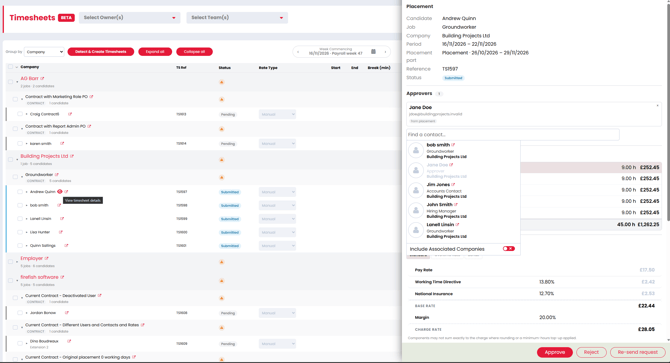
If the usual Placement or Job list changes later, individual additions remain and deliberately removed approvers stay excluded.
Understand requests and existing links
An approver newly added to a Submitted Timesheet receives an approval request automatically, whether added directly or through the Placement or Job.
Removing an approver immediately ends their existing-link access to that Timesheet. They retain access to other Timesheets they remain authorised to review.
Approved and Processed work retains its approval history when the usual list changes. If an Approved Contract Timesheet is reopened for correction, it picks up Placement approvers added while it was Approved, preserving individual additions and removals.
Common questions
Can someone approve without editing access?
Yes. Authorise them through the internal approval selection. They can approve or reject while remaining unable to create, edit or delete.
Does editing access also grant approval?
No. Check the internal approval selection separately.
Why can't I add the client's preferred approver?
Check that the Contact belongs to the Timesheet's Company, that you have Create & Edit Timesheets and that the Timesheet's status allows the change.
Related guides