Firefish Temp Rate Cards support Exception Rates and Rate Modifiers, allowing you to configure different pay and charge rates for specific dates, working hours or qualifying conditions without changing your standard rates.
This guide explains how to add exception rates, configure modifiers, manage their priority and understand which rate will apply when multiple conditions are met.
Contents
- Understanding Rate Exceptions and Modifiers
- Adding Exception Rates
- Adding Rate Modifiers
- Understanding Modifier Triggers
- Choosing a Calculation Type
- Setting Rate and Modifier Priorities
- Frequently Asked Questions
Understanding Rate Exceptions and Modifiers
Standard Rates define the normal pay and charge rates for a Job Code. Exception Rates and Modifiers allow you to apply alternative rates when different conditions are met.
Although they can both affect the rate used for a shift, they work differently.
| Rate type | Purpose | Example |
|---|---|---|
| Standard Rate | The default rate for a Job Code and applicable period. | £15 per hour for weekday work. |
| Exception Rate | Overrides a Standard Rate for a specific date or date range. | £22 per hour on Christmas Day. |
| Rate Modifier | Adjusts a rate when a configured condition is met. | 1.5× pay after eight hours worked. |
Exception Rates are useful for specific dates, while Modifiers are better suited to recurring conditions such as overtime, night shifts or rates that change after a number of weeks.
Both are configured against the relevant Job Code within a Rate Card.
Adding Exception Rates
Exception Rates allow you to apply an alternative rate during a specific date or date range.
Unlike Standard Rates, Exception Rates can overlap an existing Standard Rate. Where the dates overlap, the Exception Rate takes priority.
For example, if a Standard Rate applies Monday to Friday and Christmas Day falls on a Thursday, you can add an Exception Rate for 25 December without changing the existing weekday rate.
To add an Exception Rate:
- Navigate to Settings > Company Configuration > Terms > Temp.
- Open the relevant Rate Card using the Blue Pencil Edit Icon.
- Hit Add Rate, then change the Rate Type to Exception
- Configure the applicable date or date range, pay type and rate values.
- Save your changes.
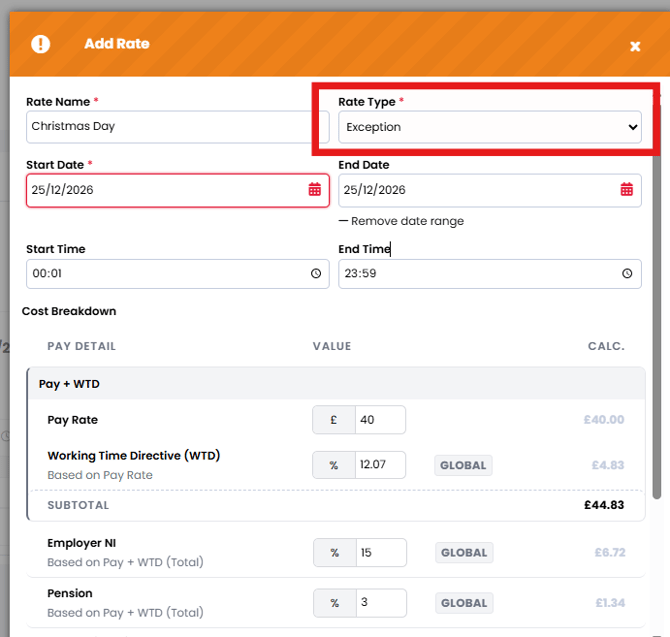
Example: Bank holiday rates
A Job Code has a Standard Rate of £15 per hour, applicable Monday to Friday.
You add an Exception Rate of £22 per hour for 25 December.
| Date | Rate applied |
|---|---|
| 24 December | Standard Rate: £15 |
| 25 December | Exception Rate: £22 |
| 26 December | Standard Rate: £15, where applicable |
Example rates are illustrative.
The Exception Rate applies only to the configured date, with the existing Standard Rate continuing outside that period.
Adding Rate Modifiers
Rate Modifiers allow you to adjust a rate automatically when a particular condition is met.
Each modifier contains two main elements:
- Trigger: Determines when the modifier should apply.
- Calculation Type: Determines how the rate should be adjusted.
To create a Rate Modifier:
- Navigate to Settings > Company Configuration > Terms > Temp.
- Open the relevant Rate Card using the Blue Pencil Edit Icon.
- Select Add Modifier.
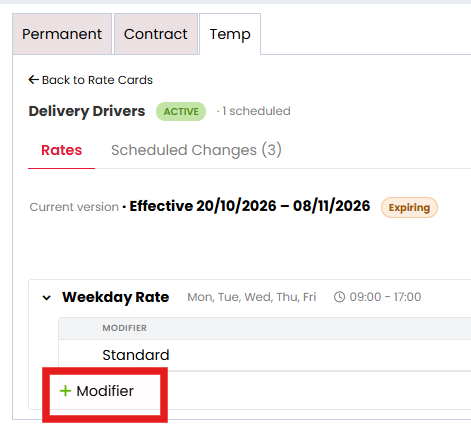
- Enter a descriptive Modifier Name.
- Select the appropriate Trigger.
- Choose the Calculation Type.
- Enter the relevant values and save the modifier.
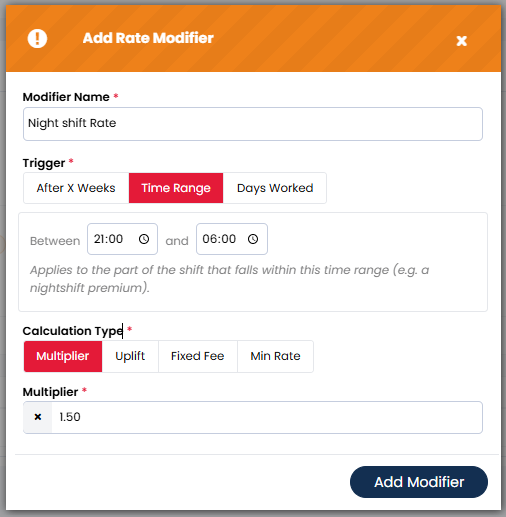
Tip: Use descriptive names such as Overtime After 8 Hours, Weekend Rate or AWR After 12 Weeks to make your modifiers easy to identify and maintain.
Understanding Modifier Triggers
The Trigger controls when Firefish applies a modifier.
There are four available trigger types.
| Trigger | What it does | Example |
|---|---|---|
| After X Weeks | Applies after a candidate has worked the configured number of consecutive weeks. | A rate increase after 12 weeks. |
| Time Range | Applies during a specified time period. | Night rates between 22:00 and 06:00. |
| Days Worked | Applies on selected days of the week. | A Sunday rate. |
| Overtime | Applies when the configured overtime threshold is reached. | Overtime after eight hours per shift. |
After X Weeks
This trigger is useful for rates that change after a candidate has worked for a specified period, including AWR-related rate adjustments.
When configuring this modifier, you can specify:
- After: The number of consecutive weeks required before the modifier applies.
- Resetting after a gap of: The number of weeks without shifts before the consecutive-week count resets.
Firefish tracks the weeks a candidate has worked on shifts and uses the configured gap to determine when the count should reset.
For example, a modifier can be configured to apply after 12 consecutive weeks, with the count resetting after a specified gap without shifts.
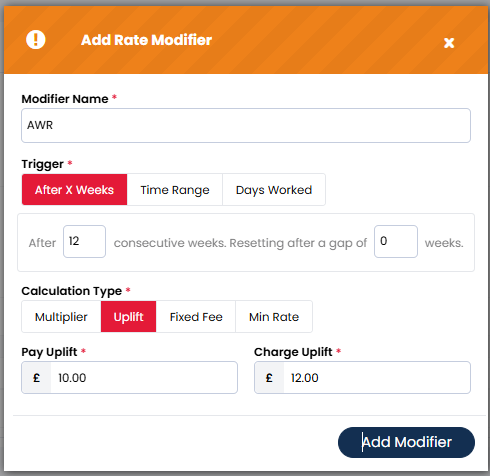
Time Range
Use Time Range to configure modifiers that apply during particular working hours, such as night shifts.
For example, you may have a modifier for work carried out between 22:00 and 06:00.
Days Worked
Use Days Worked to configure alternative rates for selected days, such as Saturdays or Sundays.
Overtime
Use Overtime to apply a modifier when the configured overtime threshold has been reached.
Before using this trigger, you must enable Overtime within the Job Code's Rules and Configuration > Shift Configuration settings.
You can configure the overtime period as:
- Hours per shift
- Hours per week
The Overtime trigger is only available when Overtime is enabled for that Job Code.
For more information about shift rules and overtime configuration, see Creating and Managing Standard Temp Rate Cards.
Choosing a Calculation Type
Once you've selected the Trigger, choose how the modifier should calculate the adjusted rate.
Firefish supports four Calculation Types:
| Calculation Type | Description | Example |
|---|---|---|
| Multiplier | Multiplies the applicable rate by the configured value. | £15 × 1.5 = £22.50 |
| Uplift | Adds a fixed amount to the applicable rate. | £15 + £2 = £17 |
| Fixed Fee | Applies a configured flat amount. | A fixed £25 amount. |
| Min Rate | Enforces a minimum rate. | Ensures the rate is at least £16. |
These examples illustrate the calculation types rather than a complete pay and charge calculation.
Example: Configuring overtime
To configure an overtime modifier that increases the applicable rate by 50%:
- Ensure Overtime is enabled in the Job Code's Shift Configuration.
- Select Add Modifier.
- Enter a name such as Overtime 1.5x.
- Select Overtime as the Trigger.
- Select Multiplier as the Calculation Type.
- Enter 1.5 as the multiplier.
- Save the modifier.
If the applicable rate is £15 per hour, a multiplier of 1.5 produces a rate of £22.50 per hour for the qualifying work.
The final pay and charge calculations also depend on the Job Code's Pay Configuration.
Setting Rate and Modifier Priorities
When multiple rates or modifiers could apply to the same shift, Firefish uses a priority order to determine which one takes precedence.
Only one applicable rate or modifier is selected. Modifiers do not stack.
The priority rules are:
- Exception Rates take priority over overlapping Standard Rates.
- Applicable rates take priority over modifiers. If a rate and modifier qualify for the same shift, the rate is selected and the modifier is ignored.
- Where multiple modifiers qualify, the modifier list determines priority.
Modifier priority
Modifiers can be reordered within the Rate Card.
The list runs from lowest to highest priority as you move down it, meaning the modifier at the bottom has the highest priority.
If multiple modifiers qualify, Firefish applies the highest-priority applicable modifier rather than combining them.

Example: Weekend and overtime modifiers
A Rate Card contains two modifiers:
| List order | Modifier | Priority |
|---|---|---|
| 1 | Weekend Rate | Lower |
| 2 | Overtime Rate | Higher |
If a candidate's shift qualifies for both modifiers, Firefish selects the Overtime Rate because it is positioned lower in the modifier list.
If you want the Weekend Rate to take priority instead, reorder the modifiers so that Weekend Rate appears below Overtime Rate.
Important: Review modifier priority whenever you add a new modifier, particularly if it could overlap with existing conditions.
Frequently Asked Questions
Can an Exception Rate overlap a Standard Rate?
Yes. Exception Rates are designed to overlap Standard Rates and take priority during the applicable date or date range.
Can multiple modifiers apply to the same shift?
Multiple modifiers can qualify, but only one is selected. The highest-priority applicable modifier takes precedence.
Which modifier has the highest priority?
The modifier at the bottom of the list has the highest priority. You can change priority by reordering modifiers.
Why can't I select Overtime as a modifier trigger?
Overtime must first be enabled in the Job Code's Shift Configuration. Once enabled, the Overtime trigger becomes available.
Can I automatically increase rates after 12 weeks?
Yes. Use the After X Weeks trigger to configure when the modifier applies and how many weeks without shifts should cause the count to reset.
Should I use an Exception Rate or a Modifier for a bank holiday?
Use an Exception Rate when you need a specific rate for a particular date or date range. A Modifier is more appropriate for recurring conditions, such as selected days of the week.