Temp Rate Cards allow you to configure pay and charge rates for your Temp Jobs and apply them across your client companies.
Standard Rate Cards provide a consistent starting point for your rates, with the flexibility to customise individual companies, configure exceptions and apply additional rate rules where required.
In this article:
- Understanding Standard Rate Cards
- Creating a Standard Rate Card
- Configuring Shift Rules
- Configuring Default Pay Settings
- Adding Standard Rates
- Editing Rates and Applying Changes
- Scheduling Changes to Pay Configuration
- Frequently Asked Questions
Understanding Standard Rate Cards
A Standard Rate Card contains the default rates and rules used for a particular type of temporary work.
Each Rate Card is organised by Job Code, allowing you to configure different rates and working arrangements for the roles your agency recruits.
There are three main components:
| Component | Purpose |
|---|---|
| Rate Card | Groups together the Job Codes and rates for a particular type of temporary work. |
| Rules and Configuration | Defines the default shift settings and pay calculation rules associated with a Job Code. |
| Rates | Defines the pay and charge rates that apply, including the relevant pay type and effective dates. |
You can also configure Exception Rates and Rate Modifiers to handle different circumstances, such as bank holidays, overtime or rates that change after a period of employment.
Once configured, Standard Rate Cards can be applied to companies. Companies can either use your standard rates or have customised rates where different terms have been agreed.
Creating a Standard Rate Card
Standard Rate Cards are managed centrally within Firefish and use Job Codes to organise the rates and working arrangements for different roles.
Before creating your Rate Card, you'll need to ensure the relevant Job Codes have been configured.
Step 1: Creating Job Codes
Job Codes allow you to categorise temporary roles that require different rates or working arrangements.
For example, a healthcare agency might use Job Codes such as Healthcare Assistant, Registered Nurse or Support Worker, each with its own pay and charge rates.
To create or manage Job Codes:
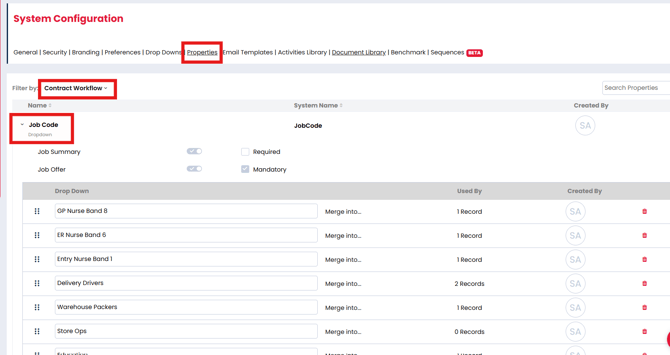
- Navigate to Settings > System Configuration > Properties.
- Use Filter by to select Contract Workflow.
- Locate and expand the Job Code property.
- Review the existing Job Codes or scroll to the bottom of the dropdown values to add a new one.
- Enter the name of your new Job Code and save your changes.
You can also rename or reorder existing Job Codes from this screen.
Important: Job Codes are shared with the Contract Workflow, so changes to existing values may also affect other records using those codes. Check the Used By column before amending or deleting a Job Code.
Step 2: Creating your Standard Rate Card
Once your Job Codes have been configured, you can create the Standard Rate Card.
Navigation: Settings > Company Configuration > Terms > Temp
You will need Superuser permissions to create a Standard Rate Card.
- Navigate to Settings > Company Configuration > Terms > Temp.
- Create a new Standard Rate Card.
- Select the relevant Job Code.
- Configure the Rules and Configuration, including shift defaults and pay settings.
- Add the relevant Standard Rates.
- Save your Rate Card.
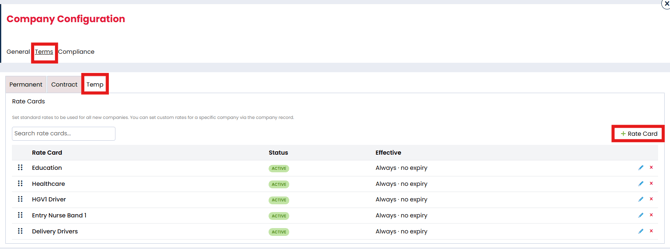
Each Job Code can have its own shift configuration, pay calculation and rates, allowing you to manage different working arrangements within your standard rate structure.
Once your Rate Card has been created, you can configure the shift rules and default pay settings before adding your rates.
Configuring Shift Rules
Within each Job Code, the Rules and Configuration section controls the default settings used when creating shifts and calculating rates.
The Shift Configuration section contains the following options:
| Setting | Description |
|---|---|
| Effective Dates | Defines the period during which the Rate Card configuration applies. |
| Default Start / Default End | Sets the default start and finish times for shifts created against the Job Code. |
| Minimum / Guaranteed Hours | Defines the minimum or guaranteed hours associated with a shift. |
| Overtime | Enables overtime calculations based on hours worked per shift or per week. |
| Break Duration | Sets the duration of breaks in minutes. |
| Break Type | Determines how breaks are treated within the shift configuration. |
| Time Rounding | Defines how recorded working times should be rounded, using a Rounding Rule and Rounding Interval. |
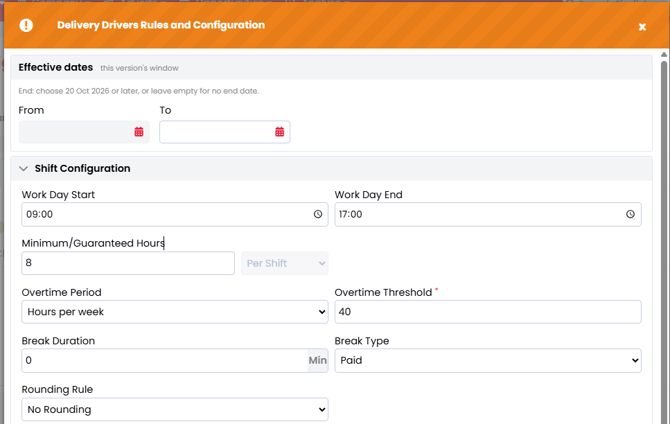
Overtime configuration
When enabling Overtime, you can select how the overtime period is calculated:
- Hours per shift: Calculates overtime based on hours worked within an individual shift.
- Hours per week: Calculates overtime based on hours worked across the configured weekly period.
Enabling Overtime also makes the Overtime trigger available when configuring Rate Modifiers.
For example, you could configure overtime to apply after eight hours per shift, then use a modifier to determine the rate applied when that threshold is reached.
See Understanding Rate Exceptions and Modifiers for instructions on configuring overtime rates.
Configuring Default Pay Settings
Below Shift Configuration, the Default Pay Configuration determines how pay and charge rates are calculated for the Job Code.
By default, Firefish uses the Pay Configuration defined within your system's Job Configuration settings.
Navigation: Settings > Job Configuration > Temp Workflow
This configuration provides the default pay calculation rules, including the components used to build up pay rates and calculate charge rates.
Depending on your configuration, these may include:
- Base Pay Rate: The starting rate paid to the candidate.
- WTD and Holiday Pay: Additional components included in the pay calculation.
- Margin or Markup: The calculation used to determine the charge rate.
The Default Pay Configuration can then be adjusted for the relevant Job Code.
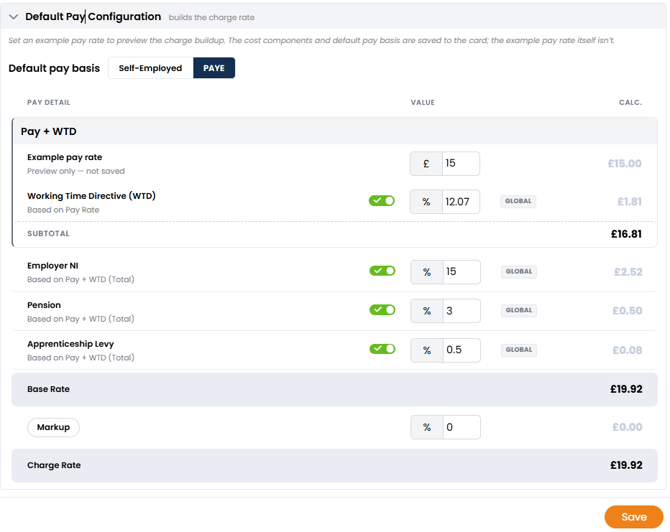
Important: The Default Pay Configuration provides the starting calculation for rates created against that Job Code. Review these settings before adding individual rates to ensure the correct pay and charge calculations are used.
For a detailed explanation of the available pay components and calculation methods, see Setting Up Pay Configuration.
Adding Standard Rates
Once you've configured the Job Code's shift and pay settings, you can add your Standard Rates.
Standard Rates define the normal pay and charge rates for the relevant Job Code and working arrangements.
Each rate includes the relevant pay type, such as PAYE or Self Employed, and the dates during which it applies.
To add a Standard Rate:
- Open the relevant Standard Rate Card.
- Select the Job Code you want to configure.
- Navigate to the Rates section.
- Hit the +Rate option on the right.
- Configure the applicable dates, pay type and rate values.
- Review the calculated pay and charge amounts.
- Save your rate.
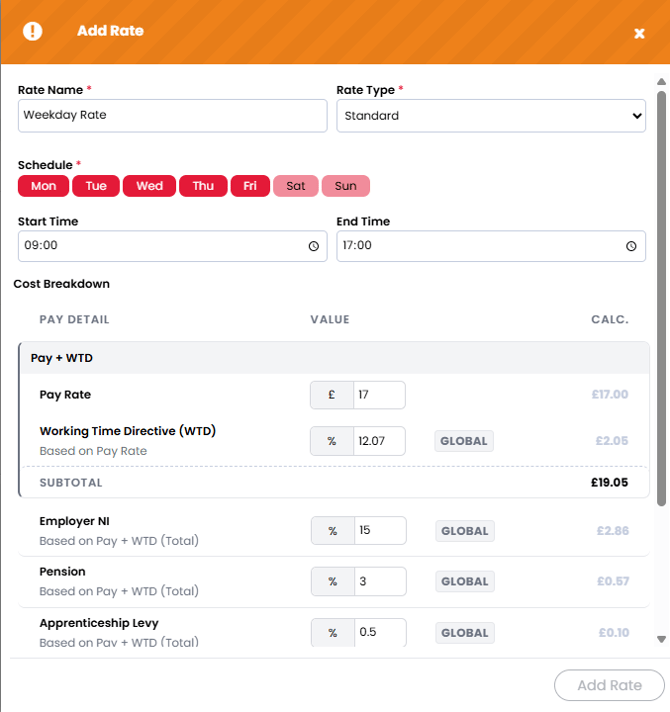
How Standard Rates work
Standard Rates are date-bound, allowing you to define when a particular rate is applicable.
Standard Rates cannot normally overlap for the same applicable conditions. This helps avoid conflicting default rates.
For example, you may configure one standard rate until 31 December and a replacement rate beginning on 1 January.
If you need a different rate to apply temporarily during an existing rate period, you can use an Exception Rate rather than changing the Standard Rate.
Exception Rates are covered in Understanding Rate Exceptions and Modifiers.
Editing Rates and Applying Changes
You can update existing rates when your agency's pay or charge rates change.
To edit a Standard Rate:
- Navigate to Settings > Company Configuration > Terms > Temp.
- Open the relevant Standard Rate Card.
- Select the Job Code and rate you want to amend.
- Update the required values.
- Save your changes.
When you update a Standard Rate, Firefish displays an Update Rate window.
This allows you to control when the new rate should take effect.
| Option | Behaviour |
|---|---|
| Update from today | Keeps earlier shifts unchanged and applies the new rate to applicable shifts from today onwards. |
| Update from this week | Applies the new rate to applicable shifts from the beginning of the current week. |
| Update all time | Applies the new rate to all applicable shifts, including past and current shifts. |
How changes affect companies
When you update a Standard Rate Card, Firefish also updates companies currently using the standard rates.
Any rates or configuration that have been customised at company level retain their own values rather than automatically inheriting subsequent changes to the standard configuration.
Firefish displays a warning when your changes will affect other Rate Cards, allowing you to review the impact before confirming.
Important: Take care when choosing Update all time, as this can affect rates associated with historical shifts.
For more information on standard and customised company rates, see Applying and Managing Rate Cards for Companies.
Scheduling Changes to Pay Configuration
You can schedule changes to your Rate Card's Pay Configuration in advance.
This is useful when you know that a change to your pay calculations will take effect on a future date.
To schedule a change:
- Open the relevant Rate Card by hitting the blue pencil icon to Edit.
- Select Schedule Change.
- Choose the date the updated Pay Configuration should apply from.
- Firefish creates a new copy of the existing Pay Configuration.
- Update the relevant pay components or calculations.
- Save the scheduled configuration.
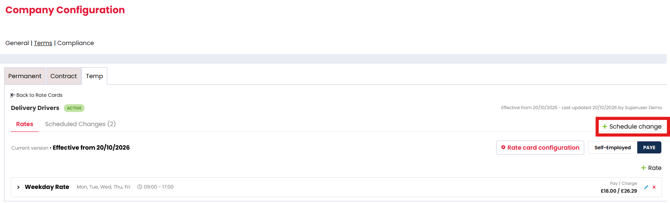
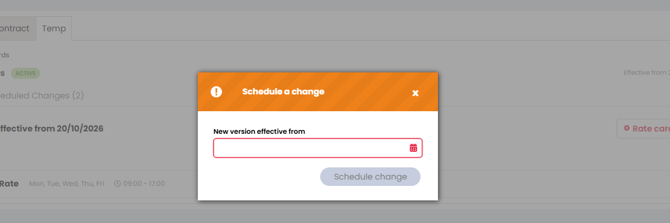
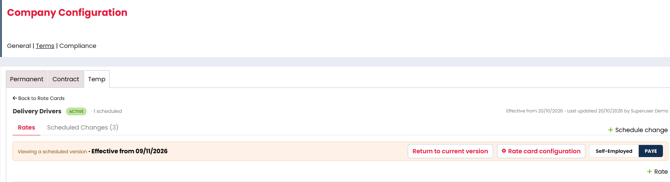
The scheduled configuration is populated with your existing settings, so you only need to amend the components that are changing.
This allows you to prepare future changes while retaining the current Pay Configuration until the scheduled date.
Frequently Asked Questions
Do I need Superuser permissions to create a Rate Card?
Yes. Superuser permissions are required to create Standard Rate Cards.
Can I configure different rates for different Job Codes?
Yes. Each Job Code can have its own shift configuration, default pay calculation and associated rates.
Can I have overlapping Standard Rates?
Standard Rates cannot normally overlap for the same applicable conditions. Use an Exception Rate if you need a temporary rate to take priority during an existing rate period.
Can I configure overtime rates?
Yes. Enable Overtime within the Job Code's Shift Configuration, then use an Overtime Rate Modifier to define the rate adjustment.
Will changing a Standard Rate update company rates?
Companies using the Standard Rate will inherit applicable changes. Company-specific customised values are retained.
Can I schedule changes to my pay calculations?
Yes. Use Schedule Change within Rules and Configuration to create a future-dated Pay Configuration.