Capturing compliance information during candidate registration helps ensure your records are complete from the very beginning of the recruitment journey. By configuring compliance details to appear at the registration stage, recruiters can collect mandatory documents and information upfront, reducing delays later in the hiring process and helping candidates progress through your workflow more efficiently.
-
Why should I add candidate details to our registration form?
-
What registration forms are there and where can I find them?
-
How to configure your compliance details for registration forms
- How to add compliance questions to registration forms
Why should I add candidate details to our registration form?
Candidate details are bespoke fields that you can add to your candidate records. These are intended to be used for compliance, first and foremost, whilst also allowing you the flexibility to create bespoke fields that align with your organisation's processes.
When you create a candidate detail, it can be added to your registration forms, which ensures that you are capturing all the data you need in order to remain compliant in your industry.
Learn how to create candidate details here.
What registration forms are there and where can I find them?
There are three types of registration forms on Firefish:
- Registration Form
- Found in settings > Candidate Portal > Registration
- This is the form candidate's complete when they select the Register button on your website.
- Application Form
- Found in the Website tab > Job Plugin > Application Form
- This is the form candidate's complete when they are applying to an Advert on your website.
- Manual Registration Form
- Found in settings > People Configuration > Candidate Registration
- This is the form your user's complete when adding candidate's via the Add Candidate button on Firefish.
How to configure your compliance details for registration forms
In order to add your bespoke candidate compliance details to your registration forms, you should first of all check that you have configured the detail to be added to registration forms:
- Go to settings
- Open People Configuration
- Select Compliance Details
- Click the detail you would like to add
- Click into the field type (i.e. drop down, text, date or document)
- Ensure that Registration is ticked
- If you want to be able to make the detail mandatory, make sure to select that option too.
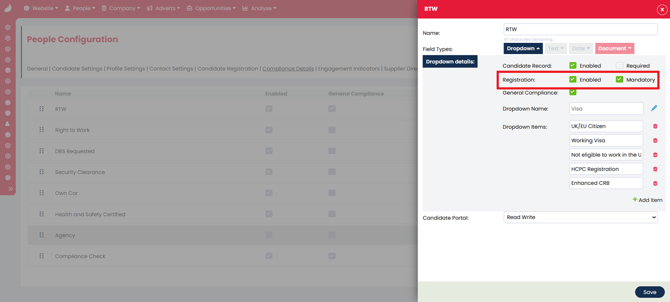
You will need to repeat this across all field types that you'd like to add to your registration forms for that detail.
How to add compliance questions to registration forms
Now that you've configured your compliance details in the last section, you can now add it to your registration form.
- Navigate to the registration form you would like to add the detail to (see here to locate).
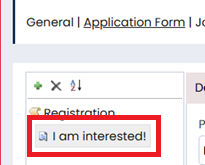
- Open the registration form page on the left hand side - this is signified with a white paper logo.
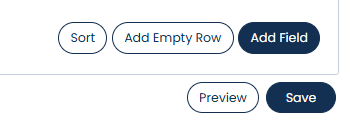
- Scroll to the bottom of the page and hit Add Field.
- Select Candidate Detail next to the Data Field.
- Choose the detail you would like to add.
- Type out the question as you'd like it to show on the form.
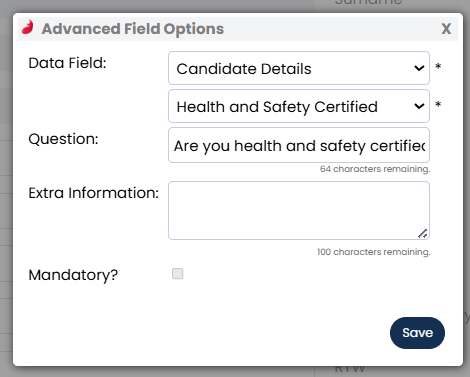
- If you would like the question to be mandatory, and have configured this in the previous section, you may activate this here.
- Save.