![Firefish_Icon_2019_RGB_72dpi (2).png]](https://fishtank.firefishsoftware.com/hs-fs/hubfs/Firefish_Icon_2019_RGB_72dpi%20(2).png?height=40&name=Firefish_Icon_2019_RGB_72dpi%20(2).png)
The Firefish Outlook Add‑In helps you save time by uploading received emails into Firefish, creating new candidate or contact records, and logging sent emails directly from Outlook. This article explains how to use each feature step‑by‑step.
- Uploading Emails
- Searching, Updating and Creating Records
- Uploaded Emails
- Logging Emails Sent
- Available Fields
Uploading Emails
Open and Pin the Add‑In
- In Outlook desktop, open any email and click the Firefish logo in the Outlook task bar.
.png?width=279&height=178&name=Untitled%20design%20(22).png)
- In Outlook on the web, open any email and locate the Firefish logo at the top of the message.
.png?width=688&height=294&name=Untitled%20design%20(23).png)
- Once the add‑in panel opens, click the Pin icon to keep it open while switching between emails.
.png?width=474&height=388&name=Untitled%20design%20(24).png)
- To unpin, click the Pin icon again (horizontal) or close the add‑in using the X.
Searching, Updating and Creating Records
Auto‑Detected Email Details
When an email is selected, the add‑in will automatically fill:
- First name
- Surname
- Email address
You can edit these fields manually if the email comes from a third party (for example, a job board application).
.png?width=448&height=369&name=Untitled%20design%20(25).png)
Search Firefish Records
- Confirm the details are correct, then click Search Firefish.
- Results show matching candidates and contacts with their unique ID numbers.
.png?width=443&height=312&name=Untitled%20design%20(26).png)
- Use the Candidates and Contacts tabs to switch between result sets.
- Inactive records are returned but displayed greyed out.
.png?width=444&height=309&name=Untitled%20design%20(27).png)
- Inactive records are returned but displayed greyed out.
Update Existing or Create New
- To update an existing record, click the desired result and you will be taken to that profile in Firefish.
- To create a new record, click Create New.
Update Email Address Option
- The Update Email Address toggle defaults to enabled.
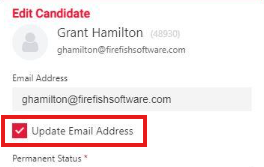
- This will update the record’s email address when saved.
- Turn it off if you do not want to overwrite the existing email.
Creating a New Person
- Complete all required fields (marked with asterisks), such as Legal Basis.
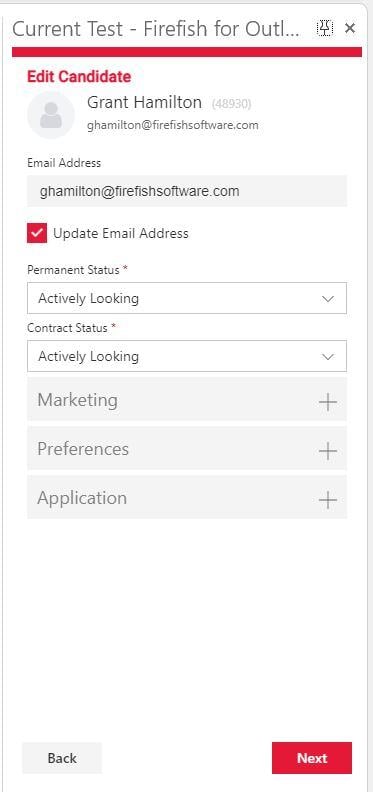
- Expand each section as needed.
- Click Next to upload attachments (e.g. CV).
- Files over 9.5MB will be greyed out and cannot be uploaded - See supported file types
.png?width=441&height=555&name=Untitled%20design%20(29).png)
- Files over 9.5MB will be greyed out and cannot be uploaded - See supported file types
- Click Submit.
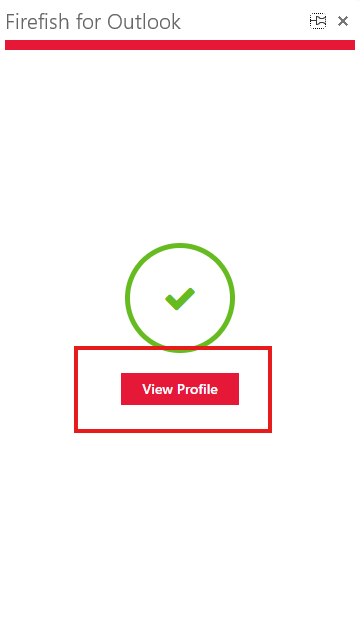
- Finally, choose View Profile to open the new person’s record in Firefish.
Uploaded Emails
- After a successful upload, the action appears under Recent Email Uploads on your Firefish dashboard.
.png?width=418&height=349&name=Untitled%20design%20(30).png)
- Any CVs attached will be processed within minutes and become searchable in the database.
- Uploaded attachments are also analysed for Potential Matches and Talent Pools.
Logging Emails Sent
Your Outlook email address must match your recruiter licence username so sent emails can be logged.
Log an Email
- Compose your email in Outlook.
- Click the Firefish logo to open the add‑in.
- Tick Log Emails to Firefish.
- A unique Firefish Bcc address is added to the Bcc field.
- Do not delete this Bcc address if you want the email logged.
.png?width=688&height=477&name=Untitled%20design%20(31).png)
How Matching Works
- Emails are only logged if the recipient’s email address matches an exact candidate or contact record in Firefish.
- When you add a recipient, Firefish searches your database and may display the candidate/contact profile in the add‑in panel.
.png?width=688&height=457&name=Untitled%20design%20(32).png)
- Only one profile displays at a time. If multiple recipients match, the most recent recipient is shown.
- Regardless, the email will log against all matching records if exact matches exist.
Creating New Contacts During Logging
If a recipient email is not found in Firefish:
- You will be prompted to create the recipient as a candidate or contact before sending.
.png?width=688&height=479&name=Untitled%20design%20(33).png)
Duplicate Emails in Database
- An email can only be logged if it appears in one unique record.
- If the same email exists on multiple records, click View Duplicates.
- This opens Firefish and displays all records using that email.
- From there you can merge, archive, edit or delete as needed.
.png?width=688&height=242&name=Untitled%20design%20(34).png)
Available Fields
- Email Address
- Update Email Address
- Permanent and Contract Status
- Legal Basis (when creating a candidate)
- Marketing preferences
- Preferences (Location, Discipline, and Specialism defined in Preferences. Salary/Rate, and availability)
- Apply to Advert
- Consider to Job
📌 Important:
The Outlook Add‑In fields are fixed and do not include every field from the full Firefish add form. Some fields may be mandatory if they are required in your Firefish settings.
Example:
If Location is mandatory in Firefish, it will also be mandatory in the Outlook Add‑In.
Fields that do not exist in the add‑in (for example Marketing Preferences) will not appear or be enforced here
Minimum Requirements
The Add-In is available to Windows and MacOS users, for both the desktop and web versions of Outlook and requires a full Microsoft 365 business licence.