Preferences are displayed throughout your system on candidate, contact and company records, searches, potential matches, jobs, adverts and within the candidate portal. Preference fields can be customised to suit your business needs.
They are a great tool that allow you to create searches and reports based on candidate, job and company preference requirements, and also a key factor in allowing AI to find potential matches so you don't have to lift a finger.
Types of Preferences
-
Disciplines and Roles - I.e. Doctor > GP
-
Locations and Sub-Locations - I.e. Glasgow > Cowcaddens
-
Specialisations and Sub-Specialisations - I.e. Healthcare > Mental Health
Accessing Preference Configuration
To access Preferences settings:
-
Click the Settings cog.
-
Go to System Configuration.
-
Choose the Preferences tab.
- On the Select a Preference drop down, choose the Preference you would like to configure.
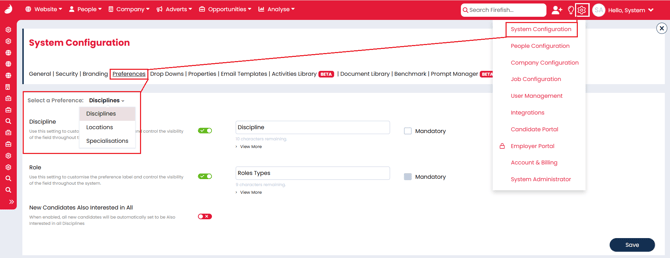
On this page you can:
-
Customise the names of preference types (i.e. your business might refer to Disciplines as Job Titles).
-
Choose whether a certain preference type is enabled/disabled.
-
Choose whether they are mandatory or not mandatory. If set to mandatory, a preference will need to be populated everywhere it appears throughout the system. This means that every candidate you create will need to have their preferences added, for example.
-
If the New Candidates Also Interested in All setting is enabled, then new Candidates in the system will be automatically set to be "Also Interested in" all of the dropdown options within the preference.
Preferences Visibility Per Site (Enterprise)
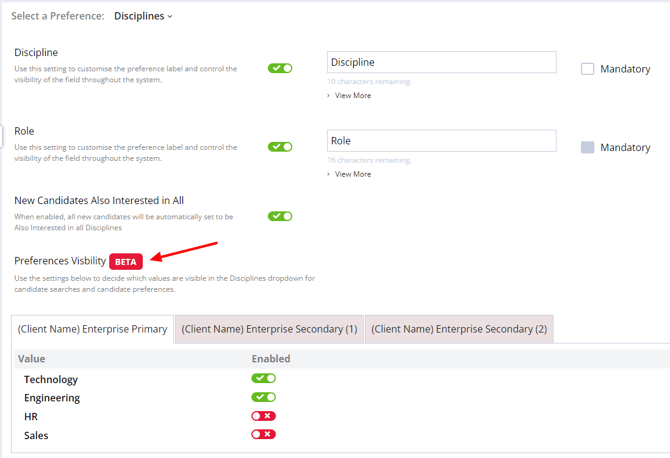
Enterprise users can choose to enable/disable the Discipline, Location or Specialisation values which show in your preferences dropdowns in Candidate, Contact and Company records and searches on a per-site basis .
-
Navigate to the preference area (follow the steps from the second section).
-
Select a Preference.
-
Select the tab for the relevant site in the Preferences Visibility section.
- Toggle the preferences off/on as required for that site.