In Firefish, you can manage every stage of your permanent job sales process. This includes forecasting potential revenue, recording additional fees, and confirming final placement sales figures. This guide covers all stages of recording and forecasting sales against permanent jobs.
- Add Forecasted Sales
- Add Additional Sales
- Add Placement Sales Figures
- View Forecasted Sales in Report Dashboard
Add Forecasted Sales
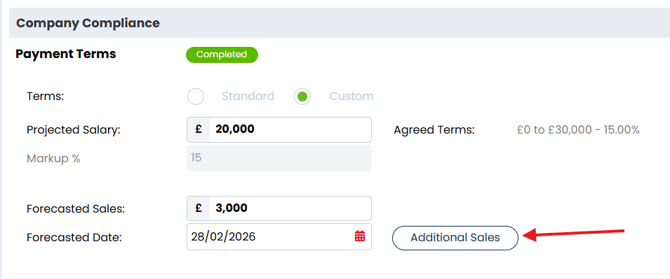
When you create a job, the Company Terms section in the Summary of the job will display a Projected Salary and Markup % / Markup Amount.
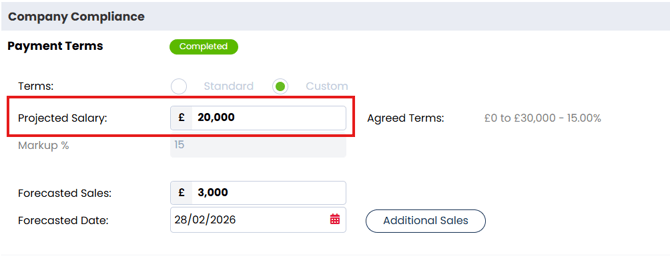
Firefish automatically calculates the Projected Salary as the median between the minimum and maximum salary entered in the Potential Match section of the Job Details.
If a markup % is defined in the Company Terms banding table, this will auto-populate the Markup field.
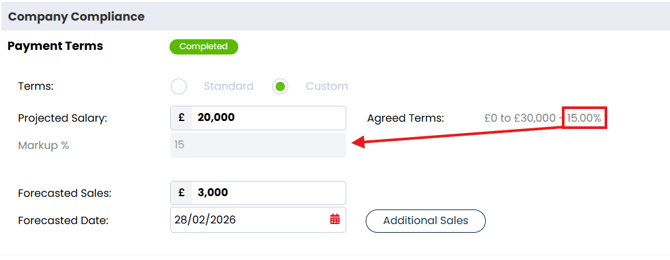
You can override this by clicking on Payment Terms Status and entering a Custom Band. This doesn’t affect the Company record — it only applies to the current job.
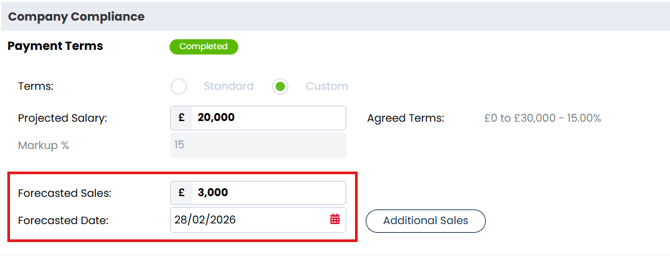
After setting your Markup, enter your Forecasted Sales Amount and the Forecasted Date you expect to fill the position.
For multiple-position jobs, multiply the expected sales value accordingly (e.g. 3 roles at £3,000 = £9,000).
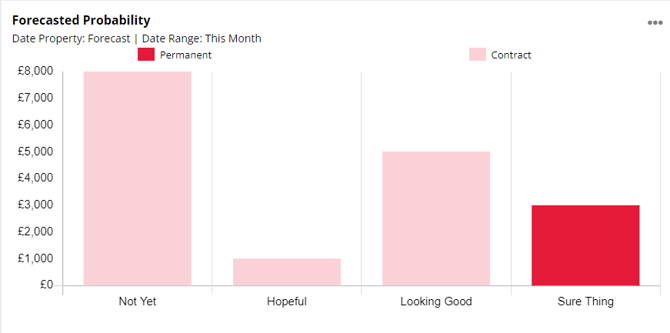
Use the thumbs rating in the job header to indicate the likelihood of achieving the forecasted sale:
- 👍 = Not Yet
- 👍👍 = Hopeful
- 👍👍👍 = Looking Good
- 👍👍👍👍 = Sure Thing

Don’t forget to Save the Job Summary.
💡Top Tip:
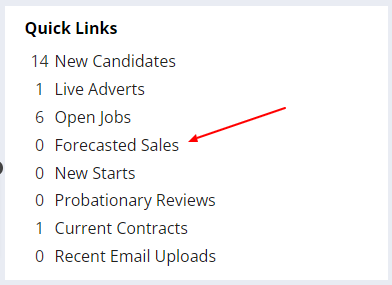
Jobs with a probability rating of two thumbs or more will automatically appear in the Forecasted Sales Quick Link, even if a forecasted amount hasn’t been added.
Add Additional Sales
Additional Sales are any fees received in addition to standard placement fees, such as retainers or commencement fees. You can customise these to suit your business needs.
To add Additional Sales, go to the Company Compliance section of the Job Summary and click Additional Sales:
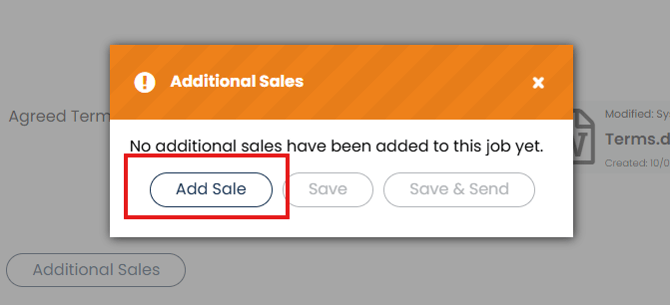
Click Add Sale and select the type from the drop-down.
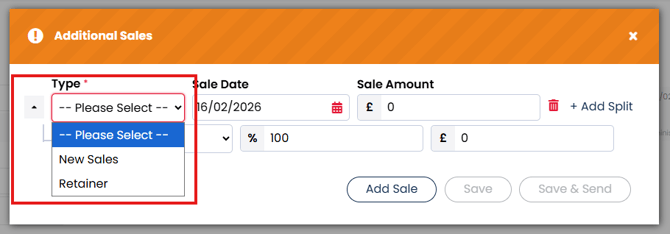
Sales Type values can be customised by a Super User via Drop Down Settings.
Enter the Sales Date, Amount, and assign the sale to one or more users. You can split sales between up to 3 users.
Ensure the total split equals 100%. Firefish will auto-calculate percentages or values based on your input.
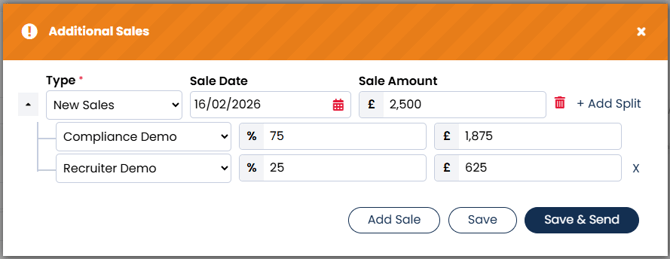
Click Save to add the sale to the job, or Save & Send to also open a Request to Charge email. Edit your email templates here.
Add Placement Sales Figures
When making a permanent placement, you’ll access the Placement Summary in edit mode (highlighted in orange).

In the Pay Details section, fields auto-populate from the Offer stage and Job Summary. You can edit these values for the specific placement.
To assign fee splits, click Splits.

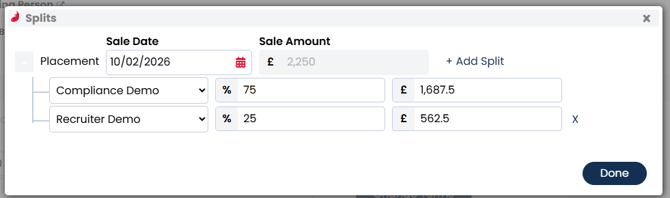
You can split the fee between up to 3 users. Add either % or £ values and Firefish will calculate the rest. Ensure 100% is allocated before clicking Done.
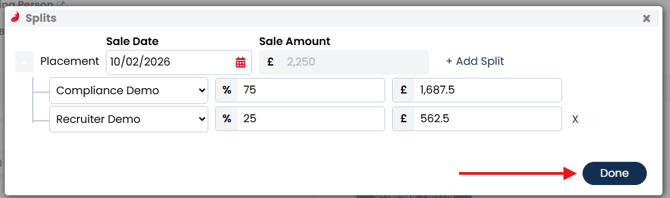
When you’re happy with all details, click Confirm and when prompted if you want to reconfirm the details, choose Yes.
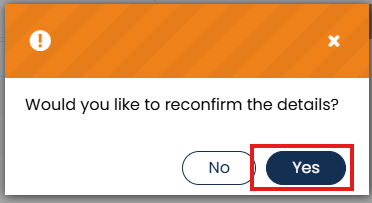
This saves the placement and generates placement emails. The Placement Summary will now show in read-only mode (green label).

Sales Plan updates are based on the placement or start date, depending on system configuration. Super Users can update this setting via Job Configuration > Permanent Workflow.
You can edit placement sales at any time by clicking the blue pencil icon on the placement.

View Forecasted Sales in Report Dashboard
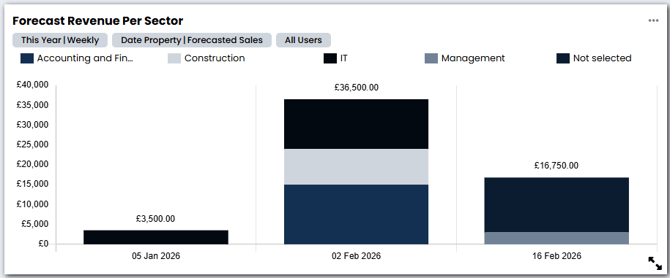
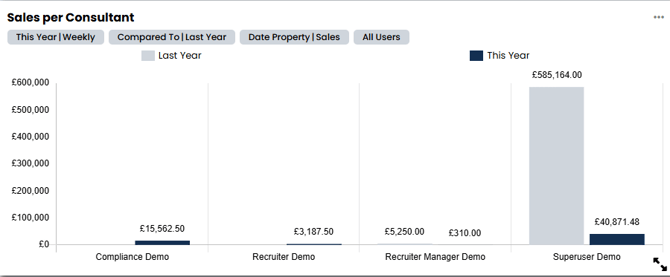
To view forecasted sales via the Reports Dashboard, create a card using the Job module.
You can track:
- Forecasted By Date
- Forecasted Probability
- Forecast vs Actual
- Forecast by location, sector, and consultant
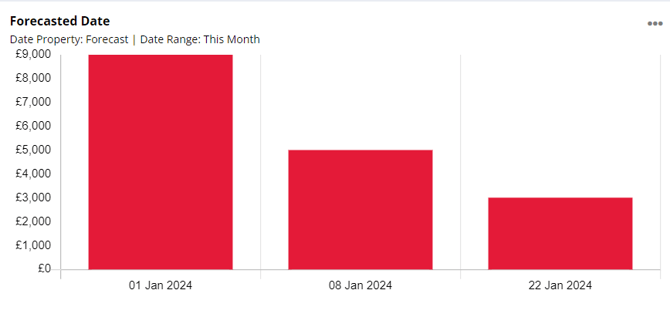
Check out the Report Library for some easy pre-made dashboards