Firefish allows you to create and manage temporary shifts directly from the Availability Pool on a Temp Job.
You can create individual shifts, schedule recurring shift patterns and update existing shifts as requirements change. Shifts can then be assigned to candidates through the Temp Workflow.
This guide explains how to create and edit shifts, manage recurring patterns and understand how changes affect existing candidate bookings.
Contents
- Accessing the Shift Calendar
- Creating a Standalone Shift
- Creating Recurring Shifts
- Editing an Existing Shift
- Editing Recurring Shifts
- Managing Changes to Booked Shifts
- Frequently Asked Questions
Accessing the Shift Calendar
Shifts are created and managed from the Availability Pool within a Temp Job.
To access the shift calendar:
- Open the relevant Temp Job.
- Select the Availability Pool stage.
- Ensure you're using Calendar View.
- Use the calendar dropdown to select your preferred view.
The available calendar views are:
| View | Description |
|---|---|
| Today | Displays today's shifts. |
| Day | Displays shifts for a selected day. |
| Work Week | Displays shifts across the working week. |
| Week | Displays a full week. |
| Month | Displays shifts across the month. |
You can use these views to review your scheduled shifts and identify where additional cover is required.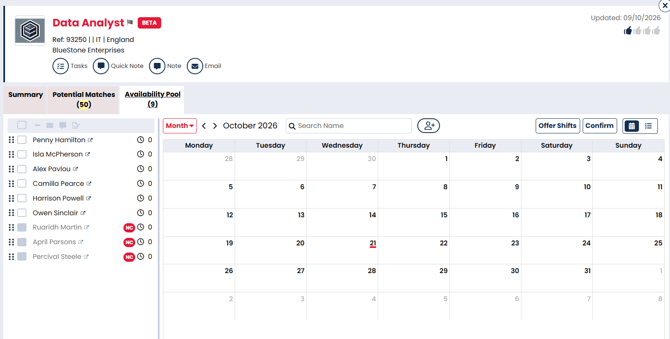
Creating a Standalone Shift
A standalone shift is an individual shift scheduled for a specific date and time.
To create a shift:
- Open the Availability Pool in Calendar View.
- Select the relevant date and time on the calendar.
- Click + Shift.
- Complete the Add a Shift window.
- Select Save to add the shift to your calendar.
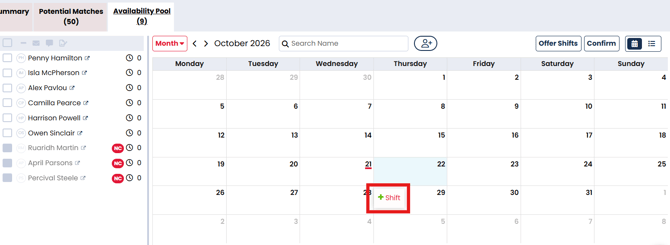
Understanding the shift fields
The Add a Shift window contains the following fields:
| Field | Description |
|---|---|
| Title | The shift name, which defaults to the Job Title. |
| From Date/Time | The date and time the shift begins. |
| To Time | The time the shift finishes. |
| Break | The break duration associated with the shift. |
| Positions | The number of candidates required for the shift. |
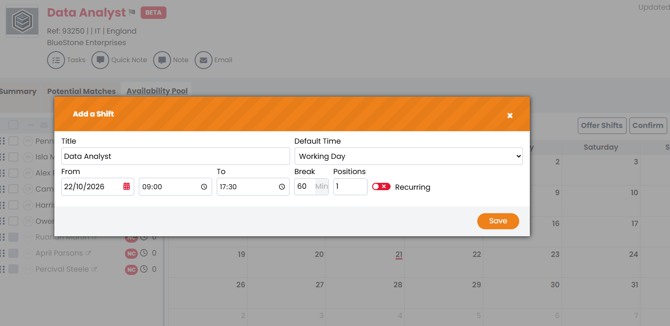
For example, if a client requires three Healthcare Assistants on Friday from 08:00 to 16:00, you can create one shift with Positions set to 3 rather than creating three separate shifts.
Once saved, the shift appears in the Availability Pool calendar.
Note: Default shift start and end times can be configured under Settings > System Configuration > General > Calendar. Applicable shift defaults may also be defined against the Job Code within your Temp Rate Card.
For further information, see Creating and Managing Standard Temp Rate Cards.
Creating Recurring Shifts
Recurring shifts allow you to create a repeating shift pattern without adding each shift individually.
For example, you may need two candidates every Monday, Wednesday and Friday for the next eight weeks.
To create recurring shifts:
- Open the Availability Pool in Calendar View.
- Select the date and time for the first shift.
- Click + Shift.
- Complete the shift details.
- Enable the Recurring option.
- Configure the recurring pattern.
- Save your changes.
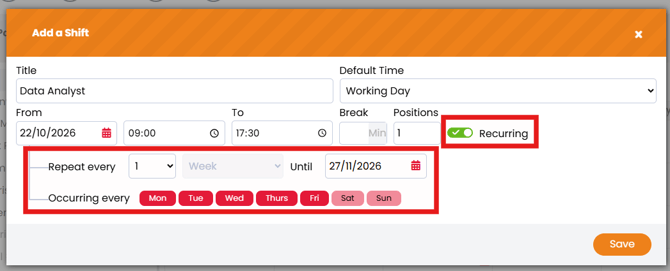
Recurring shift settings
| Setting | Description |
|---|---|
| Frequency | How often the shift repeats, measured in weeks. |
| End Date | The date the recurring pattern should stop. |
| Days | The days of the week on which the shift should occur. |
Example: Weekly shift pattern
A client requires two candidates every Monday to Friday from 09:00 to 17:30 for six weeks.
Create the shift, enable Recurring, select Monday-Friday, and configure the appropriate end date.
When saved, Firefish creates the individual shift occurrences in the calendar.
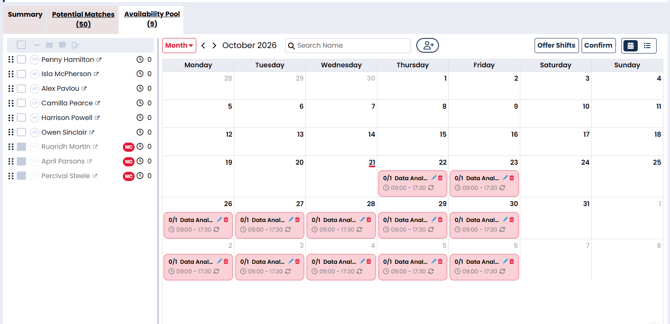
Each occurrence can subsequently be managed individually or as part of the recurring series.
Editing an Existing Shift
You can edit a shift after it has been created, for example if the client changes the working hours or number of positions required.
To edit a shift:
- Open the relevant Temp Job.
- Navigate to the Availability Pool in Calendar View.
- Locate the shift you want to amend.
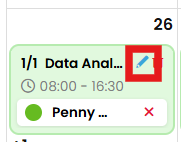
- Select the pencil icon.
- The Edit Shift window will open.
- Make the required changes.
- Save the updated shift.
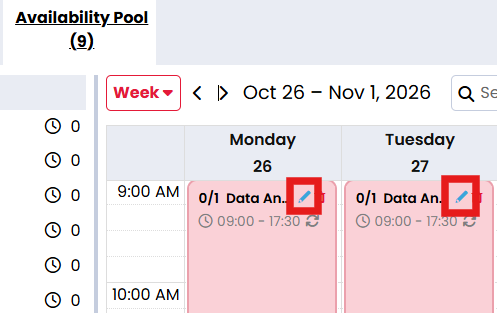
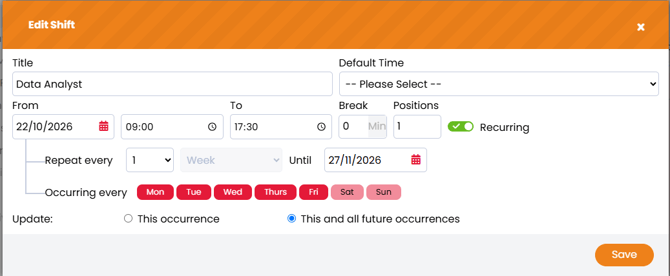
You can amend the shift details, including the dates, times, breaks and number of positions required.
Example: Increasing shift capacity
A client initially requests two candidates for a shift but later increases the requirement to four.
Open the shift and update Positions from 2 to 4.
This increases the number of positions available for assignment.
Important: Only candidates with a Confirmed booking count towards the number of filled positions. Candidates who are Pending, Offered or Accepted do not reduce the number of available positions until they are confirmed.
Editing Recurring Shifts
When editing a recurring shift, Firefish allows you to choose whether the change applies to one occurrence or to the remaining series.
There are two options:
| Option | Behaviour |
|---|---|
| This occurrence | Updates only the selected shift. It becomes a standalone shift and is removed from the recurring series. |
| This and all future occurrences | Updates the selected shift and all subsequent shifts in the recurring series. The shifts remain part of that recurring series. |
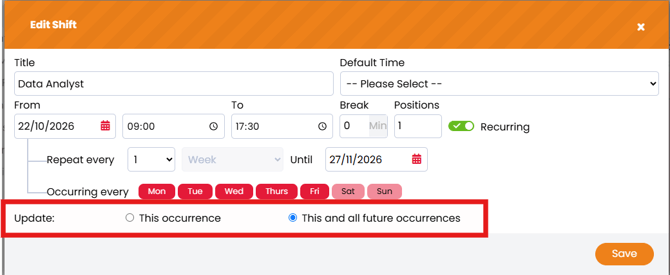
Example: Editing one shift
A client normally requires three candidates every Friday, but only needs two next Friday.
Open that Friday's shift, select This occurrence and change Positions from 3 to 2.
Only the selected Friday is updated. The remaining recurring shifts retain their existing requirements.
Example: Changing all future shifts
A client changes their regular Friday shift from 08:00–16:00 to 09:00–17:00.
Open the first shift affected by the change and select This and all future occurrences.
Update the times and save. Firefish applies the change to that shift and the remaining future occurrences in the series.
Managing Changes to Booked Shifts
Shifts may need to be updated after candidates have already been assigned or confirmed.
When you edit or cancel a shift, Firefish updates the booking information in the recruitment workflow and candidate portal, where enabled.
Any applicable rate calculations are also updated to reflect the revised shift details.
However, editing or cancelling a shift does not automatically notify the candidate of the change.
You should contact affected candidates directly to communicate changes to their working arrangements.
Before making changes to a booked shift, consider:
- Whether the revised working hours affect the candidate's availability.
- Whether the change creates a conflict with another shift or rest period.
- Whether pay or charge rates are affected.
- Whether the number of required positions has changed.
- Whether assigned or confirmed candidates need to be contacted.
Example: Changing the finish time
A candidate is confirmed to work from 09:00 to 17:00, but the client extends the shift to 18:00.
After updating the shift, check that the revised finish time does not conflict with the candidate's other commitments or mandatory rest requirements.
The updated booking information will be reflected in Firefish, but the candidate should be contacted to confirm the change.
For instructions on adding candidates to shifts, see Assigning Candidates to Temp Shifts.
For guidance on shift offers and confirmations, see Offering Shifts and Managing Responses and Confirming Candidates on Temp Shifts.
Frequently Asked Questions
Can I create multiple shifts at once?
Yes. Use the Recurring option to create repeated shifts based on the selected days, frequency and end date.
Can I edit just one shift in a recurring series?
Yes. Select This occurrence when editing. The selected shift becomes standalone and the rest of the series remains unchanged.
Can I change all future shifts in a recurring series?
Yes. Select This and all future occurrences to update the selected shift and subsequent shifts in the series.
Can I increase the number of positions on an existing shift?
Yes. Edit the shift and update the Positions field.
Do Accepted candidates count towards filled positions?
No. Only Confirmed candidates reduce the number of available positions on a shift.
Will candidates be notified automatically if I change their shift?
No. Although the updated booking information is reflected in Firefish and the candidate portal, editing or cancelling a shift does not automatically send a notification. You should contact affected candidates directly.
Where do the default shift times come from?
System-wide default start and end times are configured under Settings > System Configuration > General > Calendar. Job Code shift defaults may also be configured within Temp Rate Cards.