When you’re building a pool of candidates for a temp job, you can send them the information they need before they start receiving shifts. Availability Confirmation brings the document and email into your Temp Workflow, so you can prepare and send them to one candidate or several at once.
Depending on your agency’s setup, you can send:
- An email on its own.
- An email with an assignment confirmation document attached.
- An email with a link for the candidate to review and electronically sign their document.
The document covers the candidate’s terms for that temp job. Individual shifts are still offered and confirmed through your usual shift-booking process.
Contents
- Before you start
- Setting up Availability Confirmation
- Sending a confirmation when adding candidates
- Requesting a signature
- Checking document and signature status
- Tracking outstanding signatures
- Sending a confirmation again
Before you start
Your Superuser needs to enable Availability Confirmation in your Temp Workflow settings.
If your agency uses documents, your Superuser also needs to upload the templates recruiters will choose from. If no document templates have been uploaded, you can still send an Availability Confirmation email.
Before sending, check that:
- The candidates have valid email addresses.
- The job and candidate details used in your templates are up to date.
- The candidates meet your agency’s requirements for entering the Availability Pool.
Your existing compliance checks still apply. Signing an assignment confirmation document does not change a candidate’s compliance status.
Setting up Availability Confirmation
Superusers can configure the feature at:
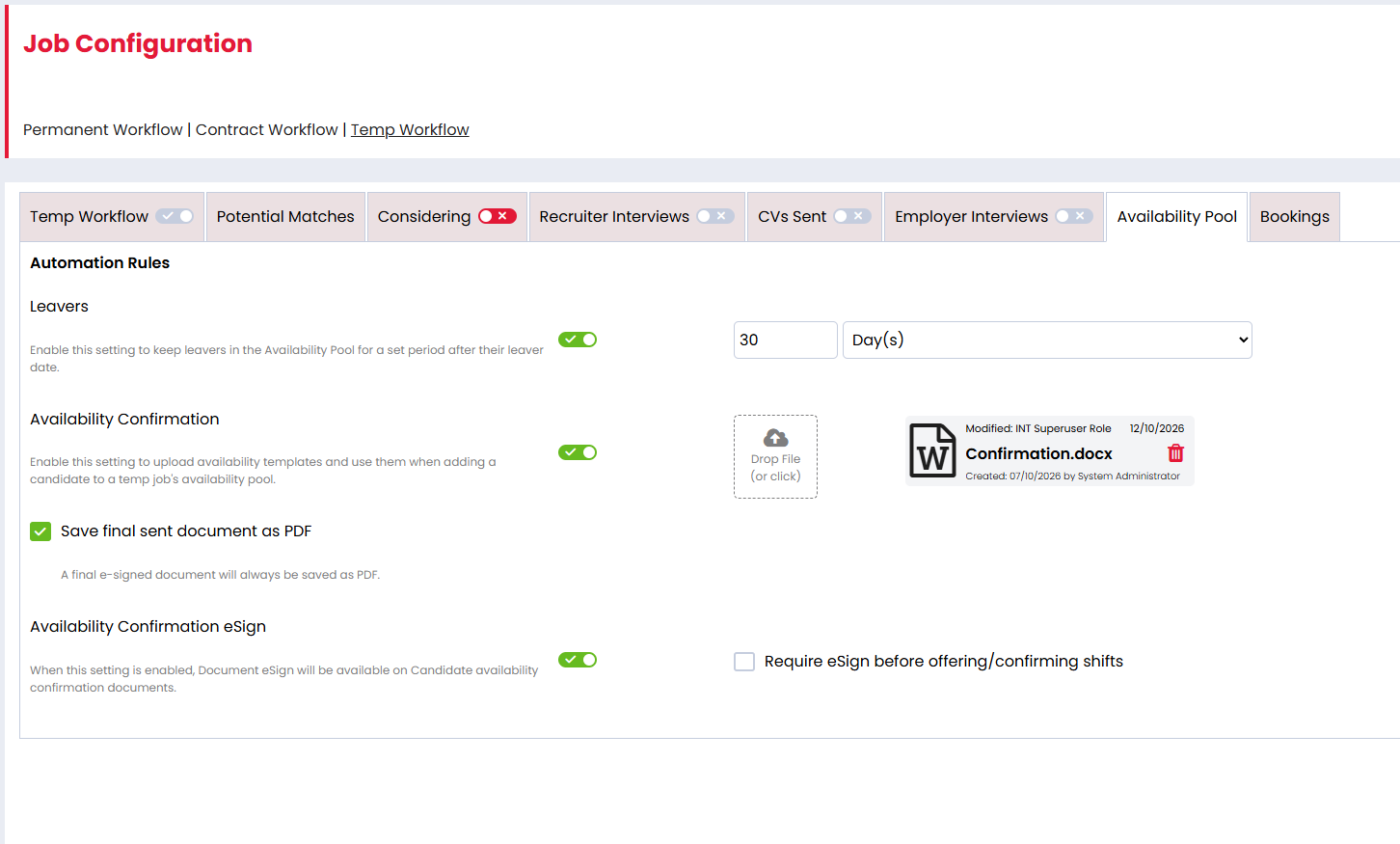
Settings > Job Configuration > Temp Workflow > Availability Pool
Enable Availability Confirmation, then choose how your agency will use it.
Document templates
Upload your assignment confirmation templates as Word documents:
- Supported formats are .doc and .docx.
- Each file must be under 10 MB.
- You can maintain several templates for recruiters to choose from.
Select a template’s file icon to open it in the document editor. Use merge fields to bring job, candidate, contact and company details into the document.
The Temp Pay Schedule merge field can include candidate pay information from the job’s applicable rate card. Check the job’s rates before issuing documents that use this field.
Document format
Enable Save final sent document as PDF if documents sent without eSign should be converted to PDF.
If this is unticked, documents sent as attachments retain their Word format. Completed eSign documents are saved as PDFs.
eSign settings
Enable Availability Confirmation eSign to let recruiters request a candidate signature.
You can then enable Require eSign before offering/confirming shifts if candidates must sign an issued request before those shift actions can proceed.
Document and eSign settings become available once you have uploaded a document template.
Email templates
Manage your confirmation emails at:
Settings > System Configuration > Activities Library > Email > Job > Temp Workflow > Availability Confirmation
You can maintain multiple email templates and choose a default.
When eSign is enabled, include the Availability eSign Button merge field so candidates receive the link to sign their document. Firefish requires this field when saving the email template.
Sending a confirmation when adding candidates
With Availability Confirmation enabled, adding candidates to the Availability Pool opens a review process before they are added.
You can start this by moving selected candidates into the Availability Pool from a recruitment stage, or by adding a candidate directly from the Availability Pool.
1. Review your candidates
The first screen shows the candidates included in the confirmation.
Review the list and remove anyone you do not want to include. Candidates who cannot proceed are shown with a reason, such as an invalid email address or a compliance restriction.
Select Continue when you’re happy with the selection.
2. Prepare your document
If document templates are available:
- Choose the template you want to use.
- Select Create to open it in the document editor.
- Review the wording and make any amendments needed for this group of candidates.
- Add a candidate signature field if you’re requesting eSign.
- Continue to the email step.
You choose one template and prepare it once for the selected group. Firefish then creates each candidate’s document using their own details.
Merge fields may still appear as placeholders in the editor. Firefish fills these with the relevant details when the documents are sent.
If a document is optional, you can choose No Document Required and continue with an email only. This option is unavailable when your agency requires eSign before offering or confirming shifts.
3. Review and send your email
Choose the email template, check the subject and message, then select Send.
Each included candidate receives their own email. Depending on your document setup, it contains either an attachment or a signing link.
For a bulk send, a progress panel shows how the send is progressing. Review the completion results and follow up on any candidates who could not be processed.
Note: Closing the process before the final Send or Skip Email action leaves the candidates outside the Availability Pool. Skip Email completes their addition to the pool without sending the confirmation.
Requesting a signature
If your agency has enabled Availability Confirmation eSign, you can include a candidate signature field when preparing the document.
A document containing a signature field is delivered through a signing link in the email. Without a signature field, the document is sent as an attachment.
What the candidate does
The candidate:
- Opens the signing link in their email.
- Reviews the document.
- Sets up their signature.
- Places the signature in the required field.
- Submits the signed document.
Once signing is complete, the candidate receives an email with the signed PDF attached. Firefish also records an Availability Confirmation Signed activity against the candidate and job.
When a signature is required before shifts
Your agency can enable Require eSign before offering/confirming shifts.
With this setting enabled, you must include a candidate signature field when preparing the document. Once the required signing request has been sent:
- You can still assign the candidate to shifts at Pending.
- You cannot offer or confirm their shifts until they have signed.
- Firefish explains the outstanding signature when you try to proceed.
This applies to both individual and bulk shift actions.
Note: Selecting Skip Email does not issue a signing request, so it does not create this signature restriction.
Checking document and signature status
In the job’s Availability Pool, the icon beside each candidate shows their confirmation status.
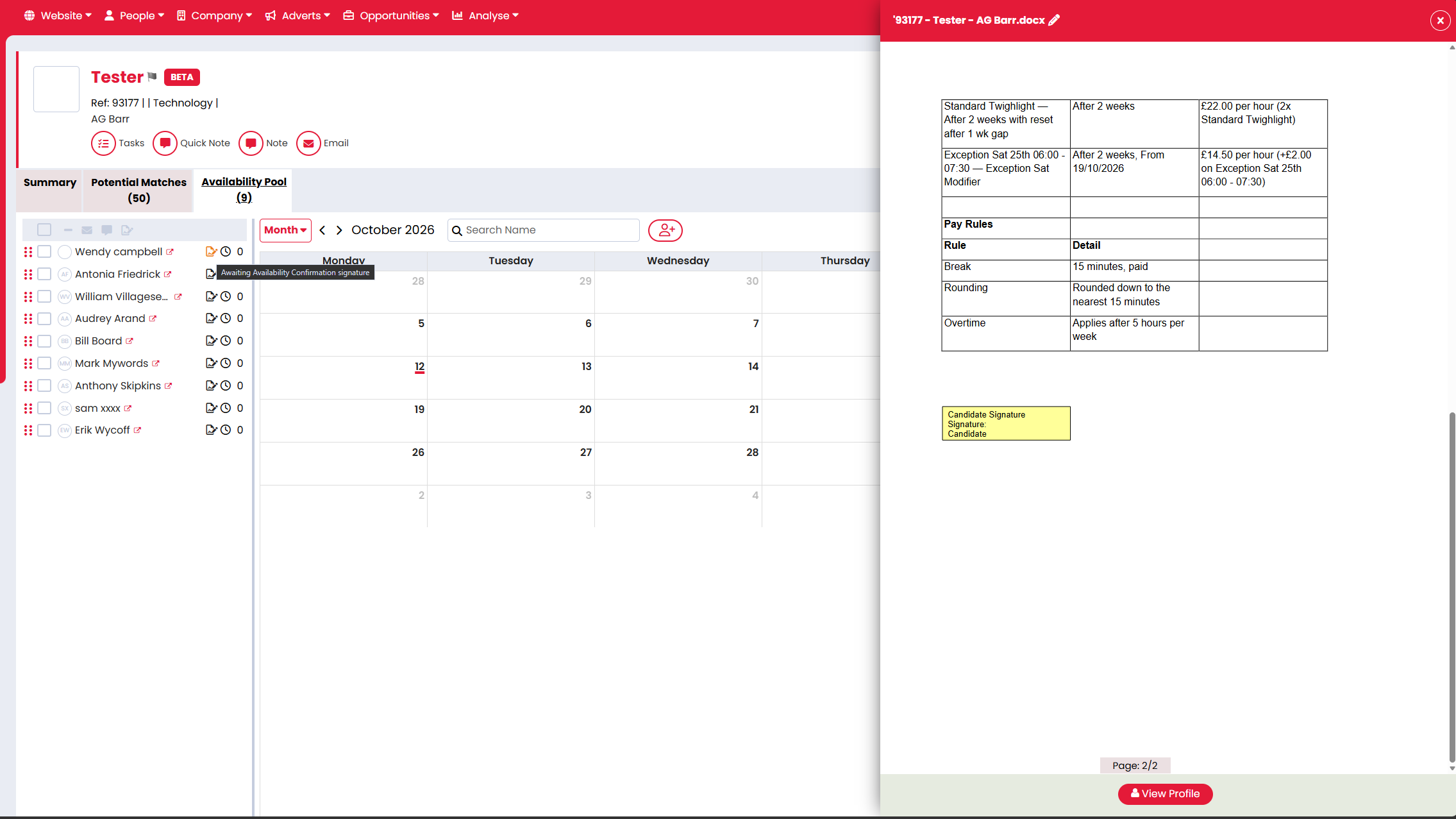
Hover over the icon to read its description.
| Indicator | What it means |
|---|---|
| No icon | No confirmation has been sent yet. |
| Black — document sent | The document was sent without a signature request. Select the icon to view it. |
| Black — email only | The email was sent without a document. The tooltip reads “Email sent, no document included.” |
| Orange | The document is awaiting eSign. Select the icon to view it. |
| Green | The candidate has signed. Select the icon to view the document. |
| Red | The confirmation was skipped, is missing or encountered an error. Hover over the icon for the reason. |
An email-only confirmation has no document to open.
Tracking outstanding signatures
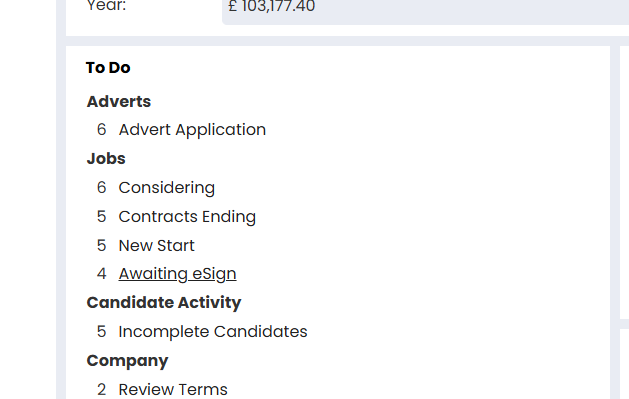
Open Awaiting eSign on your Dashboard to see outstanding Temp Availability Confirmation requests alongside Contract requests.
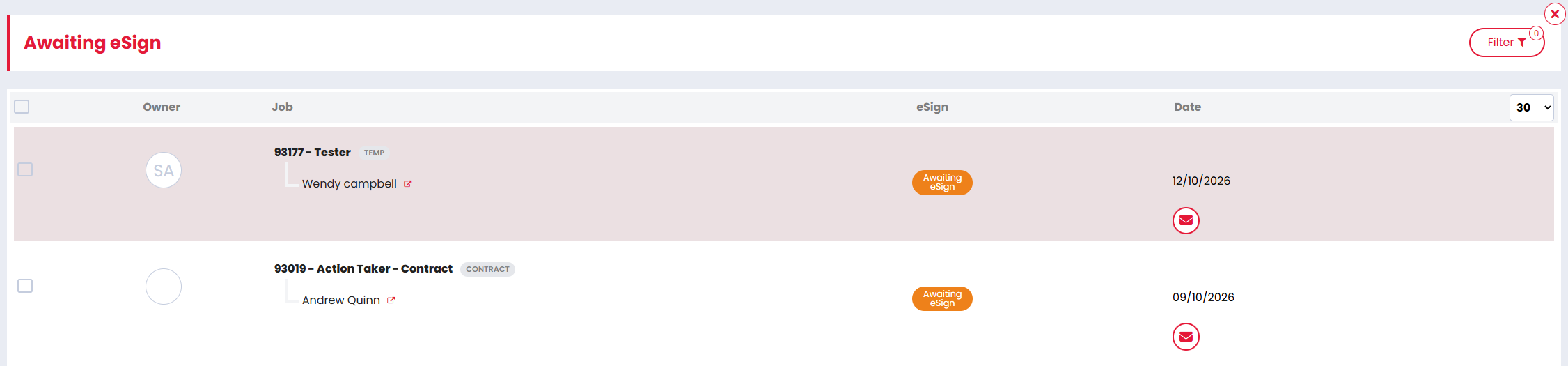
Temp requests are marked TEMP. Use the filters to narrow the list by:
- Workflow
- Owner
- Candidate
- Job
From a Temp request:
- Select the job to open its Availability Pool.
- Open the candidate to review their record.
- Select the envelope to preview the email that was sent.
The request drops off the list once the candidate signs.
Removing a reminder
If you no longer want a request in your To Do list, select it and choose Remove. You can use Undo immediately afterwards to restore it.
Removing the reminder only hides it from the list. The candidate can still sign, and any requirement to sign before shifts can be offered or confirmed still applies.
A fresh signing request creates a new reminder.
Sending a confirmation again
You can send a confirmation to candidates already in the Availability Pool without removing and adding them again.
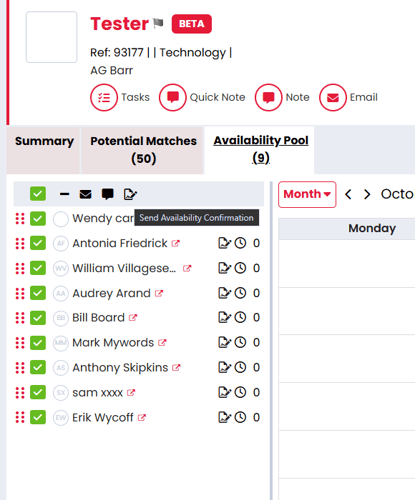
- Open the job’s Availability Pool.
- Select the candidates you want to contact.
- Select Send Availability Confirmation from the candidate toolbar.
- Review the candidates, prepare the document and check the email.
- Select Send.
Use this when you need to issue updated terms or replace an earlier signing request.
Sending a new document for eSign starts a new signature request. The candidate needs to use the link in the latest email and sign the new document, even if they signed an earlier version.
If a candidate leaves the Availability Pool, their outstanding signing link is invalidated and the reminder is removed from Awaiting eSign. Adding them back starts a fresh confirmation process.