Your Contract Workflow settings control how contract jobs, placements and related processes behave within Firefish. From workflow stages and authorisation settings to rates, Time Capture and placement configuration, these settings help you tailor the system to match your recruitment processes.
This article explains each available setting within the Contract Workflow and how it impacts your users, jobs and placements.
Locating Contract Workflow Settings
-
Click the cog icon in the top menu section of the page.
-
Select Job Configuration.
-
Click on Contract Workflow.
Contract Workflow General Settings
In the Contract Workflow tab, you can pick which fields are enabled on the Summary of a Job, enable Job Authorisation and choose the unit settings that should be used.
Customise Your Fields
Just like the Custom Fields in the Properties, you can decide which fields to enable for contract roles, and which fields are mandatory.
The fields available to you are:
- Job Type- This will always be set to 'Contract' in the Contract Workflow
- CV Deadline - Sets the deadline for sending CVs to Hiring Managers or the closing date for applications
- Job Source - Record where/how each job was sourced
- Team - Allows contract jobs to be grouped by a team or discipline i.e. Commercial, Construction or M&E
- Subject To - Add anything additional you require for a successful placement i.e. References or mandatory qualifications. This field is filled in at the Offer stage.
You can also create your own custom fields. To find out more check out the Properties settings page.
Authorisation on Job
Choose Super Users or Compliance Users who will be responsible for checking company details and the stage that these must be checked at before jobs can be progressed any further. They will receive an email and a to do list item whenever a new job is created.

Unit Settings
-
Rate Type - The unit settings allow you to choose your default rate type (per day or per hour) and the default number of hours in a day.
-
Include Weekends - You can also choose if weekends are included by default when the number of days is being calculated on a job.
When the ‘Include Weekends’ setting is enabled, include weekends will be checked by default for all new jobs created.
When the ‘Include Weekends’ setting is disabled, include weekends will be unchecked by default for all new jobs created.
Sales Settings
Customise how your sales figures appear in Firefish.
For contract roles, you can:
- Set a default pay type (PAYE or Self-Employed) and customise its label in your job workflow.
- Set the default percentage for PAYE Working Time Directive .
- Set default percentages for PAYE National Insurance and Pension contributions.
- Choose a display name for your Base Rate.
- Decide whether to calculate sales figures based on margin or mark-up.
Additional Rates
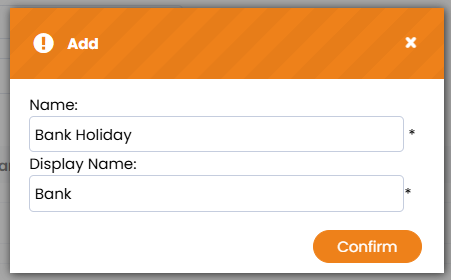
Here you can add additional rates such as overtime and weekend or night shift pay to contract workflows.
Just click + Add New then enter a Name for your rate and a shorter Display name which will appear on the job record.
Recruiter Interview
Whilst there are no settings on the recruiter interviews tab, you can amend the interview drop down options within the Properties tab.

CVs Sent
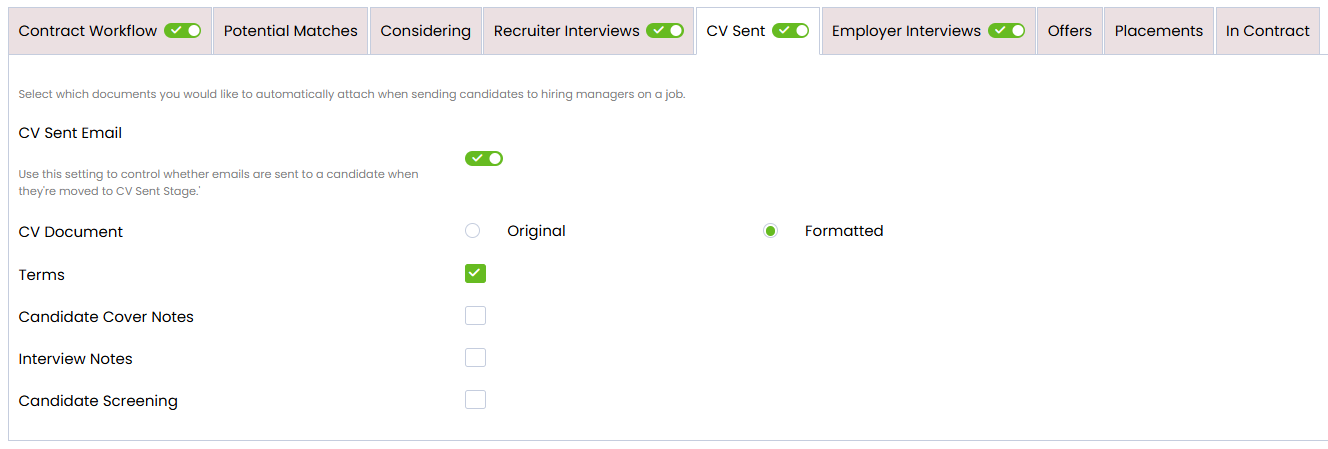
In the CVs Sent section, you can decide which documents are attached to the contact email when sending a CV on the job workflow.
CV Document
Choose whether a candidates original CV or formatted CV are attached to the contact email when sending a CV on the job workflow.
Terms
Choose whether the job profile document for a job is automatically attached to a 'CV Send' email. This will be enabled by default but can easily be disabled by unchecking the box. The job profile document can be found on the job summary screen.
Candidate Cover Notes
Choose whether a candidates cover notes are attached to the contact email when sending a CV on the job workflow. This will come from the Cover Letter field within the Documents tab of the candidates record.
Interview Notes
Choose whether interview notes are attached to the contact email when sending a CV on the job workflow. This will come from the Interview Notes field within the Documents tab of the candidates record.
Candidate Screening
Choose whether a candidates screening notes are attached to the contact email when sending a CV on the job workflow. This will come from the Candidate Screening field within the Documents tab of the candidates record.
Employer Interviews
Whilst there are no settings on the Employer Interviews tab, you can amend the interview drop down options within the Properties tab.

Offers
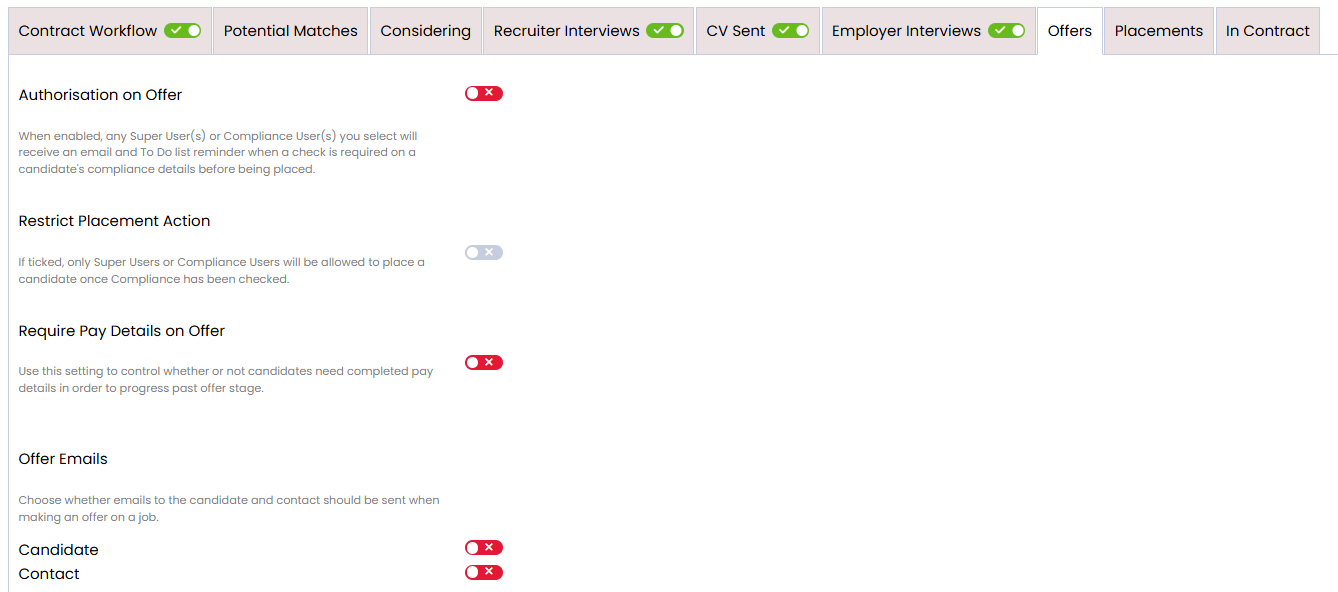
In the Offers tab, you have some options to customise the offer stage of your contract job workflow.
Authorisation on Offer
Choose Super Users or Compliance Users who will be responsible for authorising job offers. They will receive an email and a to-do list item whenever a new offer is created.
Restrict Placement Action
Enabling this setting means that only Super Users or Compliance Users will be allowed to place candidates. This setting is only available when Authorisation on Offer is enabled.
Require Pay Details on Offer
Use this setting to control whether or not candidates need completed pay details in order to progress past offer stage.
Offer Emails
- Candidate- This controls whether an email is sent to the Candidate when an Offer is created.
- Contact- This controls whether an email is sent to the Contact when an Offer is created.
Marketing Preferences
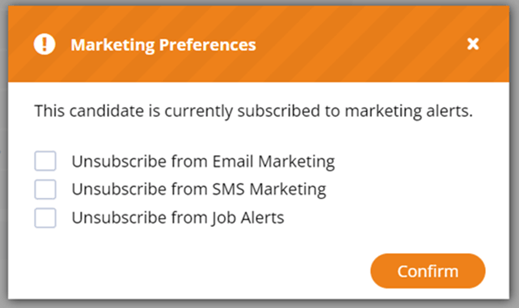
You can choose to enable a pop-up which allows users to unsubscribe your candidate from future marketing emails, SMS and job alerts at the offer stage of the job workflow.
Placements
In the Placements tab you have some options to customise the placement stage of your contract job workflow.
Placement Confirmation
-
HR Email - When an email address is entered in this field an email will be sent to this address every time a placement is confirmed. If a Job Profile document has been added to the job summary, this will be automatically attached to the HR Email.
-
Send CSV File To HR - If this setting is enabled, a CSV file will be sent to your HR team each time a placement is confirmed.
-
-
Accounts Email - When an email address is entered in this field an email will be sent to this address every time a there is a fee to be billed or a new start is checked in.
-
Send CSV File to Accounts - If this setting is enabled, a CSV file will be sent to your Accounts team each time a placement is confirmed.
-
-
Not-editable Placement Fields - Selecting any of the fields listed here will lock editing for everyone besides Super-Users and Compliance Users.
-
Confirm Sales - Decide whether you would like your Contract sales to appear in your sales figures on the Placement Date or Start Date.
-
Invoice Date - You can choose to enable the Invoice Date field on Contract placements. This can be auto-filled with the Placement Date or Start Date, and the date can be overwritten too.
Automation Rules
- Contract eSign - When this setting is enabled Document eSign will be available on Candidate and Employer Contracts.Learn more here.
-
Marketing Preferences - You can choose to enable a pop-up which allows you to unsubscribe your candidate from future marketing emails, SMS and job alerts at the placement stage of the job workflow.
-
Placement Owner - You can choose to give placement ownership to the Job owner or the User who makes the placement (sales figures and KPIs will also be assigned to this user).
-
Candidate Owner - When this setting is enabled, the Placement Owner will also become the Candidate Owner.
-
Close Adverts - If this setting is enabled, then adverts will close when the Job is placed or closed.
- AWR Review - Use this setting to set how long after a candidate's start date that they'll appear under the AWR Reviews quick link. This will only apply to Candidates in placements where the pay type is PAYE.
In Contract
In the In Contract section you have some setting which are related to candidates who are currently in contract.
Automation Rules
Time Capture
When this setting is enabled, the Time Capture lozenge and side panel will show when candidates have been placed on a contract job. The time captures are compatible with Tempaid, Xero and Timesheet Portal.
Find out how to enable Time Capture here.
Timesheet Approver
When this setting is enabled, the Timesheet Approver fields will be available on the placements page.
Accounts Email
If you'd like to notify your accounts department with an email when a timesheet has been submitted for one of your placements, then enter the email address in this field.
Extensions
-
Authorisation check for Extensions - When enabled, any Super User(s) or Compliance User(s) you select will receive an email and To Do list reminder when a change is made to an extension.
Terminations
-
Authorisation check for Terminations - Choose Super Users or Compliance Users to be notified anytime changes are made to Terminations.