Integrating your Microsoft 365 mailbox with Firefish lets you automatically sync incoming and outgoing emails from your primary Outlook inbox and sent items directly with candidate and contact records in Firefish. This eliminates manual logging, keeps engagement histories up to date, and improves team visibility.
Below you’ll find setup steps, what gets synced (and what doesn’t), and how this automation works alongside the Outlook Add-In.
Please Note: This feature is currently in Beta and has not been released live to users. We will communicate to all users once this feature is live and can be utilised.
Contents
What is Mailbox Automation?
Mailbox Automation connects your Microsoft 365 mailbox with Firefish so that new emails sent to and received from your Outlook inbox and sent items are automatically pulled into Firefish and matched to candidate or contact records where possible. Emails are threaded correctly, minimising manual work and reducing risks of missing important communications.
Before You Begin
Before enabling Mailbox Automation:
-
You must have a Microsoft 365 business mailbox
-
A Firefish Super User and your Microsoft 365 administrator should coordinate so that the required Firefish integration app (“Firefish-365Integration”) is approved in your Microsoft tenant, and excluded from any conditional access policies Such as MFA, Device Control or Location.
Note: Changes to conditional access policies in M365 can take some time to take effect. We recommend that you aim to complete these changes with your Administrator at least 24 hours before attempting to sign in with Firefish.
-
Ensure users are prepared to re-authenticate if migrating from a legacy sync method.
Enable Mailbox Automation
System Email Settings
-
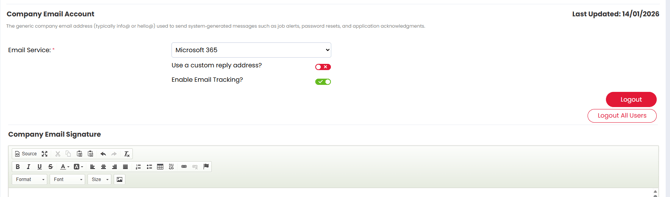
Go to Integrations → System Email Settings in Firefish.
-
Click Log into Microsoft 365 and authenticate with your organisation’s Microsoft admin credentials.
Your Microsoft admin may need to approve the Firefish integration app.
-
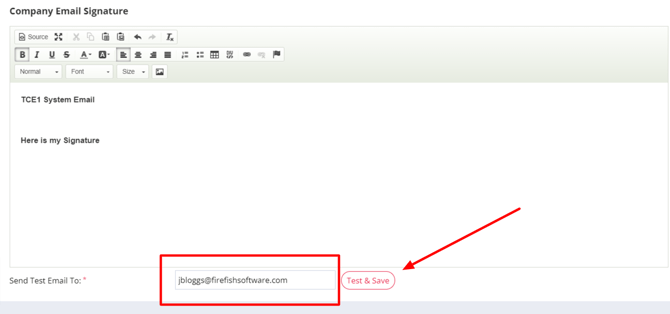
Set up an email signature if required and enter a destination email address to send the test email to.
-
Click Test and Save to validate and store your settings.
- More information on System Emails is available here.
-
Once saved, Mailbox Automation will be enabled by default under Email Logging.
You can toggle it off here if needed.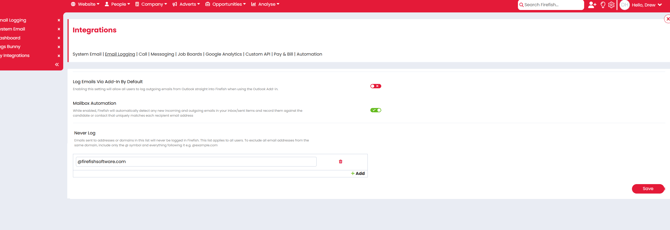
Note:
– The setting Log Emails via Add-In by Default should remain off to avoid duplicated activities.
– Disabling Mailbox Automation at system level will disable it for all users.
Personal Email Settings
Each user can link their own mailbox for automation:
-
Click your profile → My Integrations in the top right of Firefish.
-
Log in with your Microsoft 365 credentials.
-
Set up an email signature if required and enter a destination email address to send the test email to.
-
Click Test and Save to validate and store your settings.
- More information on this is available here.
-
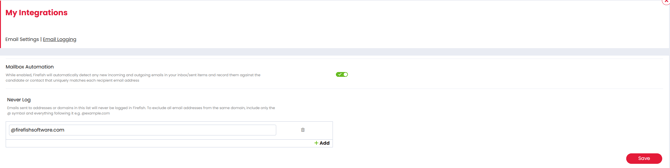
Once connected, your mailbox will begin syncing automatically.
If you prefer not to sync your personal Outlook emails, you can disable Mailbox Automation on this page.
What Gets Synced
Mailbox Automation pulls the following from your Outlook mailbox:
-
Inbox and Sent Items — only new messages after setup are synced.
-
Single Emails — logged under the matching candidate/contact record’s activity feed.
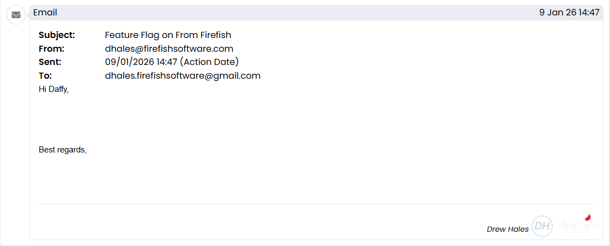
-
Email Threads — conversations and replies grouped appropriately.
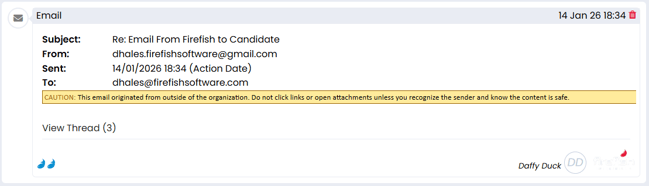
-
Attachment Summary — filenames of attached files are summarised.
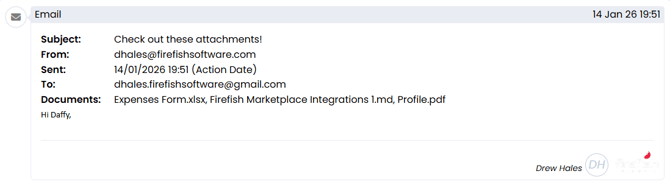
Emails sent directly from Firefish will still provide open/click tracking.
What Isn’t Synced
Mailbox Automation does not sync:
-
Historic emails (sent/received before setup) — these must be logged manually or via the Outlook Add-In.
-
Emails matching a candidate/contact where the email address exists on multiple records — duplicate match issues prevent syncing.
-
Emails moved automatically by Outlook Rules before hitting Inbox or Sent Items.
-
Full attachments / image content — only attachment summaries appear.
-
Open/click tracking from Outlook emails — tracking only works for Firefish-sent emails.
-
Emails on the never-log list — as specified in your Firefish settings. Find out more about the never log list here.
Using the Outlook Add-In with Mailbox Automation
The Outlook Add-In remains useful for tasks like:
-
Creating or updating candidate and contact records directly from an email in Outlook.
-
Uploading historic emails or CV attachments manually.
When Mailbox Automation is enabled:
-
Logging emails via unique BCC/FWD addresses is considered a legacy upload method.
-
Any email synced by Mailbox Automation and also forwarded/BCC’d will create duplicate activities — which is why the BCC/FWD logging is disabled by default once automation is active.
-
The Add-In still allows record creation and updates without duplicating already synced emails.
More information on how to use the Add-In can be found here.
FAQs
Can I sync emails from before I enabled Mailbox Automation?
No. Historic emails sent/received before enabling automation are not synced automatically — use the Outlook Add-In to upload these manually if needed.
Do Outlook rules affect Mailbox Automation?
Yes. If an Outlook rule moves an email out of your Inbox or Sent Items before Firefish can process it, the email will not be synced. Only emails that pass through the Inbox or Sent Items are eligible for automation.
Will attachments be visible in Firefish?
Only the attachment summary line is synced automatically — full attachments must be uploaded manually via the Add-In.
Do I still need the Outlook Add-In if Mailbox Automation is enabled?
Yes — for creating/updating records from emails and uploading historic email content.
Can shared mailboxes be used with Mailbox Automation?
No. Shared mailboxes are not supported. Mailbox Automation must be connected to a mailbox assigned to a licensed Microsoft 365 user account.
What happens if an email address exists on multiple records in Firefish?
If an email matches more than one candidate or contact record, Firefish cannot determine the correct record and the email will not be synced automatically. This helps prevent emails being logged against the wrong person.
Why aren't my sent items syncing to Firefish records?
Check that your user's email address does exist on multiple candidate or contact records in Firefish. If your email address is duplicated, you will need to either merge or delete those records before any sent emails will sync.