Firefish allows you to configure your Temp Workflow to control how candidates progress through recruitment stages, how your Availability Pool behaves and how shift offers and confirmations are managed.
This guide explains the available settings, what each option controls and how to configure them.
- Accessing your Temp Workflow settings
- Configuring your workflow stages
- Setting Up Pay Configuration
- Configuring Potential Matches
- Managing your Availability Pool settings
- Configuring shift offers and confirmations
- Managing notification templates
- FAQs
Accessing your Temp Workflow settings
To access your Temp Workflow configuration:
- Click the Settings cog in the top navigation menu.
- Select Job Configuration.
- Open the Temp Workflow tab.
From here, you can manage the settings for each stage of your Temp Workflow.
Permissions: Superusers and Compliance users can enable or disable supported workflow stages.
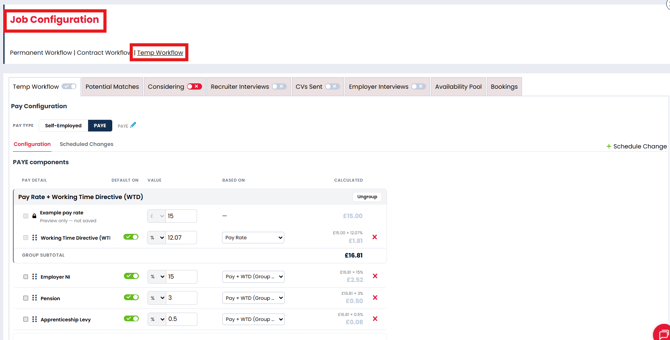
Configuring your workflow stages
You can customise the stages used in your Temp Workflow to reflect how your agency manages temporary recruitment.
The following stages are available:
| Workflow stage | Configuration available |
|---|---|
| Potential Matches | Configure how candidates are matched to jobs. |
| Considering | Enable or Disable this staage |
| Recruiter Interview | Enable or disable the stage. |
| CVs Sent | Enable or disable the stage and configure which documents are attached when sending CVs. |
| Employer Interview | Enable or disable the stage. |
| Availability Pool | Configure how candidates who have left an assignment are displayed. |
| Bookings | Configure shift offering and confirmation notifications. |
To change the available stages, use the relevant controls within Job Configuration > Temp Workflow.
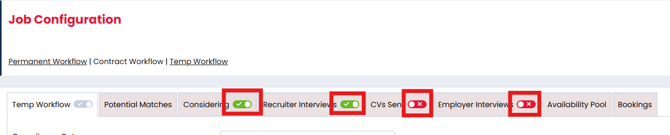
Temp and Contract Workflows can be enabled independently. You do not need to have the Contract Workflow enabled to use the Temp Workflow.
Configuring Potential Matches
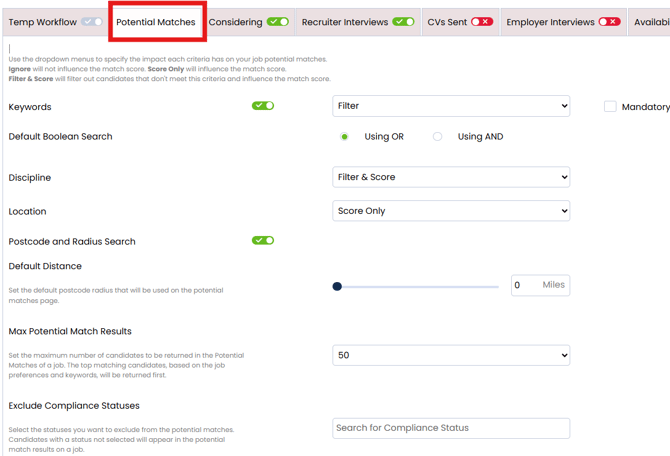
Potential Matches uses Firefish AI to identify and rank suitable candidates for your Temp Jobs based on their preferences, keywords and job requirements.
Within the Potential Matches tab, you can customise how candidates are matched using the following settings:
| Setting | What it controls |
|---|---|
| Keyword Matching | Choose AND or OR matching to control whether candidates must match all keywords or any of them. |
| Preference Impact | Choose how Keywords, Desired Salary, Discipline, Location and Speciality influence matching, including filtering, scoring or ignoring criteria. |
| Postcode & Radius Search | Enable or disable postcode-based matching and the associated radius controls. |
| Default Distance | Set the default postcode search radius, measured in miles. |
| Max Potential Match Results | Choose how many candidates appear in Potential Matches (25, 50, 75, 100 or 500). |
| Exclude Compliance Statuses | Select general compliance statuses to exclude candidates from Potential Matches. |
| Include Contract Statuses | Choose which candidate Contract Statuses are eligible to appear in Potential Matches. |
For a full explanation of matching rules and how each setting affects candidate results, see How to Configure Potential Matches for Jobs.
Managing your Availability Pool settings
The Availability Pool settings control how candidates are displayed after their recorded leaver date.
Within Temp Workflow > Availability Pool, you can configure the Leavers setting.
When enabled:
Candidates remain visible in the Availability Pool, greyed out, for the configured period after their leaver date.
When disabled:
Candidates are removed from the Availability Pool as soon as their leaver date is reached.
This allows you to retain visibility of candidates who have recently left an assignment without keeping them in the active availability list indefinitely.

For information on managing candidate availability and scheduling restrictions, see Managing Candidate Availability in the Temp Workflow.
Availability Confirmation Document
The Availability Pool settings page also allows you to upload, edit and enable the ability for an Availability Confirmation Document to be sent and e-signed when a candidate is added to the Availability Pool.
You can find full details on this here: Availability Confirmation Document
Configuring shift offers and confirmations
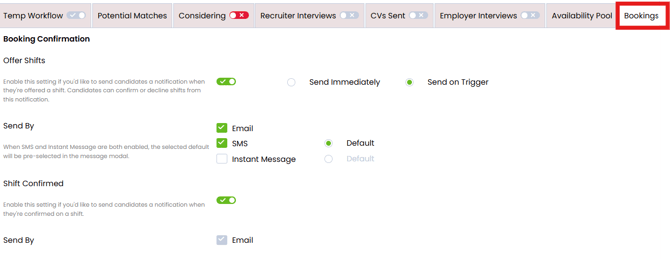
The Bookings tab allow you to control how shift offers and confirmations are communicated to candidates.
To access these settings, navigate to the Bookings tab on the Temp Workflow settings.
 Shift Offered
Enable Shift Offered to allow candidates to receive shift offers and accept or decline them.
When enabled, you can choose how offers are sent:
| Setting | Behaviour |
|---|---|
| Send Immediately | Sends the offer email when a candidate is assigned to a shift. Their status updates to Offered. |
| Send on Trigger | Candidates remain Pending until a recruiter manually sends the offer from the Availability Pool. |
When Shift Offered is disabled, candidates can continue through the booking workflow without receiving a shift offer email.
Send By
Choose which communication methods are available when sending shift offers:
- Email: Send shift offers by email.
- SMS: Send shift offers by text message.
- Instant Message: Send shift offers using Instant Messaging.
You can enable multiple communication methods.
When both SMS and Instant Message are enabled, you can select which method should be used as the default in the message window.
Shift Confirmed
Enable Shift Confirmed to automatically send candidates an email notification when their booking is confirmed.
Shift confirmation notifications are currently sent by email only.
Shift Confirmed can be enabled independently of Offer Shifts, allowing recruiters to send confirmation notifications without requiring candidates to accept an offer first.
For instructions on managing the booking process, see:
Managing notification templates
Shift Offered and Shift Confirmed notifications use email templates configured within the Activities Library.
You can customise these templates to control the information candidates receive.
Shift Offered template
The default email provides candidates with a secure link to review their offered shifts.
Candidates can use the link to accept or decline shifts. The link remains valid for 24 hours.
Shift Confirmed template
The confirmation email provides details of the shifts the candidate has been confirmed to work.
To update either template:
- Navigate Settings > System Config > Activities Library to access the settings.
- On the Email Tab, select Jobs > Temp Workflow.
- Review or update the email template.
- Save your changes.
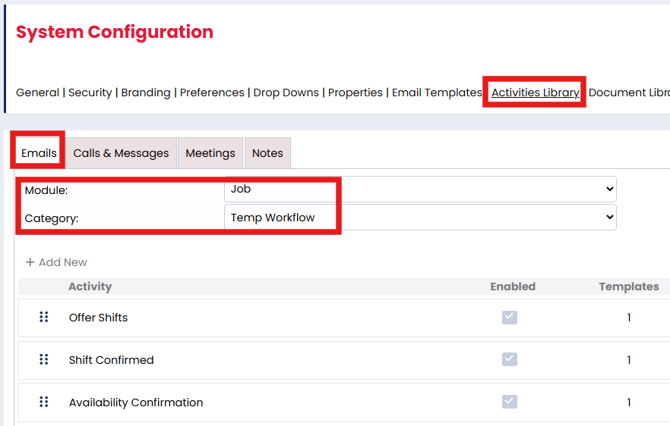
For more information on managing email templates, see How to Use the Activities Library.
FAQs
Can I use the Temp Workflow without enabling the Contract Workflow?
Yes. Temp and Contract Workflows are completely independent.
Can I offer shifts without automatically emailing candidates?
Yes. Select Send on Trigger under Shift Offered. Candidates remain Pending until you manually send their offers.
Can I send confirmation emails without using shift offers?
Yes. Shift Confirmed can be enabled independently of Shift Offered.