To get the most out of your Temp recruitment process in Firefish, it's important to configure your Temp Workflow settings correctly.
Superusers can control how potential matches are suggested, how your availability pool behaves, and what happens when candidates leave roles. This guide will walk you through each setting so you can tailor your Workflow to suit the way your team places Temp candidates.
The Temp Workflow is currently in Beta and will be available to users shortly.
Click the links below to jump straight to a section or keep scrolling.
You can make changes to the Workflow settings of your Temp jobs whenever necessary.
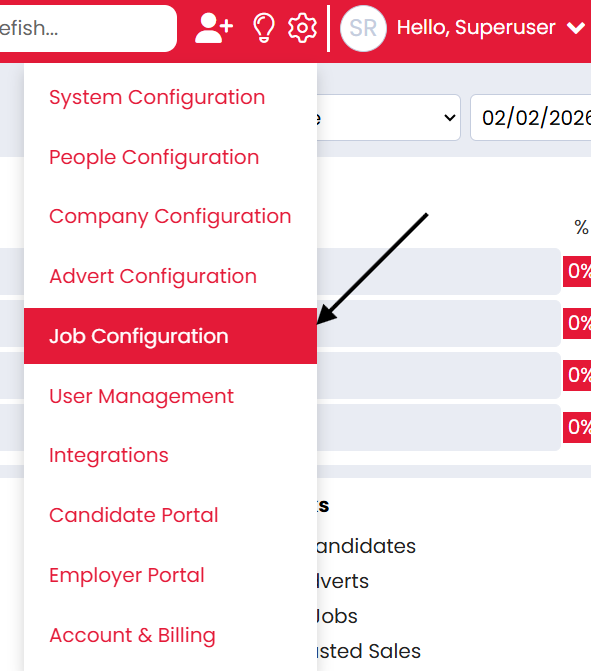
To find your Temp Workflow settings, click the cog icon in the top menu section of the page. Then, select Job Configuration from the drop down menu.
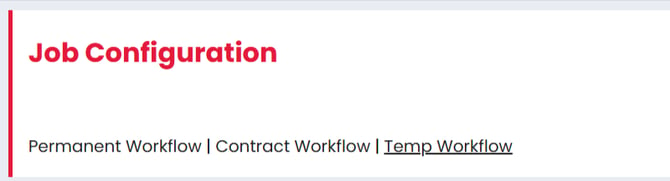
In the Job Configuration section, click on Temp Workflow.
Potential Matches
Potential Matches utilise Firefish AI to match ranked candidates to your Job Workflow - easily showing you the top candidates in your database for a particular role.
You can find full details around Potential Matches Settings on this page.
Note: The Temp Workflow has it's own Potential Match settings, however, the Candidates Contract Workflow Preferences are currently used for Potential Matches on this Workflow.
Recruiter Interviews
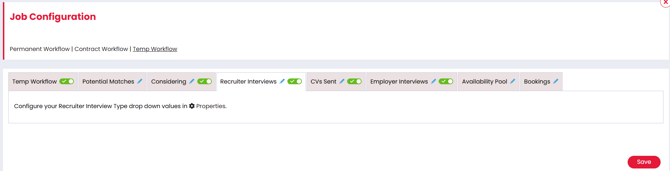
Whilst there are no settings on the recruiter interviews tab, you can amend the interview drop down options within the Properties tab.
CVs Sent
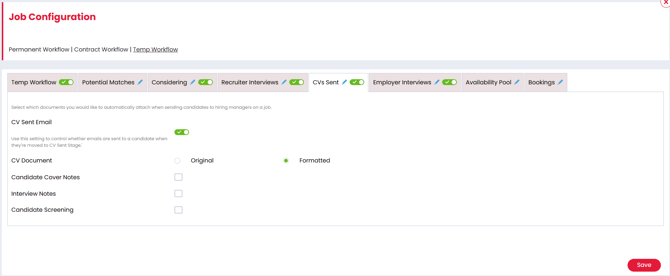
In the CVs Sent section, you can decide which documents are attached to the contact email when sending a CV on the job workflow. You can choose whether:
- a candidates original CV or formatted CV are attached to the contact email when sending a CV on the job workflow.
- a candidates cover notes are attached to the contact email when sending a CV on the job workflow. This will come from the Cover Letter field within the Documents tab of the candidates record.
- interview notes are attached to the contact email when sending a CV on the job workflow. This will come from the Interview Notes field within the Documents tab of the candidates record.
- a candidates screening notes are attached to the contact email when sending a CV on the job workflow. This will come from the Candidate Screening field within the Documents tab of the candidates record.
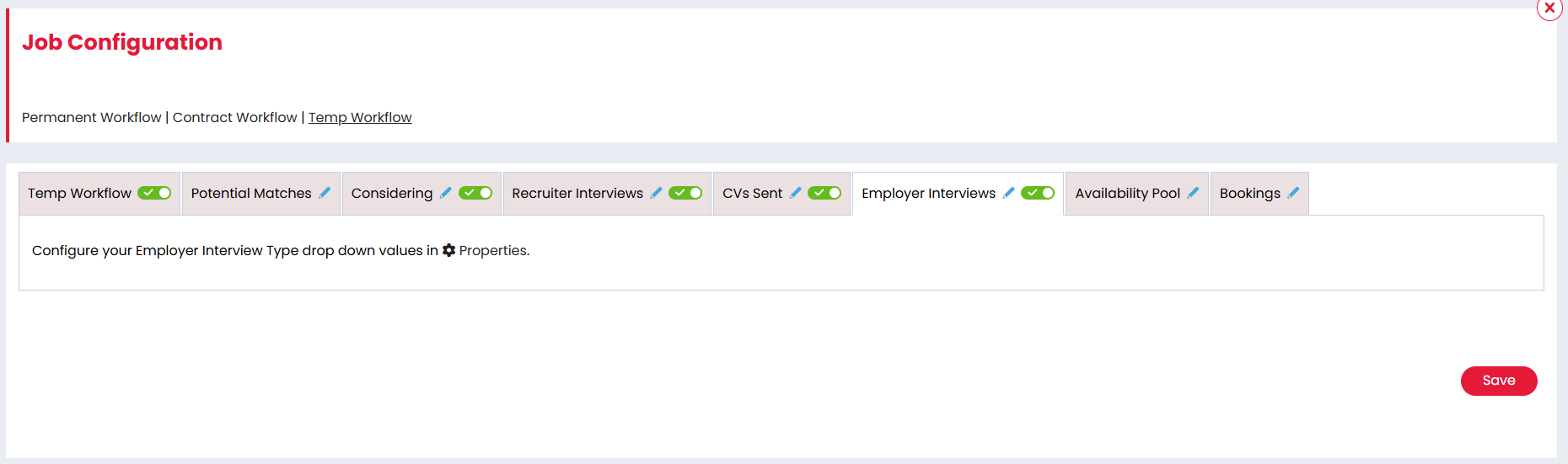
Employer Interviews
Whilst there are no settings on the Employer Interviews tab, you can amend the interview drop down options within the Properties tab.
Availability Pool
The Leavers setting controls how long a candidate stays greyed out at the bottom of the availability pool after their 'leaver date' has been reached.

-
When enabled a candidate remains greyed out for the configured period after their leaver date.
-
When disabled a candidate is removed from the availability pool as soon as their leaver date is reached.
🔗 Further Reading: